Mixer : Organize Page
10 - 218
Organize Page
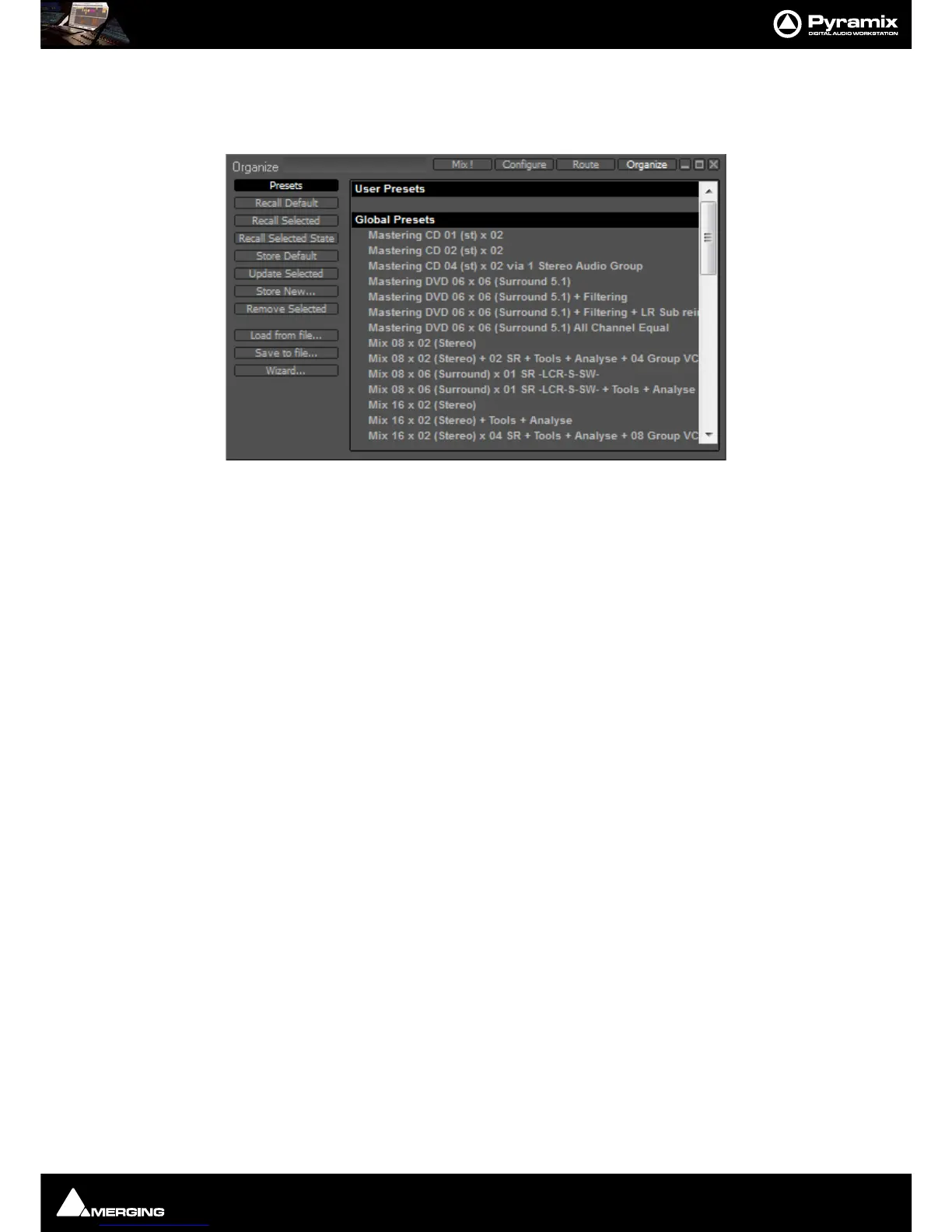
Here, Mixer Presets and Settings can be managed:
Presets
Storing and Recalling Mixer Presets
Mixer Presets can be saved in a user folder or added to the main Mixer Preset list either for the current user or all
users.
Default Mixer
To Save the current Mixer setup as the default Mixer, select Store Default.
Storing New Mixer Presets
To add a preset to the main list of available Mixer presets I.e. the list which appears when starting a new project,
Store New… and enter a name for your Mixer Preset. If the Global box is checked then the preset will be available
for any user logged on the current machine, if not the preset will be available only for the user that created the
new preset.
Removing Mixer Presets
To remove a preset from the main list, select it and click on Remove Selected. The Remove Preset dialog box
appears with OK and Cancel options.
Updating Mixer Presets
To update a Preset with the current settings, highlight it in the list and select Update Selected... the Update Pre-
set
dialog appears asking if you wish to replace the ‘current preset’. Choose OK or Cancel.
Recall Selected State
This option recalls parameters, panning, levels etc. from a saved mixer preset and applies these to the current
mixer.
Note: This only applies to strips and effects common to both configurations. If the current mixer
does not have the same plug-ins etc. non-coincident items will be ignored. similarly if you recall
the state of a 100 strip mixer to a 10 strip mixer the last 90 strips are ignored.
Saving / Loading Mixer Presets to / from files
Mixer Presets can also be stored in Windows folders. Select Load from file... or Save to file... as appropriate. A
Windows Explorer window opens enabling a previously saved Mixer Preset to be loaded or the current Mixer Pre-
set to be named and saved to any Windows folder.



 To Next Page