Tracks and Track Groups : Track Header Panel
5 - 95
In the top row of a Mono Track Header or, by default, in the first Track of a multi-channel Track object, the first
button at top left indicates the mixer strip the Track is connected to. Clicking on this pops up a list of all the Chan-
nels of all the Strips in the current Mixer plus
None. Clicking on any Mixer Strip Channel in the list connects the
Track’s output to it.
The next button is the Track Name. Click on it to type in a new name.
The box with the red number in the second row shows the input currently connected. Click on this to pop up a list
of all possible inputs. Click on an input in the list to connect it.
To change a
Track Input or Output assignment, just click on the corresponding Track input or output box, then
select the appropriate
Mixer channel or Input number from the corresponding pop-up list. If the Input assign-
ment is changed in the Track Header, this change is reflected in the strip and vice-versa.
When
Track inputs and outputs are not assigned, the corresponding boxes for that Track will show no input and
Off instead of numbers.
Multiple Tracks can be assigned to the same
Mixer channel. They are therefore sub-mixed (summed) before enter-
ing the
Mixer. This allows more Tracks to be played than the number of Mixer channels.
Many Tracks can be fed from the same physical input.
Track Control Grouping
Where the Mixer Strip is multi-channel, Tracks are grouped into Multi-Channel Track groups. By default, only the
first Track in such an object shows the full complement of Track Header controls. The other Tracks just show the
channel assignment, e.g.
R, C, Ls, Lfe etc. and a small [+] button. Clicking this button shows the full complement of
Track Header controls.
Button Grouping
Buttons in Multi Channel Track are linked by default. First by Track Group then by Mixer Strip. This behavior can be
modified as follows:
No Modifier Auto linked by Track Group then by Mixer Strip.
Ctrl Bypasses all linking
Shift Affects all Tracks
Ctrl + Shift Bypasses Track Groups but still follows the Strip. (Useful when Multi-Channel
Strips/Tracks are grouped.)
Scroll Wheel Affects Track height.
Tracks Feeding Direct Monitoring Input Strips
Track returns to these strips do not have automatic delay compensation applied and are intended for monitoring
only. When mixing down the Track outputs should be connected to ‘normal’ strips. To indicate this clearly, Tracks
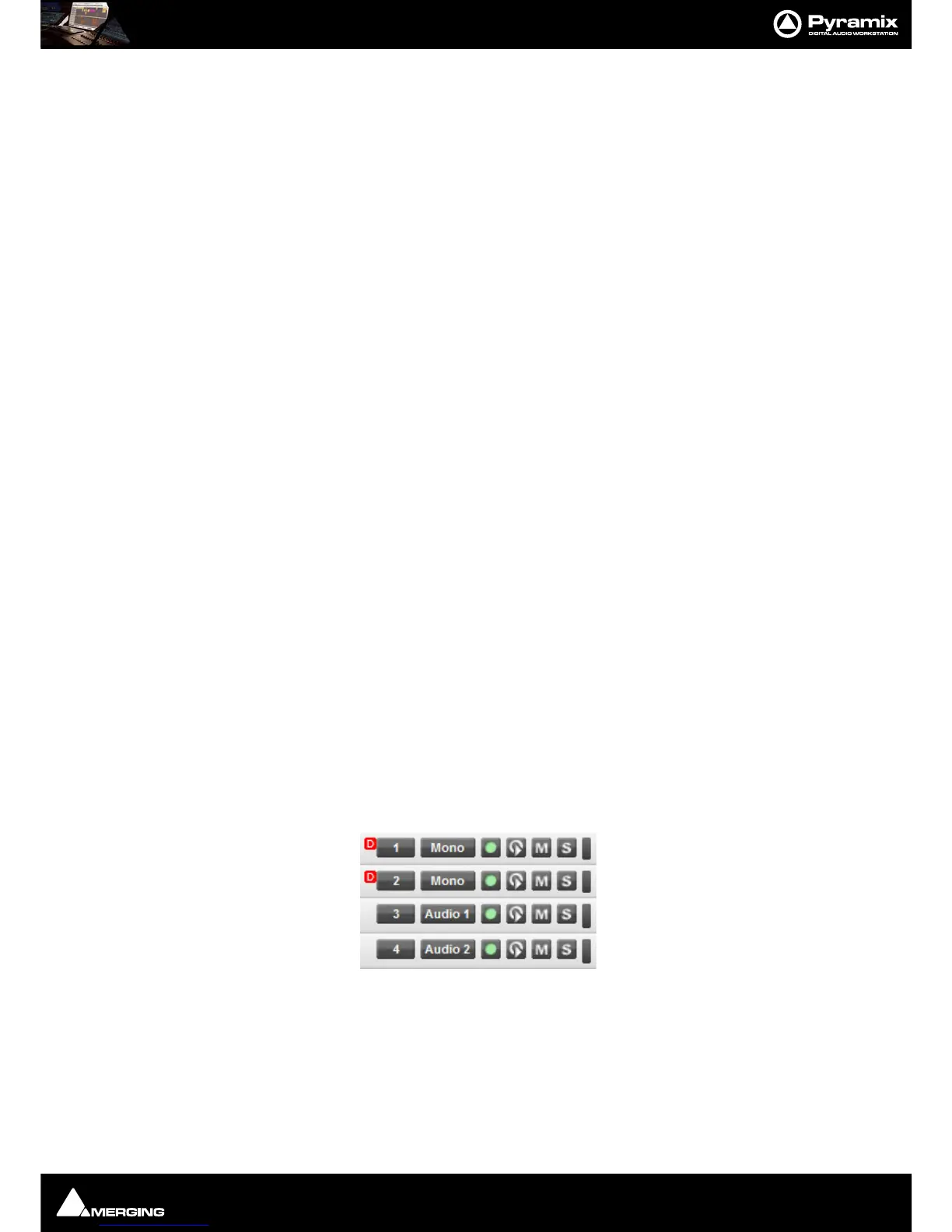
feeding Direct Monitoring Input Strips show a small red box with ‘D’ in the header:



 To Next Page