Effects and Plug-Ins : PanNoir Panner
14 - 341
Installation
The PanNoir Panner is installed with Pyramix but can only be used if the relevant security key is present. Please
contact your Merging Technologies Sales Partner to obtain the relevant security key.
Note: Since the PanNoir Panner is a VST plug-in it is necessary to run the VST Scanner application
(located in: All Programs > Merging Technologies > VS3Runtime > VST Scanner) to Re-Scan
the folder in which the PanNoir.dll has been installed (in C:\Program Files\Steinberg\VSTPl-
ugins\Merging Technologies\). Please see also: VST Plug-ins Scanner on page 356
Mono vs. Stereo
The PanNoir Panner is a stereo-in/stereo-out VST plug-in. To pan a mono input to a stereo output it MUST be
inserted into a stereo channel. To pan a mono input just use one of the input channels. Please read about the
Div.,
parameter and the notes after that. Please see:
Div. on the next page.
User Interface
The upper section of the plug-in user interface is about the placement of sources, the lower section, deals with
settings concerning the main mic pair.
Sources placement (upper section of the GUI)
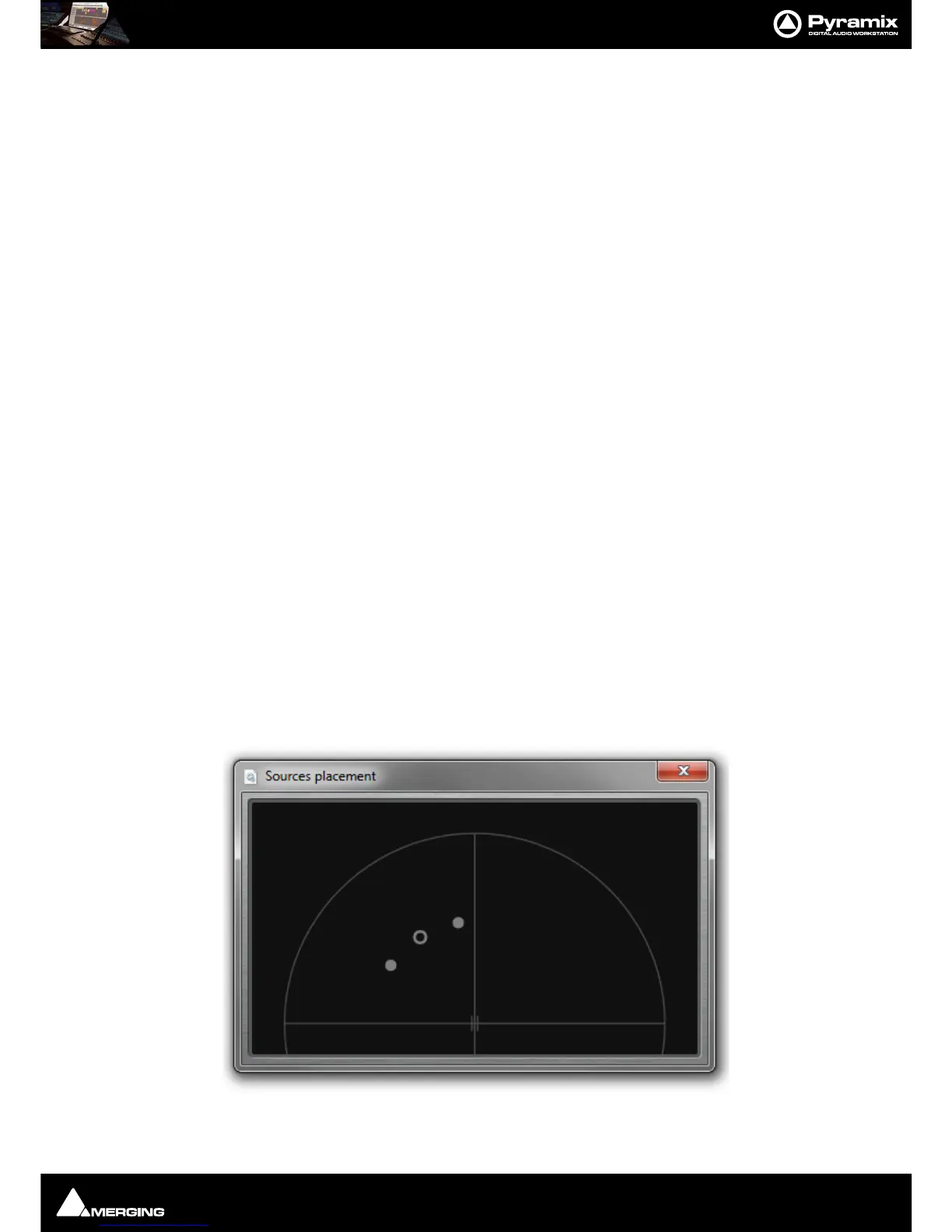
The parameters Main Pan, Dist, and Div set the positions of the two sources. Source number 1 is simply the left
channel of the input signal, while source number 2 is the right channel. If the input is a mono signal, source num-
ber 2 can simply be ignored: it will only contain silence.
Note: The left-most source is always source number one, and vice versa. This plug-in will never
swap the inputs.
The easiest way to place the sources is by clicking and dragging the grey circles on the upper screen. Active
regions will turn pale yellow when the cursor is over them and bright yellow when clicked and dragged. Keyboard
shortcuts are described below.
Note: For greater precision, double-clicking on the upper screen opens a copy of this screen in a
separate window. This new window can be resized and hence permits very precise control to be
achieved via simple mouse drags.



 To Next Page