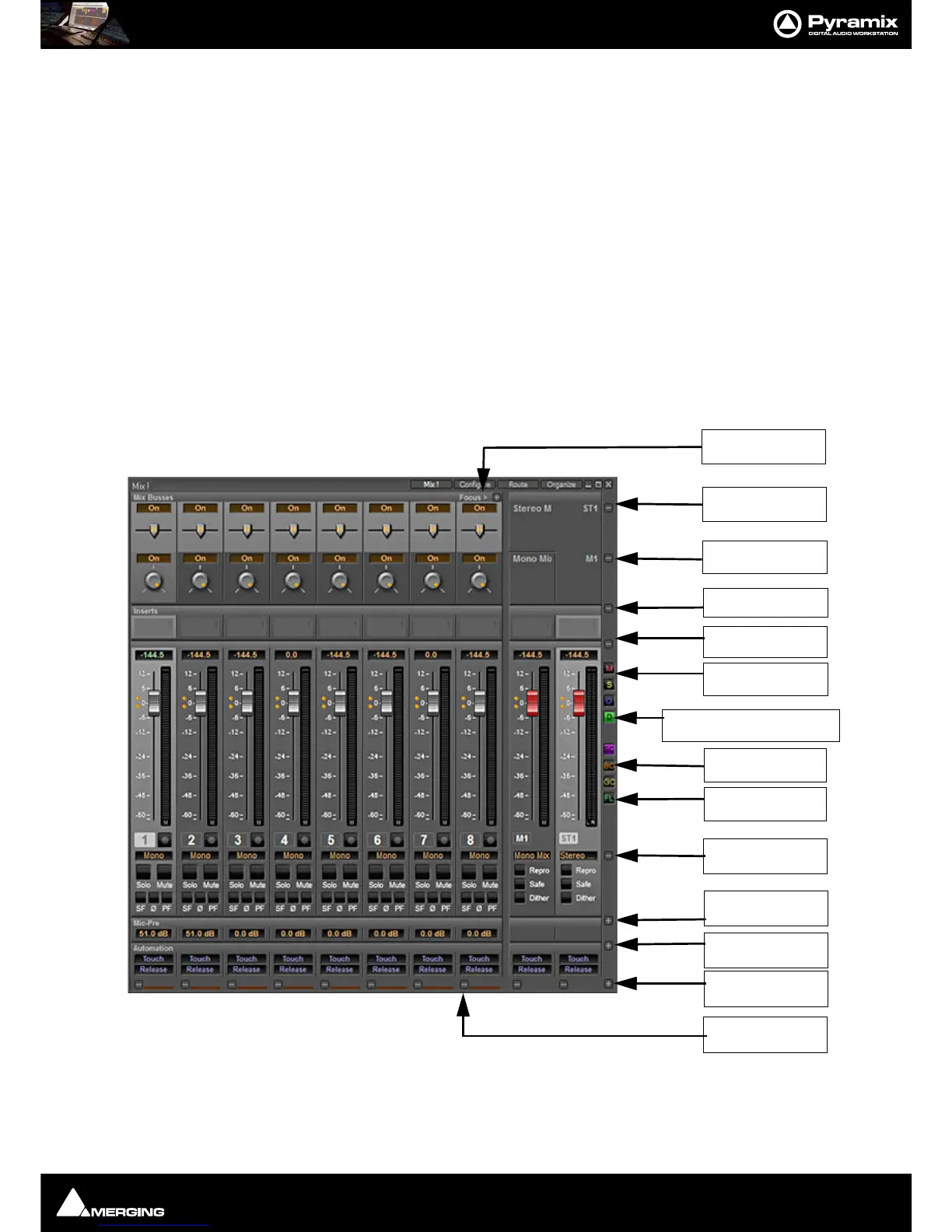
Mixer : Mix !
10 - 201
Mix !
Overview
This is the operational Mixer user interface page. It is necessarily complex when used to the fullest extent since
Pyramix’ capabilities are prodigious. However, it can also be kept very simple. The Mixer surface is divided into a
number of areas both vertically in strips and horizontally in rows. A number of features help to keep track of what
is going on in large and complex mixers. Strips and buses can be colored and there is a powerful bi-directional sig-
nal flow display. I.e. when signal
FLow is active, clicking on an input strip highlights all the buses it is feeding. Sim-
ilarly, clicking on a Bus highlights all the Input Strips feeding it.
Controls
Rotary Controls, sliders and Faders are adjusted by grabbing them with the mouse and dragging. Rotary controls
and horizontal sliders are adjusted by dragging left or right and faders by dragging up or down. Double-clicking a
Fader, slider or Rotary knob returns the value to the default. E.g. unity gain on a Channel Strip Fader. Holding down
the
Ctrl key increases resoltion to 0.1dB. Keyboard up and down arrows adjust gain by 0.1dB per press, with Shift
0.5dB per press and with
Ctrl + Shift 1.0dB per press. Bargraph shows peak level.
Basic Mixer



 To Next Page