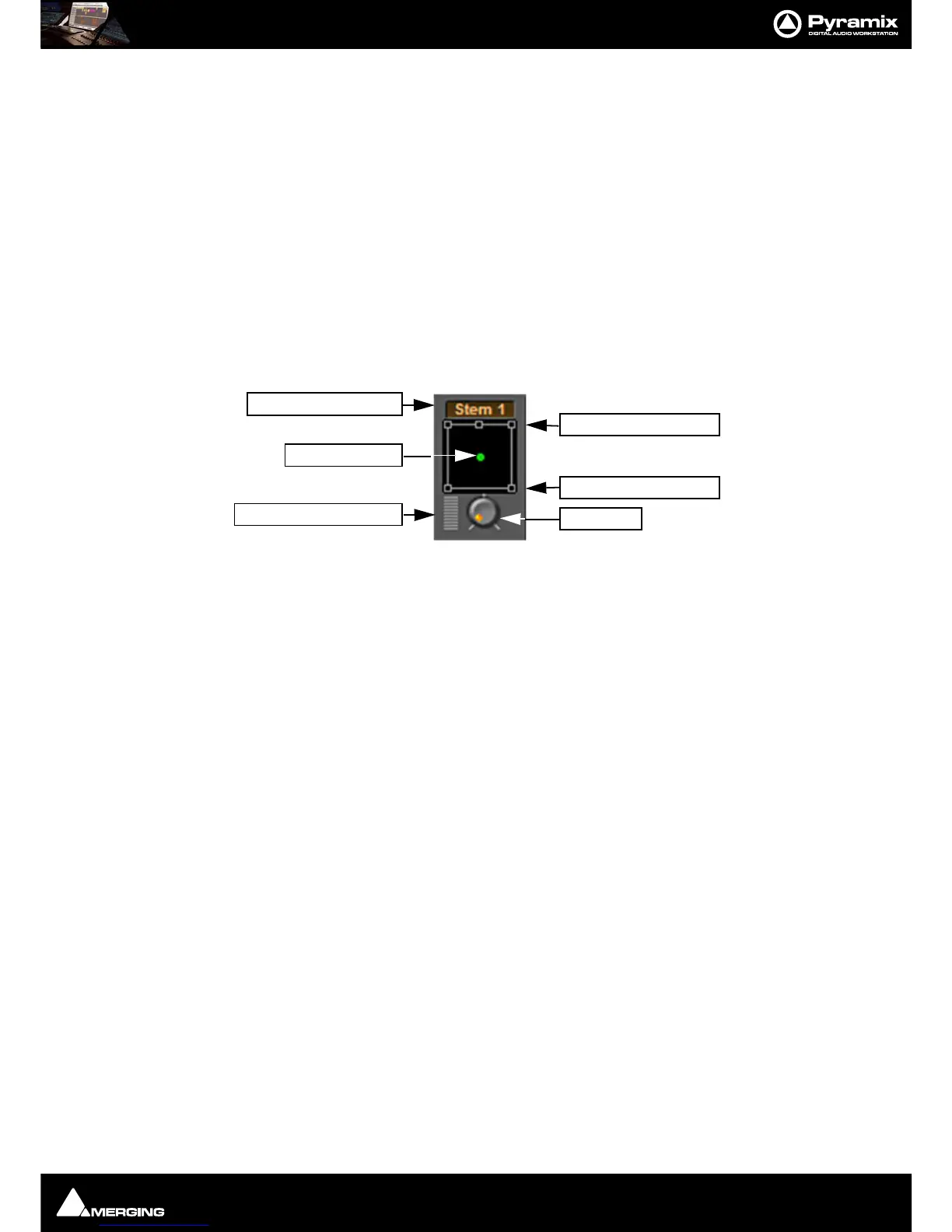
Mixer : Mixer Surround Components
10 - 254
set. If the Global check box is checked then the preset will be available for any user logged on the current
machine, if not the preset will be available only for the user that created the new preset.
Removing Mixer Presets
To remove a preset from the main list, right-click on the Mixing Console, select Memory > Presets > Remove >
(preset you wish to remove)
. The Remove Preset dialog box appears with OK and Cancel options.
Saving / Loading Mixer Presets
Mixer Presets can also be stored in Windows folders. Right-click on the Mixing Console, select Memory > Save. A
Windows Explorer window opens enabling the current Mixer Preset to be named and saved to any Windows
folder. Similarly, selecting
Memory > Load enables a Mixer Preset to be loaded from any Windows folder.
Mixer Surround Components
When a Surround Bus is added to the mixer an surround panner appears at the top on the Input Strips
Speaker Controls
Double-clicking on any of the Speaker Controls toggles the mute on/off of the selected surround channel (also
muting any audio routed to that surround channel output). When a channel control is muted, it is no longer dis-
played on the Mixer Input Strip.
Joystick Panner
Determines the position of the source within the surround sound space. To position it, simply left-click on the con-
trol and move it to the desired location. Double-clicking on this control will automatically center it.
LFE Level
Determines the level sent to the LFE (.1) output.
Surround Stem select
If a Multiple Surround Bus has been added to the mixer Stem ‘X’ appears at the top of the strip. Click on the box to
select the stem you wish to route the strip to.



 To Next Page