Mixer : Configure Page
10 - 216
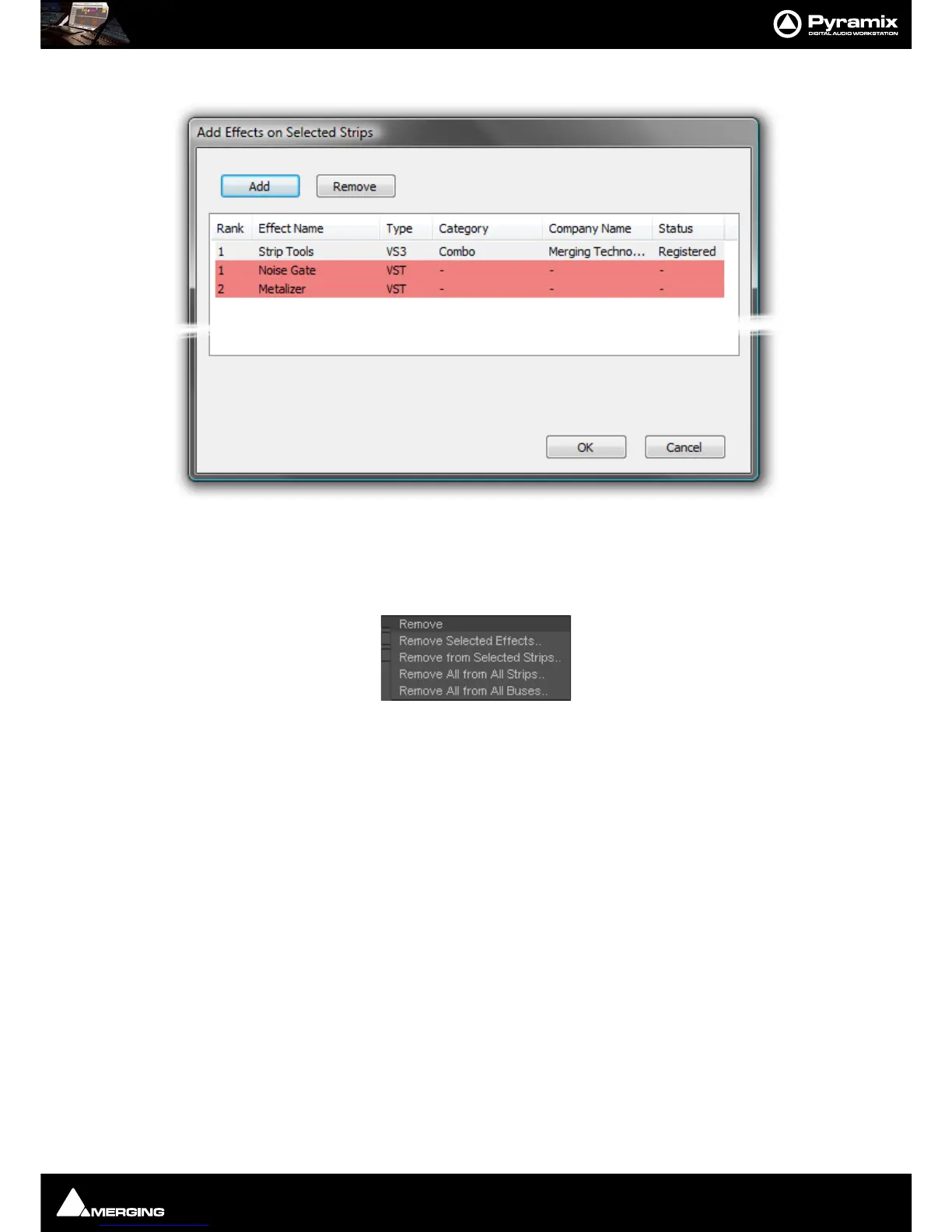
Each of these three options opens an Add Effect On XXX dialog, identical apart from the title
Note: That the different types of effect are shown by color. Pale Gray for VS3 and Red for VST.
These colors are also used when effects are shown in containers in the Strips display.
Remove Pops up a sub-menu with options:
Remove Selected Effects..
Remove From Selected Strips..
Remove All From All Strips..
Remove All From All Buses..
Move Up
Moves the selected effect(s) up in the list.
Move Down Moves the selected effect(s) down in the list.
Effects Section Containers
The Effects section of each strip is divided into two container areas by plug-in type, VST at the top and VS3 below.
Clicking on the
Click to Add buttons in each container pops-up a list of available plug-ins in the relevant format
sub-grouped by type. E.g. Dynamics, Restoration
etc. Simply select from the list by clicking on an entry to install
the plug-in, in the Strip. When a Strip or Bus has many effects, the container expands to accommodate them.
Shift Order
You can change the order of the VS3 and VST containers by clicking on the Shift Order buttons below the contain-
ers.
Selecting, Copying and Moving Effects
You can select an installed effect with a left-Click then drag and drop to move or Ctrl + drag and drop to copy
effects of the same type to a Strip or Bus of the same dimensions or change the order of effects within the effect
type container of the strip.
SHIFT + Clicking a second effect with an effect already selected, selects all effects
between the first and last selected.
Ctrl + Click adds to selection.



 To Next Page