Transport and Navigation : Markers
6 - 132
Editing Media Markers during a Background Recording:
Media being recorded with a Background Recorder can be added Media Markers by using the Edit while Record-
ing
option.
The growing Media in the timeline being recorded by a Background Recorder can have Media Markers added in
exactly the same way as any other Media placed in the Timeline.
Media Markers created during a Background Recording are saved automatically in an
.mmd file in the same loca-
tion as the recorded file.
Markers Tab Window
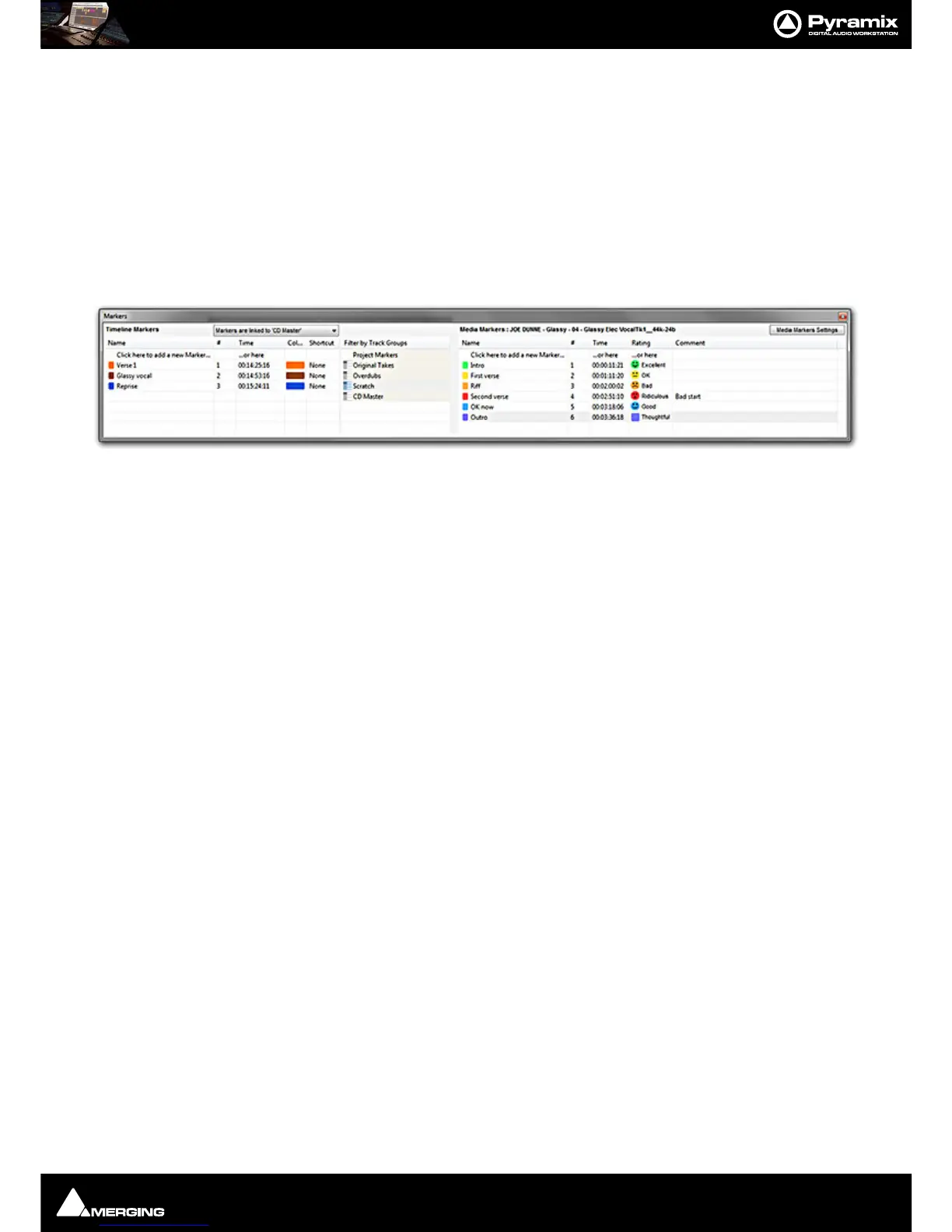
Markers can also be added and managed from within the Markers Tab Window.
Different lists of Markers can be edited by selecting the desired Track Group or the main Project Markers list in
the
Markers Tab Window. Markers are numbered in ascending order by their position in time. If a Marker is moved
before or after another Marker, the affected markers are automatically re-numbered.
Clicking on the first entry in the
Name or Time Fields ‘Click here to add a new Marker... or here’ Adds a new
Marker at 00:00:00:00 This value can be edited in the usual way.
Marker colors are user selectable. Clicking in the
Color field drops down a list box with all the available colors.
Double-clicking on a Marker’s Name Field jumps the Playhead Cursor to the Marker.
Double-click with CTRL pressed plays from the marker TimeCode
Double-click with SHIFT pressed plays from the marker TimeCode with the first Preroll. This also applies to CD
markers
Right-click to open a menu that enables Markers to be
Cut / Copy / Pasted between Groups or Projects.



 To Next Page