Media Management & Libraries : Search
4 - 48
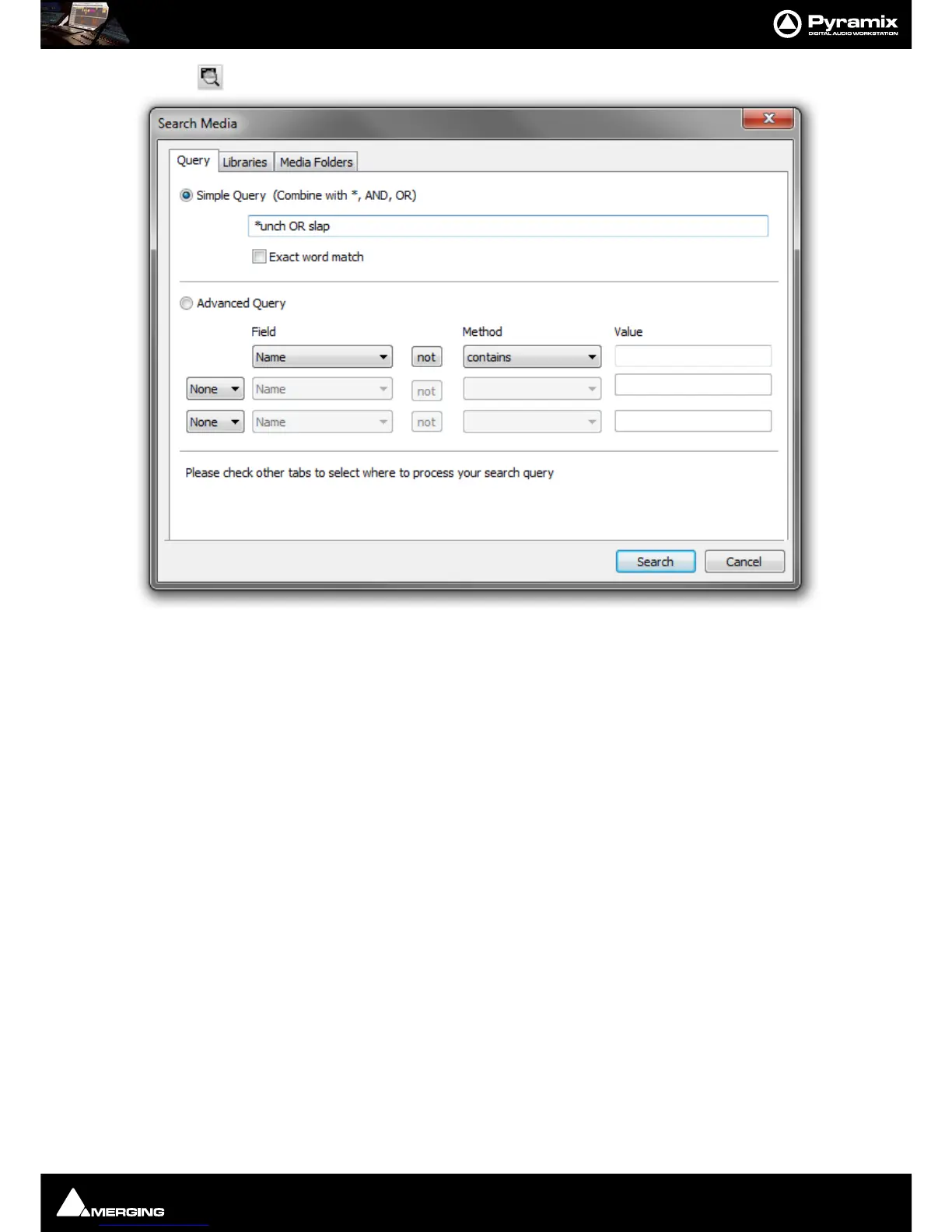
Clicking on the Search Media Toolbar icon
Search Media Dialog Tabs
The Search Media dialog has three Tabs:
Query Is where search terms are set
Libraries Is where Libraries to be searched are set
Media Folders Is where Media Folders to be searched are set
Query Tab
The Search Media dialog opens with the Query Tab. This Tab sets up the search terms.
The top section is for Simple Queries. For more advanced searches the bottom section offers further possibilities.
Simple Query
Simple Query This radio button toggles with Advanced Query.
When Simple Query is selected the search is restricted to the Name of the
object(s) to be found. Search term(s) are typed in the text entry box. AND and OR
can be used in between two search terms to increase the scope. Similarly, * can be
used as a wildcard at the beginning or end of a search term.
Exact Word Match When checked the search will only identify exact words in the database.
The wild card * is still valid.
When unchecked the words are searched partially. E.g. car will return items
such as car door opening but also caravan passing or even scary scream.
Note: When Exact Word Match is checked it also applies to the quick search at top right of
Library Tabs.
Simple Query Syntax



 To Next Page