File and Project Interchange : Import / Export
18 - 449
• Video and Audio Tracks Names
• Video and Audio Clips
• Audio Clips Fades
• Audio Clips Gain
• Audio Clips Envelopes (Key Frames)
•Clips Sync Points
• Clips Comments and Metadata (Master Comments, Clip Comments, Labels and Scene & Take)
•Links and Groups
•Clips colors
Known limitations
• FCP XML Export from Pyramix is not yet implemented
• Video Clips from HD compositions have length and positions truncated to an even number
OMF
OMF Import supports both OMF1 and OMF 2 format. Supports 10.5.3 / 11 sub-compositions.
When exporting OMF from another application, there is a choice of either embedding the audio files into the OMF
file, or keeping them external as a link. Pyramix supports both approaches.
Selecting
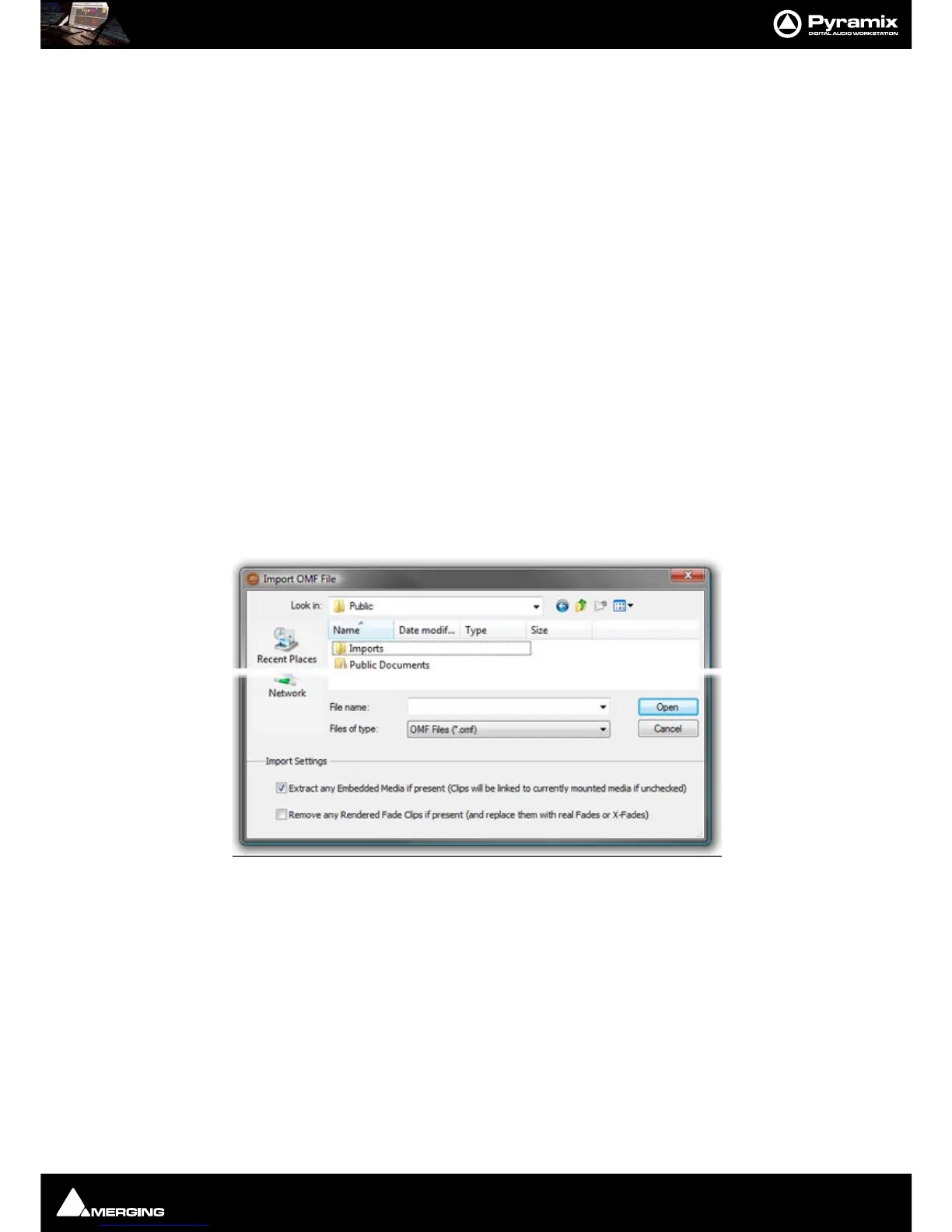
Project > Import followed by OMF in the Interchange Import dialog opens the Import OMF File
browser window.
Import Settings
At the bottom of the browser window two import settings check boxes offer the options to:
Extract any Embedded Media if present (Clips will be linked to currently mounted media if unchecked)
(default is ticked) and
Remove any Rendered Fade Clips if present (and replace them with real fades or X-Fades)
Default is un-ticked
When importing an OMF file with embedded audio for the first time, leave the
Extract option ticked to extract the
media files. Please un-tick the
Extract any Embedded Media if present box on subsequent imports of the same
OMF file (because the media will already be present).



 To Next Page