Troubleshooting : Relaunch After Improper Exit
29 - 718
Simply choose a more suitable Windows color scheme to resolve this. You also can change the background and
waveform colors (right click) for individual Clips and Tracks in Pyramix.
Relaunch After Improper Exit
In the case of an ‘improper application exit’ (politically correct term for crash) the system does not attempt to
open the last backed up project automatically, since the most up to date version is the project itself in its last
saved state. All ProjectXXX (Backup).pmx, ProjectXXX (backup 2).pmx,etc… documents are older versions of Pro-
jectXXX.pmx which is now always the last one saved.
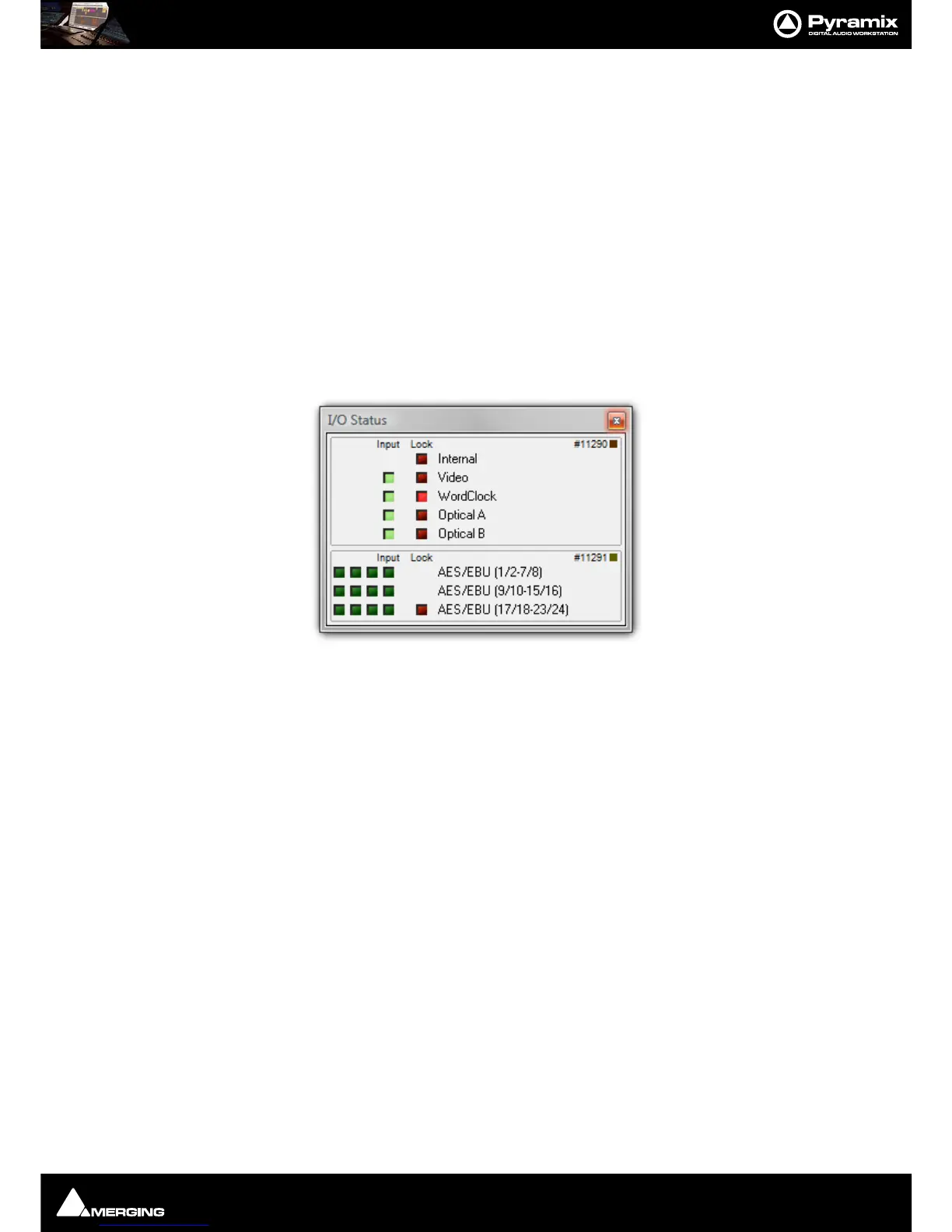
The I/O Status window
The I/O status window can be opened by clicking in the Sync: xxxxx section of the Status bar (bottom right of the
main Pyramix window. (the
XXX’s are the current sync source)
This window shows useful information about the input and synchronization status of Pyramix.
Input Sources
All the possible input sources are shown, each with an associated red and a green light. The green lights show the
presence of a valid digital signal (This does not necessarily mean that the sampling rate of this input matches the
current clock source of Pyramix). When the red light is on and steady, Pyramix is using this input as it’s clock refer-
ence and is successfully locked up.
Default Clock Source
If Pyramix is set up to lock to an external clock source but cannot get a valid signal from this source, it will switch to
Internal clock. In this case the red light associated with
Internal will be on, and the red light associated with the
intended clock source will be blinking.
Sampling Rate Mismatch
If Pyramix is set up to lock to an external clock source and the sampling rate set in the Virtual StudioMixer does not
match the sampling rate of the clock source, the green light associated with the clock source will be on, but the
red light will be blinking showing the sampling rate mismatch.
Debug Menu
Right-clicking on the Sync: section of the Status bar opens a context menu with a choice of Debug and I/O Status
(see below).
Selecting
Debug opens a further sub-menu with a number of tools primarily intended for Merging Technologies
Support use. One option,
Profiling is worth examining in detail.



 To Next Page