Projects : User Templates
3 - 42
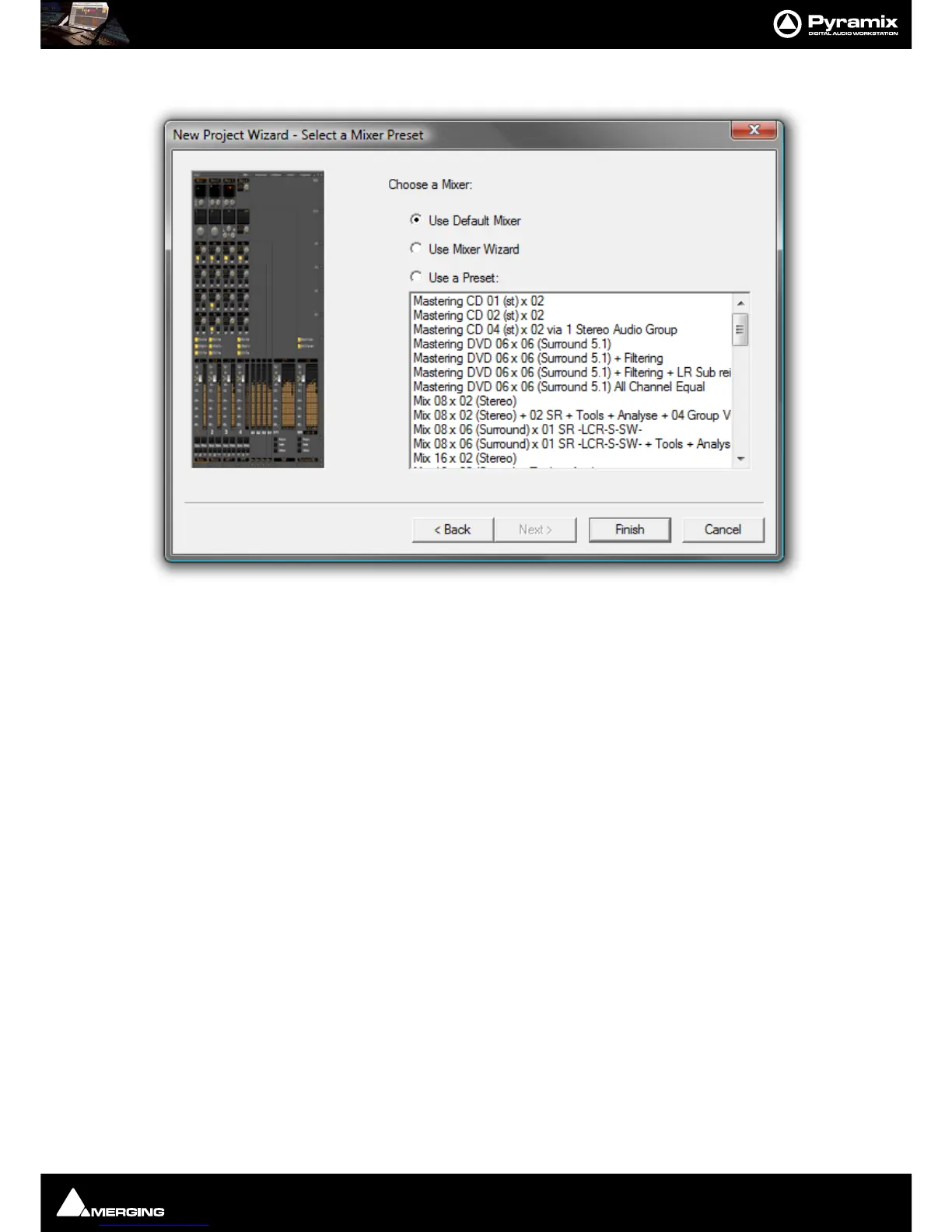
10. Click Next. The New Project Wizard - Select a Mixer Preset dialog will open.
11. If this is the first time you’ve used Pyramix, choose the Mix 08 X 02 (Stereo) preset in the drop-down list by
clicking on the name. Note that the Use a Preset radio button is automatically checked.
12. Click Finish to activate your new Project. It will open with a Project Window and Mixer Window. There will
be 8 empty Tracks in the Project Editing Panel corresponding with the 8 Mixer Input channels.
Mixer Wizard
Please see: Mixer Configuration Wizard on page 239
Presets
A considerable number of pre-configured presets are supplied for common tasks. You can add your own custom
Mixer Presets to the list. Please see: Mixer Presets on page 253
User Templates
When you have a Project with a configuration which may be useful for future Projects you can save it as a Tem-
plate. I.e. the current Project minus all the Cues. Simply select:
Project > Save Template
A Browser window opens with the default Templates Folder open. Choose an existing Template folder, if appropri-
ate, or create a new one. Name the Template and click on Save



 To Next Page