Tracks and Track Groups : Tracks Tab Window
5 - 103
Tracks Tab Window
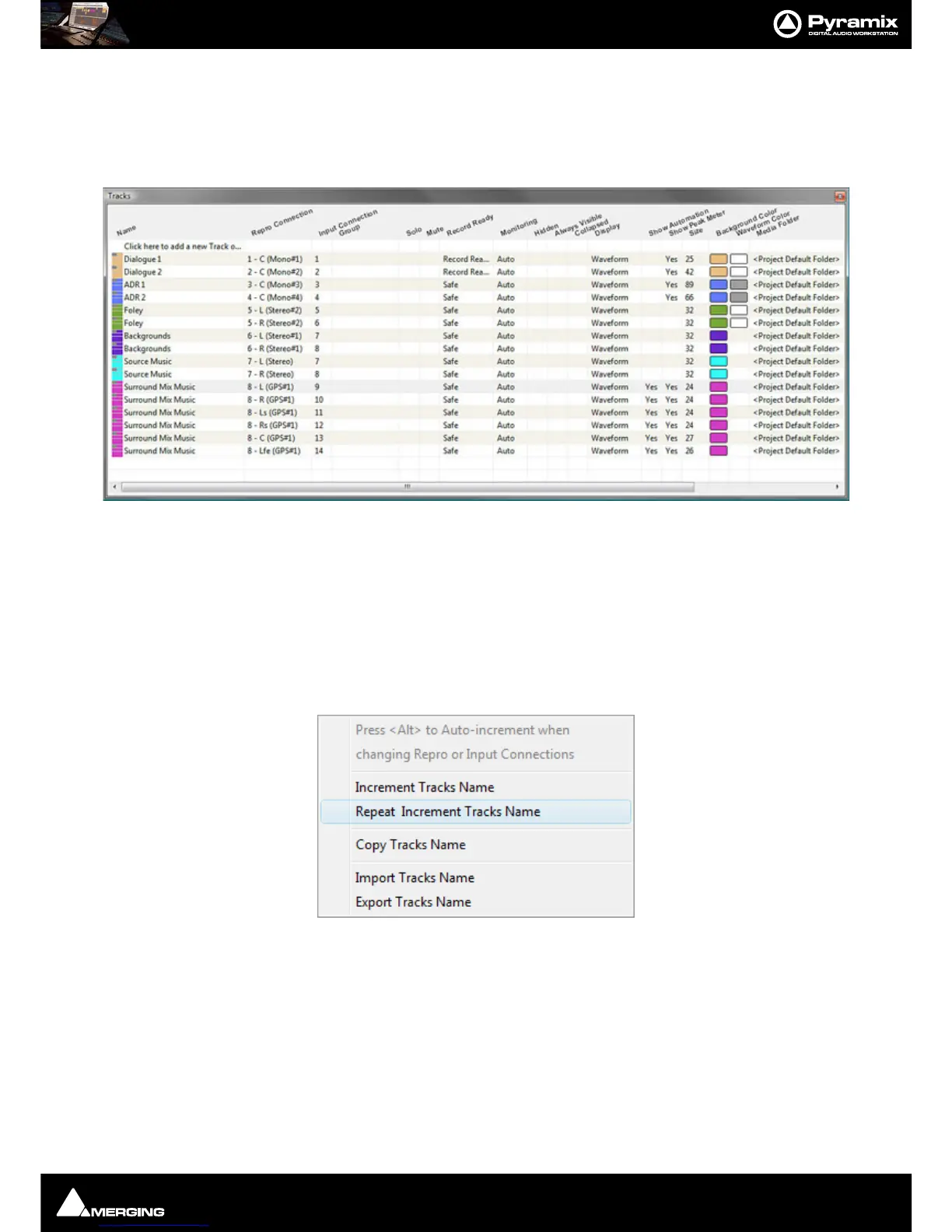
The Track Tab Window shows a table where each row contains information about a single Track and each column
contains information and function selection fields. New Tracks can be created or existing ones deleted and the
order of Tracks changed. All Track parameters are accessible and modifiable.
New Tracks can be added by clicking on the first line of the Tab Window and typing a suitable name then pressing
Enter.
Tracks can be deleted by selecting them and pressing the
Delete key.
The order of the Tracks can be changed by selecting and dragging Tracks. Click on the symbol at the far left of the
Name field and drag to the desired row.
Tracks Tab pop-up
Right-clicking on a selection of Tracks or on all Tracks (no selection) displays this context menu:
Increment Tracks Name : Adds an incremental number after each selected Tracks name, taking into account
an already existing number
Repeat & Increment Tracks Name : Copies the first selected Tracks name to the rest of the selection and adds an
incremental number
Copy Tracks Name : Copy the selected Tracks name or all if no selection
Paste Tracks Name : Paste the previously selected Tracks name to the currently selected Tracks
Import Tracks Name : Rename the selected Tracks or all Tracks if no selection with names coming from a
text file
Export Tracks Name : Saving the selected Tracks or all if no selection to a text file



 To Next Page