CD/SACD Mastering and Album Production : Mastering a Composition to CD-R
25 - 529
Overview
Pyramix has comprehensive mastering features for CD, Album production for digital delivery and SACD mastering
as an option.
Mastering a Composition to CD-R
Pyramix is used to set CD Track Start, Stop, and Index Markers for CD-R Mastering, and a separate application
called
DiscWrite is provided to actually burn a CD-R or make a DDP.
One of the advantages to this way of working is that multiple ‘virtual discs’ can exist. This makes it simple to pro-
duce several different versions using the same material.
Note: For a step-by-step guide to producing a simple CD please see the Pyramix Quick Start
Guide, Page 70 Quick CD
IMPORTANT! - First Steps
Open the CD/SACD Tab Window and Double-click <New Disc> in the Album tab. Type a name for the CD then
proceed to add
CD Markers
CD Markers
CD Markers are much like other User Flags or Markers.
To s et a
CD Start Marker (which indicates the beginning of a CD track), place the Play Head at an appropriate CD
track Start location and choose
Cursors & Marks > Add CD Start Marker to Cursor; similarly, to set the CD Stop
Marker
(which indicates the ending of a CD track), place the Play Head at the appropriate CD track End location
and choose
Cursors & Marks > Add CD Stop Marker to Cursor. A named CD Index Marker can also be added
using
Cursors & Marks > Add CD Index Marker to Cursor. These CD Markers can be examined, named and
changed in the
CD/SACD Tab window.
Add CD Markers Automatically
CD track Start Markers and Stop Markers can be added automatically to Grouped Clips in a Composition. To
accomplish this, first create a CD in the CD/SACD Tab window and select it. Make an appropriate Group of Clips
which correspond to CD tracks. Then choose
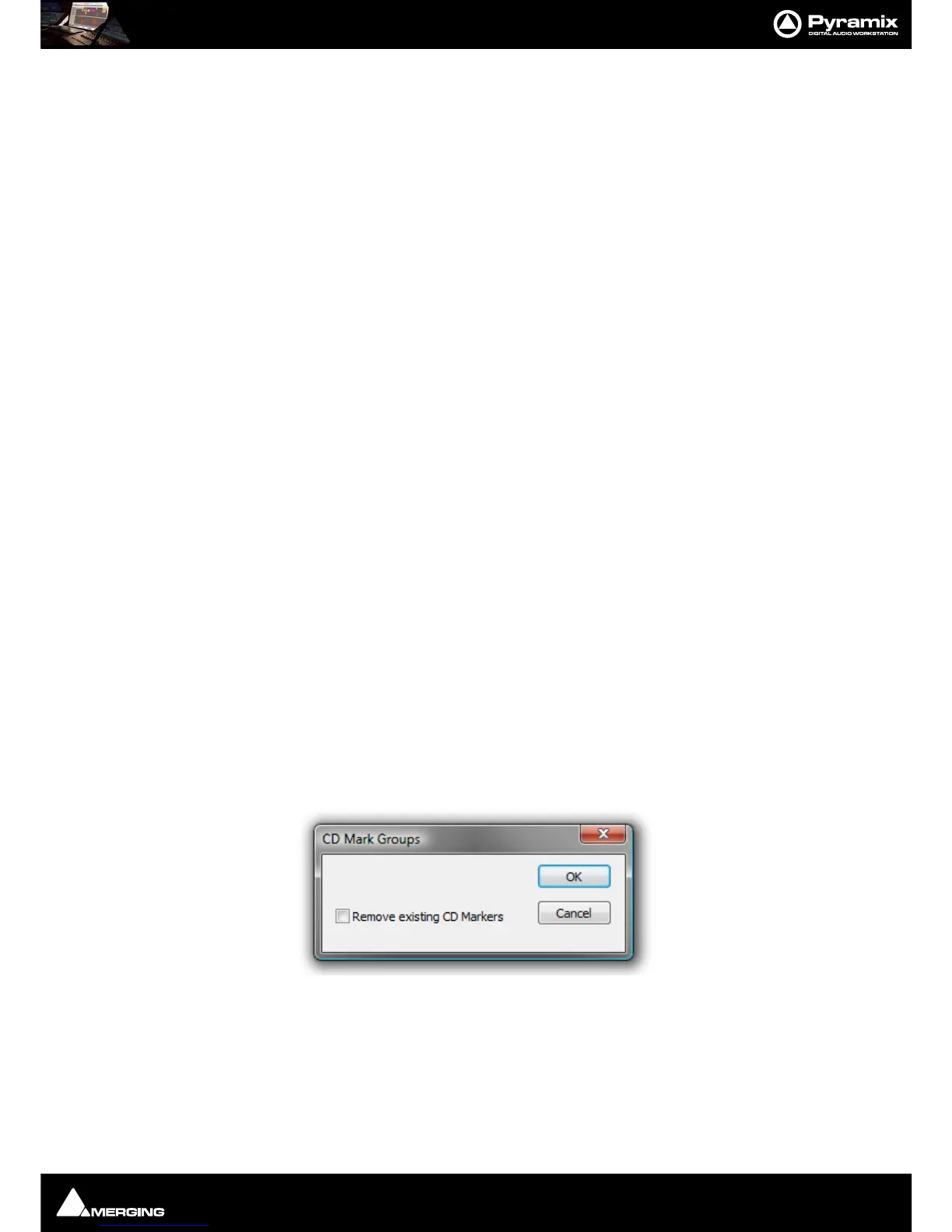
Cursors & Marks > CD Mark Groups from the CD/SACD Tab window
Markers menu or from the main Cursor and Marks menu to open the CD Mark Groups dialog:
The only option is a check box to
Remove existing CD Markers. Click on OK to automatically create CD markers
for all grouped Clips.
Note: If the gap between Clips in the Pyramix TimeLine is less than one second only Start Mark-
ers are placed or required. (There will always be a Stop Marker after the last Clip). Stop Markers
can be useful where there is applause after a piece which may not be wanted when broadcasting
from a CD. Suitably equipped CD Players can be set to stop when they find a Stop Marker.



 To Next Page