Automation : Scope
15 - 364
Scope
Pyramix Virtual Studio is equipped with an extremely powerful automation system, including both dynamic and
snapshot automation of levels, pans, effects, etc. This chapter covers internal control of automation. If you are
using a Ramses MSC or ISIS Controller, please see the relevant User Guides for further information.
Master Automation Transport Controls
Global Dynamic Automation Modes
Set using the On/Off, Read and Write buttons in the Automation toolbar (or the Automation menu items) these
set the dynamic automation mode for the entire console. Individual controls will behave according to their own
current mode.
The
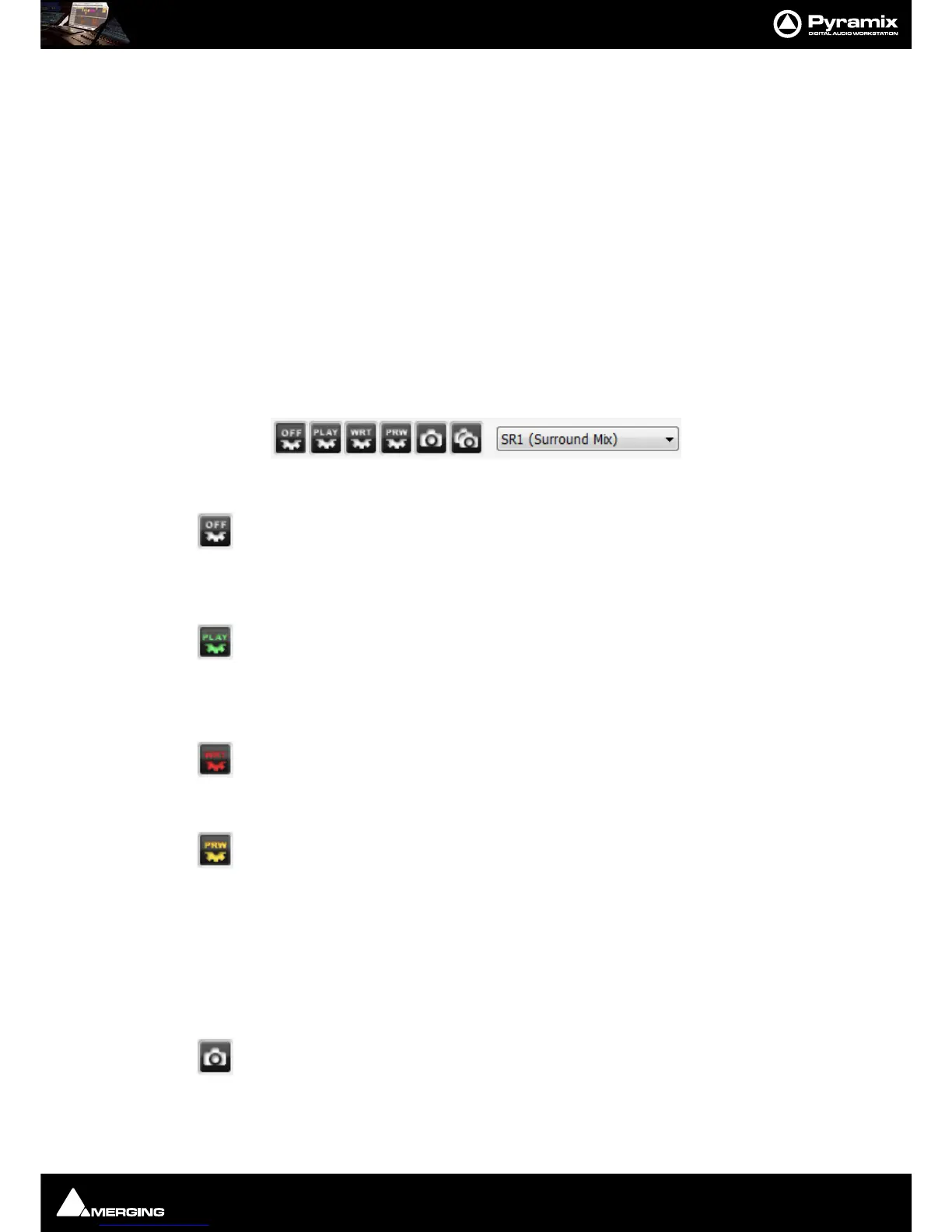
Global Automation Controls are in a dockable Tool Palette, by default located at the bottom right side of the
main
Pyramix window. There are Off, Play(Read) Write and Preview buttons plus two buttons with camera icons
which deal with
Snapshot automation: .
Off button can only be used to turn dynamic automation Off. When it is Off, no existing auto-
mation data is played back and no new data is recorded when controls are moved.
When dynamic automation is on, (Play or Write buttons lit), existing automation data is played back. New auto-
mation data can only be recorded when
Write is lit and the controls to be automated are in an appropriate mode.
When the Play (read) button is pressed it ‘lights’ green.
Controls set to Read, or Auto-Write, Read existing automation data, otherwise they maintain their default values.
Controls set to
Isolate or Record maintain their current values and no new data is recorded.
When the Write button is pressed it ‘lights’ red. Controls set to Write write their current val-
ues. Controls set to
Touch only record when they are moved. Controls set to Read, Read
existing automation data (if any). Controls set to
Isolate maintain their current values.
When the
Preview button is pressed it ‘lights’ yellow. In preview mode Automation Read is
active until a control is moved. When the Transport is stopped the
Filter Automation Tracks
to Snapshot Range
dialog appears. (If this has been selected in All Settings > Application
> Automation
.) Please see: Preview Automation Mode on page 371. Please see
also:
Filter Automation Tracks to Snapshot Dialog on page 381
The Off button cancels either Read, Write or Preview modes and switches dynamic automation off.
Snapshot Automation
The Snapshot button opens the Filter Automation Tracks to Snapshot dialog. When OK is
pressed inserts an automation event (key frame) is inserted which records the state of all
enabled controls at the current cursor position if their state has changed since the previous
Snapshot.
Master Automation Controls dockable toolbar



 To Next Page