Transport and Navigation : Zooming and Panning
6 - 137
Zooming and Panning
The Project Editing Panel allows two kinds of zoom: horizontal or Time Scale zooming; and vertical or Track
Height
zooming.
Time Scale Zoom and Pan
Icons on the View Toolbar zoom in or out at the current Play Head location.
The Fit in window [Alt 1]icon on the Toolbar automatically adjusts the horizontal scale to fit
the selected area inside the Project Editing Panel with a small margin.
The Previous zoom [Alt 2] icon restores the horizontal scale to the previous size.
Zoom In [Alt 3]and
Zoom Out [Alt 4]
Holding down the Alt key, then selecting an area of the Composition by clicking and dragging the mouse to the
left or right zooms in horizontally on the selected area.
Similarly, an area of the
Composition can be selected by clicking and dragging.
The
Scrollbar beneath the Tracks Pans the view of the Timeline horizontally left or right.
Track Height Zoom
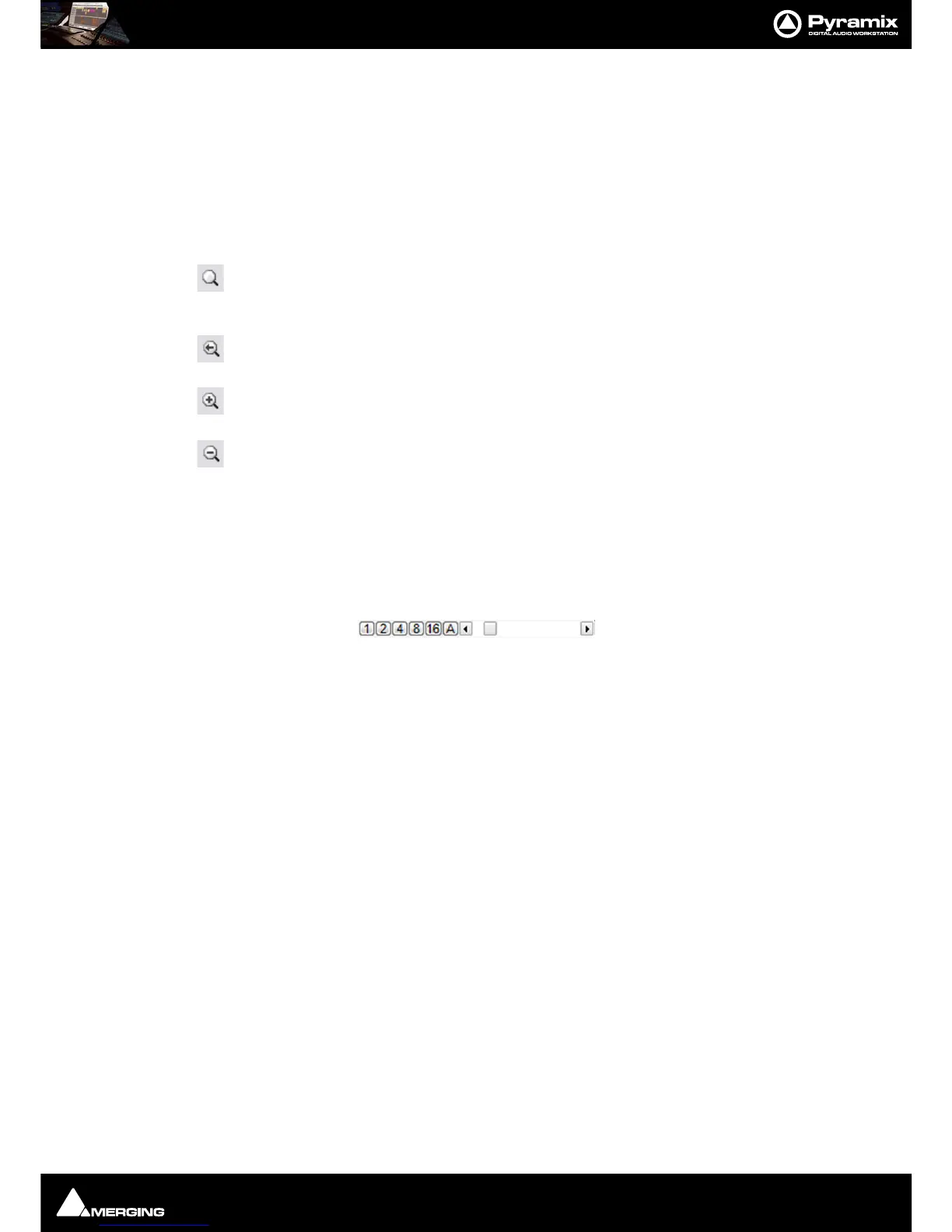
1, 2, 4, 8, 16, and A buttons at the bottom left of the Project Editing Panel automatically scale the vertical Track
size so that 1, 2, 4, 8, 16 or All (as many as possible given the vertical space)
Tracks fit in the vertical space allocated
to the
Project Editing Panel.
The horizontal Scrollbar adjacent to these buttons enables continuous adjustment of the Track height.
Scroll Wheel
It is well worth while using a three button mouse with a scroll wheel.
Scroll Scrolls vertically through the Tracks shown in the Project Editing Panel
Scroll + Ctrl Scrolls the Timeline
Scroll + Alt Zooms the Timeline timescale
Scroll + Shift Changes the Track height



 To Next Page