Transport and Navigation : Markers
6 - 127
6.
Repeat step 5 for the other Track Groups.
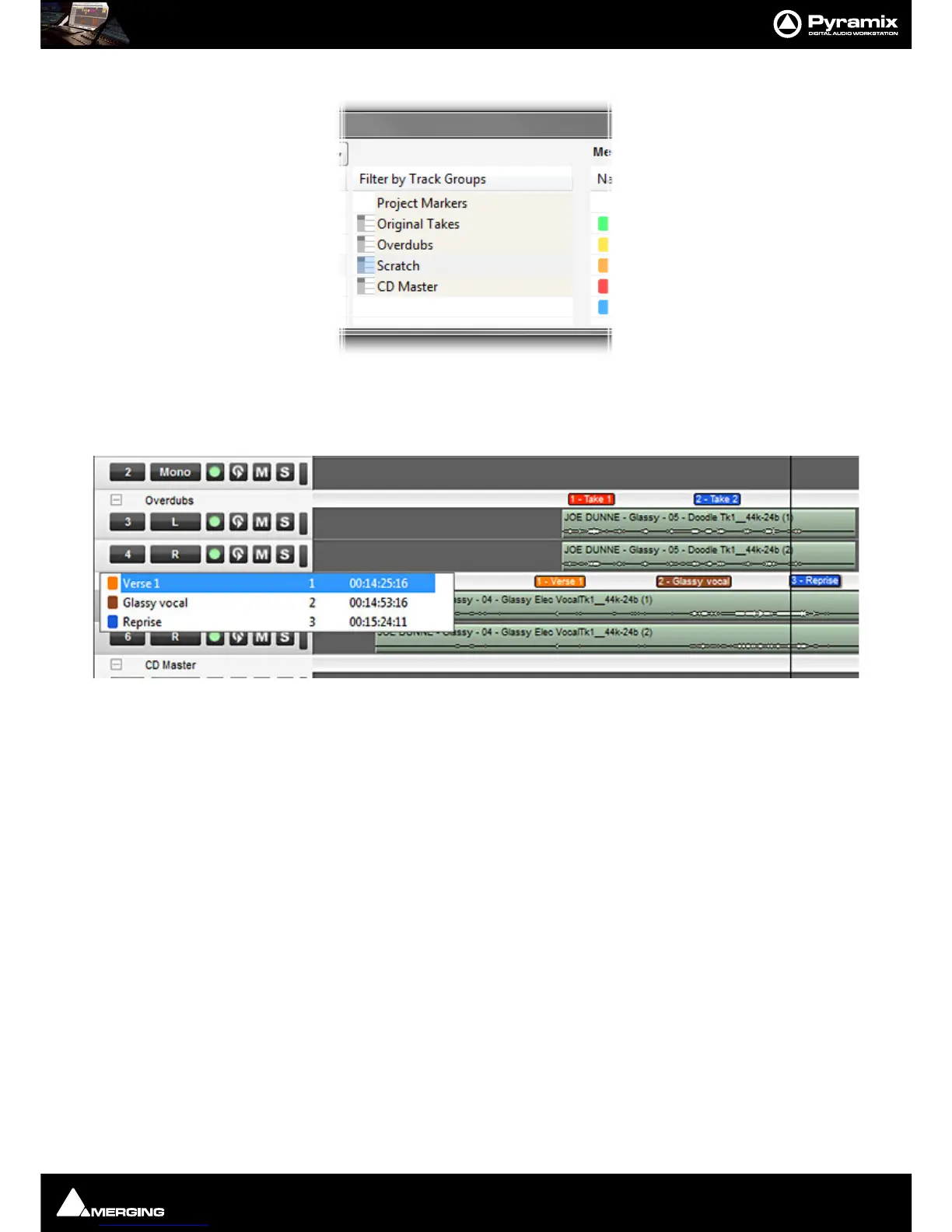
Now you can use the Filter By Track Group entries to filter the Markers displayed in the Markers Tab window. Click-
ing on Project Markers shows the list of Markers belonging to the Project without any of the Markers belonging to
Track Groups. Clicking on any of the Track Groups shows only the Markers belonging to that Track Group.
Markers created in Track Groups are shown in the Group separator tray above the Track Group in the Timeline.
Clicking on the Track Group Name in the Timeline pops up a list of all markers created in the Track group. These
function as locators.
Media Markers
Overview
Media Files and Libraries Master Clips can store Markers. These are called Media Markers to differentiate them
from the Timeline Project and Track Group Markers. Media Markers are useful for many purposes, e.g. marking
good, bad or indifferent takes within a long continuous recording or marking the peak point of a car or plane pass
etc.. They are attached to the Master Clip or to the Media itself.
Characteristics
• Media Markers can be added to any Media File, regardless of format.
• Media Markers are stored in the Media Object or Master Clip in the Media Manager, Libraries and in Proj-
ects referencing the Media.
• Multiple Clips referencing the same Media share the same Markers within the same Project or Library.
Note: When recording into the Active Project Media Markers will not be added if any Clip or Clips
is/are selected in the Timeline.



 To Next Page