Editing : Source - Destination Editing
8 - 188
Source - Destination Editing
Concept
Source - Destination Editing is a powerful method of viewing and editing material especially applicable to edit-
ing multiple, multi-track, takes into one, ‘ideal’ take. Special Source and Destination Track Groups allow multiple
Timelines to be visible simultaneously. Each Source and destination Timeline has its own zoom level and Playhead
cursor. By taking advantage of the ‘Collapse’ feature, editing 48 track source material becomes almost as simple as
editing mono or stereo.
Source - Destination editing can also be extremely useful in broadcast and tracklaying applications. Pyramix can
have as many Clip editors as you wish. Just create some Tracks, group them, set the group as a Source. Set the Clip
Editor Track or Tracks as ‘
always visible’ (in the Tracks Tab Window, so each Clip Editor always stays on top of the
composition and that’s it.
If there is no Destination group in your composition then the section between the Gates in the Source Group/Clip
Editor is sent to the positions delineated by the
Mark In/Mark Out on the selected Track(s) in the composition.
Setting up a Source - Destination Environment
Temp lates
The quickest and easiest way to get started with Source - Destination editing is to use one of the supplied Tem-
plates.
Choose the one which most closely matches your requirements, modify to taste and save as a Template
for future use.
Starting from Scratch
In the Track Groups window, Create as many Source groups as there are alternate versions of the material you are
editing and select their type as
Source.
Tip: Create a Group, select its type as Source then choose Tracks > Duplicate Selected Track Group repeatedly
until you have the required number of
Source groups.
Create as many Destination groups you want to edit to (generally only one) and select its (their) type as
Destina-
tion
.
Create as many
Tracks for each source take as you need for your editing and associate a Group to each of them.
Set these groups as
Keep Cursor, Free Zoom, Auto-Solo and No Selection.
Select the option
Tracks > Auto Select Tracks.
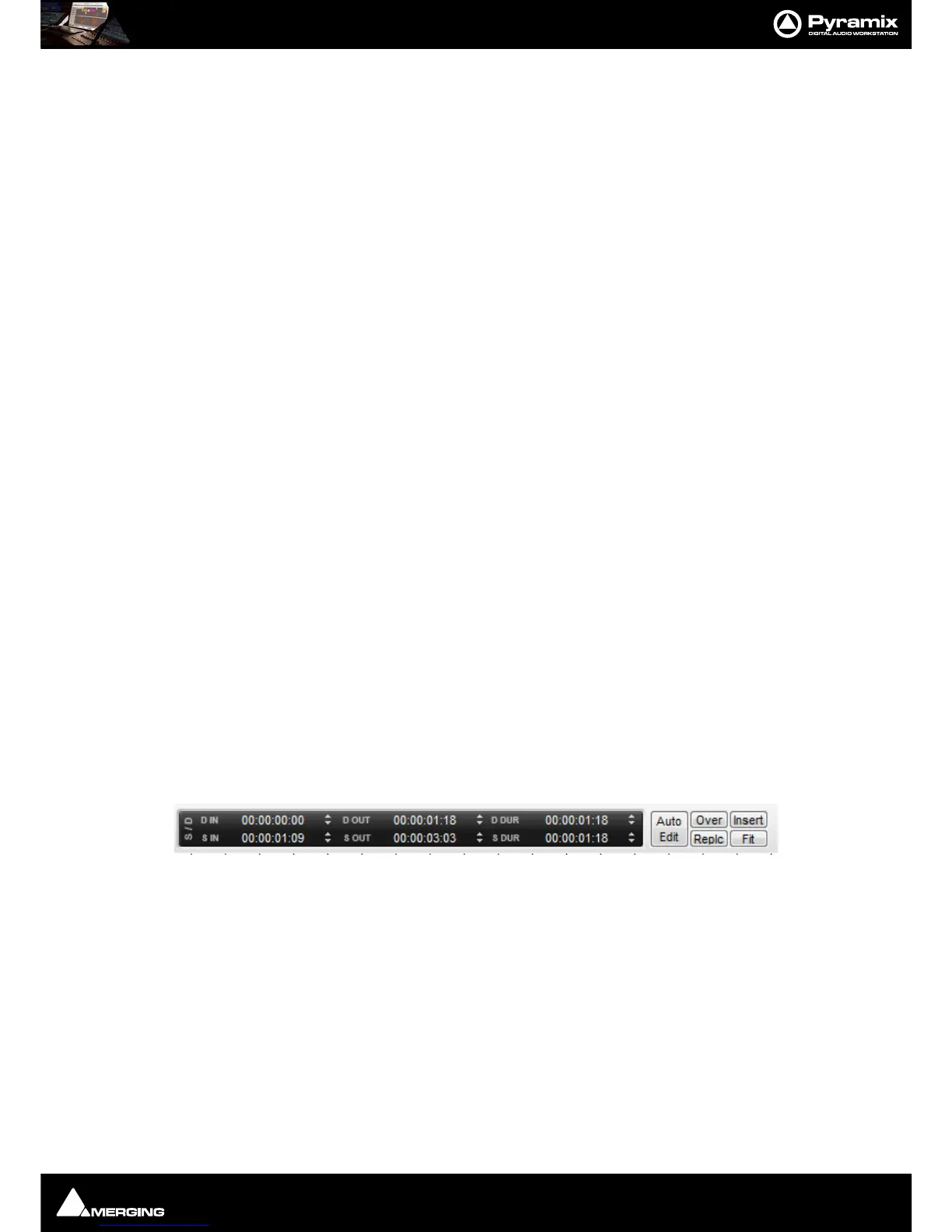
Show the Source - Destination Toolbar,
View > Scales > Toolbars > Source - Destination.
You are now ready to proceed with Source - Destination Editing the following manner:
Source and Destination Groups have special markers called
Gate In and Gate Out which can be Set, Nudged and
Auditioned:
Set the selected Track Group Gate In/Out of the selected Track Group to Cursor with the menu
Cursor & Marks >
Gate In/Out to Cursor
To remove a Gate set it again in the same position.
Gates can be dragged with the mouse by clicking on them and moving.
Gate colors:
By default, Gates are displayed in Grey.
The
Source Gates currently selected for the next edit operation are displayed in White.



 To Next Page