Media Management & Libraries : Library Tab Windows
4 - 78
Library Tab Windows
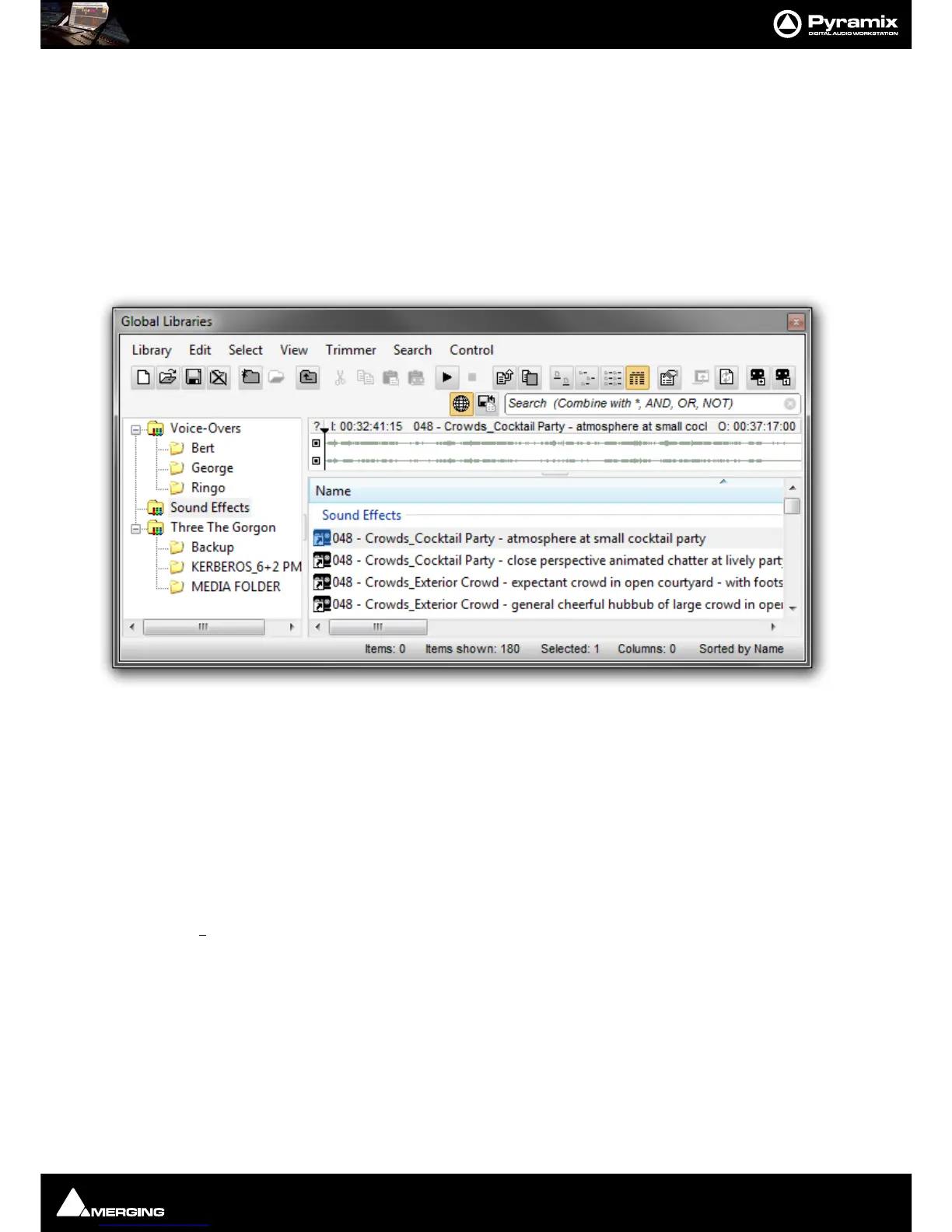
Document and Global Libraries
There is no real difference between Document libraries and Global Libraries. The distinction is an organizational
one, made to help keep complex Projects manageable and to provide security features for larger facilities. Librar-
ies designated as
Global are available to all projects but can be opened and manipulated from the Document
Library
window. Equally, Libraries created in the Document Libraries window can be opened in the Global
Libraries
window.
The default Project Library created with every Project is stored with the Project. It can still be opened in the
Global
Libraries
window by locating the .PMX project file in the Project’s Media Files sub-folder.
The left hand pane shows
Libraries and Shelves associated with the project. The contents of the selected Library
or
Shelf is shown in the right-hand pane with information about the objects in columns. Shelves are displayed at
the top with individual library items below. Clicking on the
+ or - signs in the left-hand pane expands or collapses
Libraries and Shelves.
Libraries allow Drag & Drop operations from the Library content (right side window) to the Library/Shelf tree hier-
archy (left side window).
Library Menus
Library Menu
The Library menu allows new Libraries and Shelves to be created and existing ones to be opened and saved.
When a library is opened the media used by
MasterClips/Compositions may not be mounted, (E.g. on a remov-
able drive).
Mount Referenced Media automatically mounts the most recent location where these media were
found
New Library Create new user library in a mounted folder
Open Library Open existing user library
Save Library As Save a copy of the current library with a new name or in a new location
Save Library As 5.x 6.0 Save a copy of the current library in Pyramix 5.x, 6.0 format for maximum compatibility
Save Library as 4.x Save a copy of the current library in Pyramix 4.x format for maximum compatibility



 To Next Page