Effects and Plug-Ins : Adding and Managing Effects
14 - 313
Channel Combo Box
Shows which channel has the plug-in that the window is currently controlling. Clicking the arrow drops down a list
of all channels that have this plug-in assigned to them. Click on a name to selected a channel from the list. The
control values will change to reflect the current state of the plug-in on the selected channel. This feature enables
all instances of a particular plug-in to be controlled from the same interface window without opening duplicate
windows for each channel.
Bypass Switch
The On/Off (bypass) switch when lit red the effect is bypassed but remains “in circuit”. Well behaved effects will
maintain their internal parameters in this state so that they can be switched back in without artefacts.
Bypass all Effects
Clicking on a bypass button with Shift bypasses all effects in the strip.
Auto Gain Compensation
(Only where relevant) When this switch is lit Auto Gain Compensation is in circuit. The function is intended to
keep the output level of the plug-in approximately equal to the input level. The computed value varies as the
plug-in controls are adjusted and can be further adjusted using the knob.
Output Gain
Manually adjusts the gain applied at the output of the plug-in. The value is shown in dB.
Effects Presets
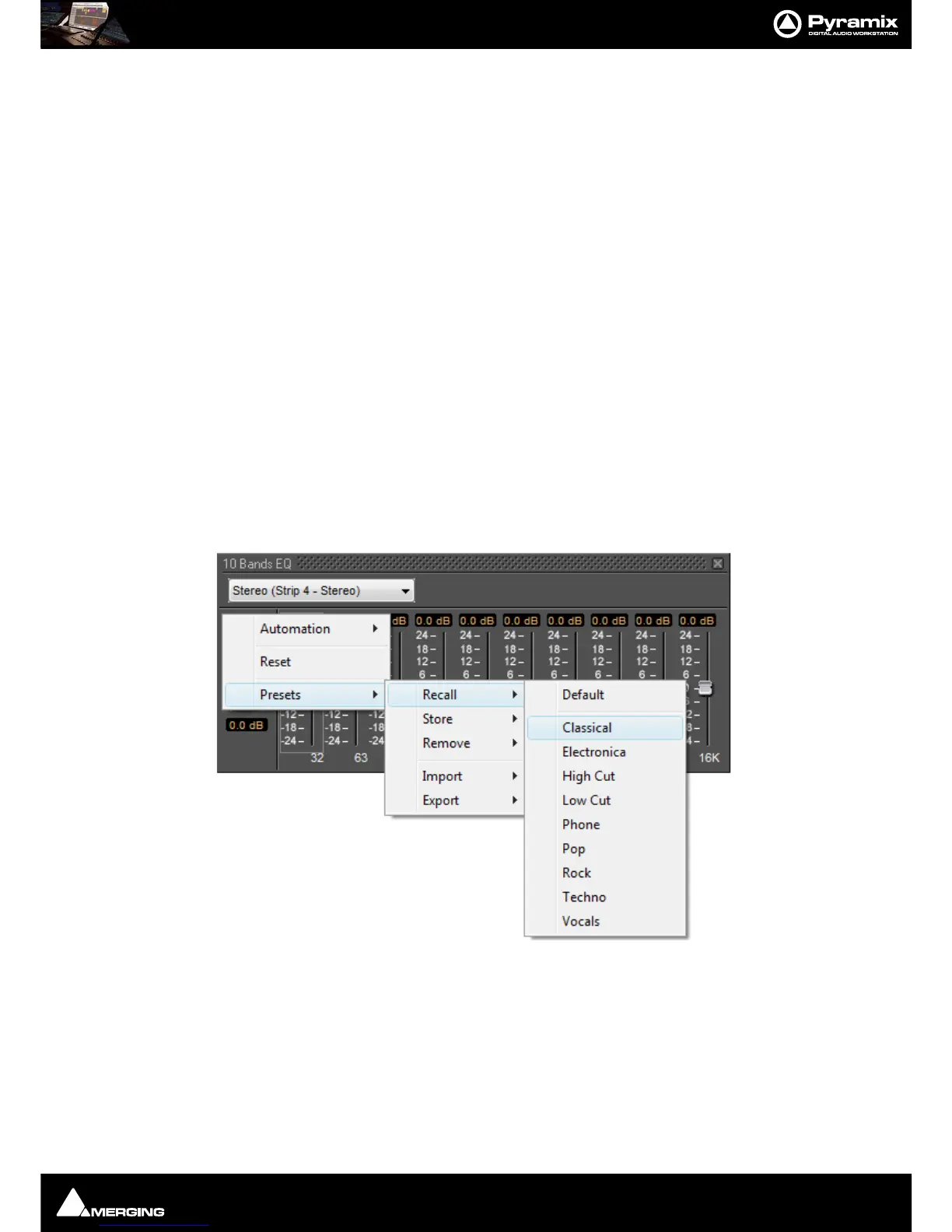
Right-clicking in the Plug-in window pops-up a contextual menu which enables the plug-in to be Reset to its
default values.
Presets can be Recalled, Stored or Removed and Imported or Exported to and from libraries.
Choosing Presets
Click on the desired preset from the list. The plug-in's parameters will be set to the values stored in the preset.



 To Next Page