Tracks and Track Groups : Track Record Modes
5 - 100
Track Record Modes
Each Track has a tri-state Record Ready toggle button, located to the left of the Track itself in the Track Header.
Tip: Right-clicking on a Track arming button opens the Settings > All Settings window immediately on the Proj-
ect >
Record page.
Play
The Green Dot in the Track Header indicates Record Safe mode, the default when Tracks are newly created.
When in this state, the
Track cannot be recorded to.
Record Ready (Manual)
Click on the Green Dot once to toggle to Record Ready mode. This is indicated by the dot turning into the Red
Dot
. The Track will now go into Record mode immediately when the Master Record button is pressed in the
Transport Strip or Transport window.
Record Punch In (Auto)
Alt-Click on the Red Dot to toggle to Record Punch In mode. This is indicated by a Red Dot flanked by 2 white
vertical lines
. In this mode, when the Master Record button is pressed in the Transport Strip or Transport win-
dow
, the Track will stay in Play mode until the current Mark In point is reached, then the Track will go into
Record mode. It will stay in Record mode until the current Mark Out point is reached.
Automation Tracks
Overview
Automation curves can be overlaid on Audio Tracks. However, there is often a need to display more than one auto-
mation parameter at the same time. (Commonly Gain, Mute and Pan). In order to accommodate this Pyramix has
Automation Sub Tracks. Similarly, there are times when it would be highly desirable to be able to display Bus
automation curves in the Timeline. Pyramix uses ordinary Audio Tracks for this purpose,
Please see: Bus and VCA
Group Automation Tracks on page 102
.
Automation Sub-Tracks
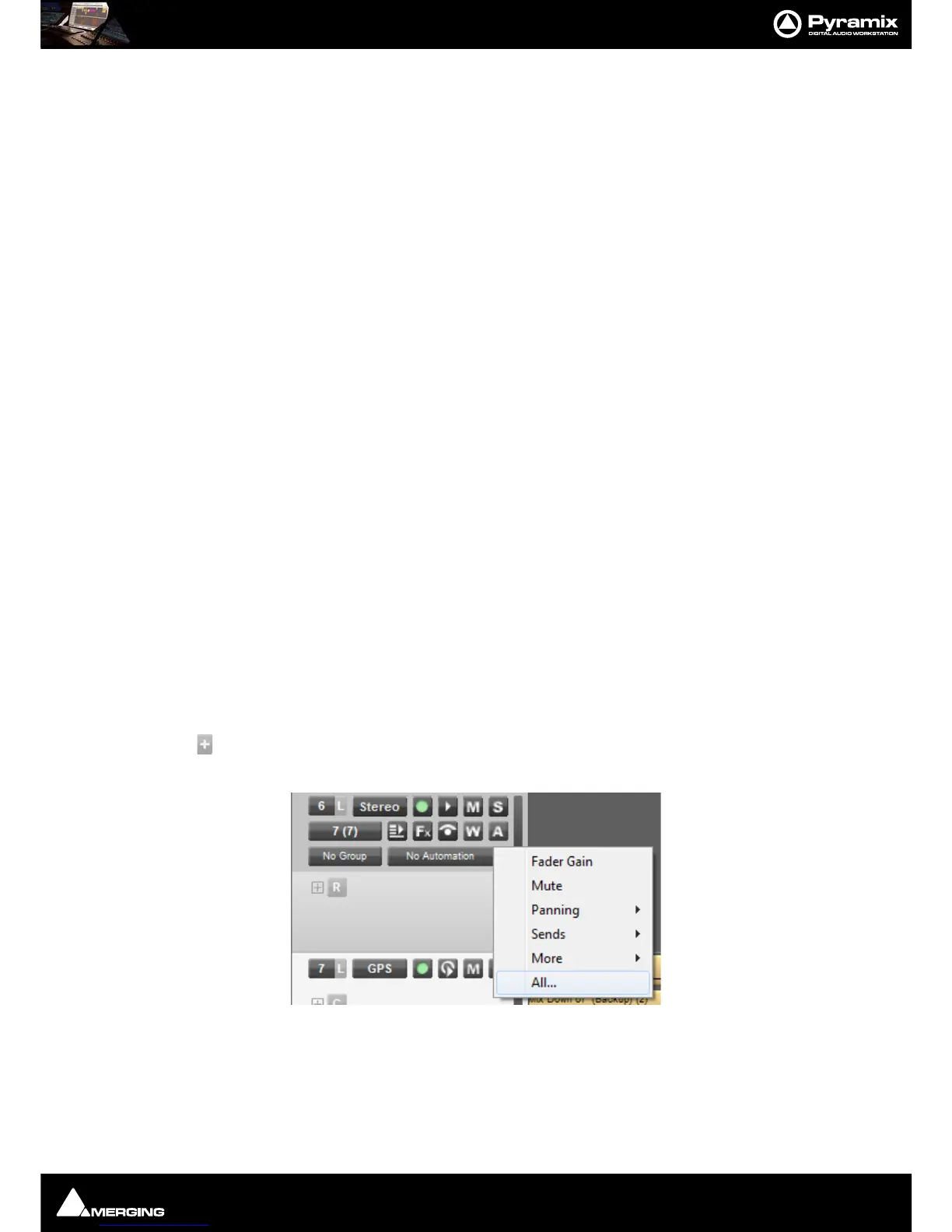
Add Automation Sub-track this button is located just to the right of the Automation Curve
button in the third row of Audio Track headers. Clicking on the button pops-up a list of auto-
matable parameters for the Track.



 To Next Page