Productivity : Workspaces
26 - 586
Workspaces
Overview
Workspaces are a method of creating presets of Timeline views and setups. A whole range of parameters including
Track Header switches can be saved into a Workspace and recalled via the
Workspaces Tab window or assignable
short-cut keys.
The object of the exercise with Workspaces is to be able to change a large number of Timeline parameters simulta-
neously and quickly. Anything from Zoom level and Visible Tracks to Input Connections and Record Ready Status,
Monitoring mode etc. can be saved together in a Workspace for later recall with a single key press.
Workspaces can be accessed via the pull-down menu on the Pyramix Virtual Studio Window Toolbar or via the
Project Management Panel Tab.
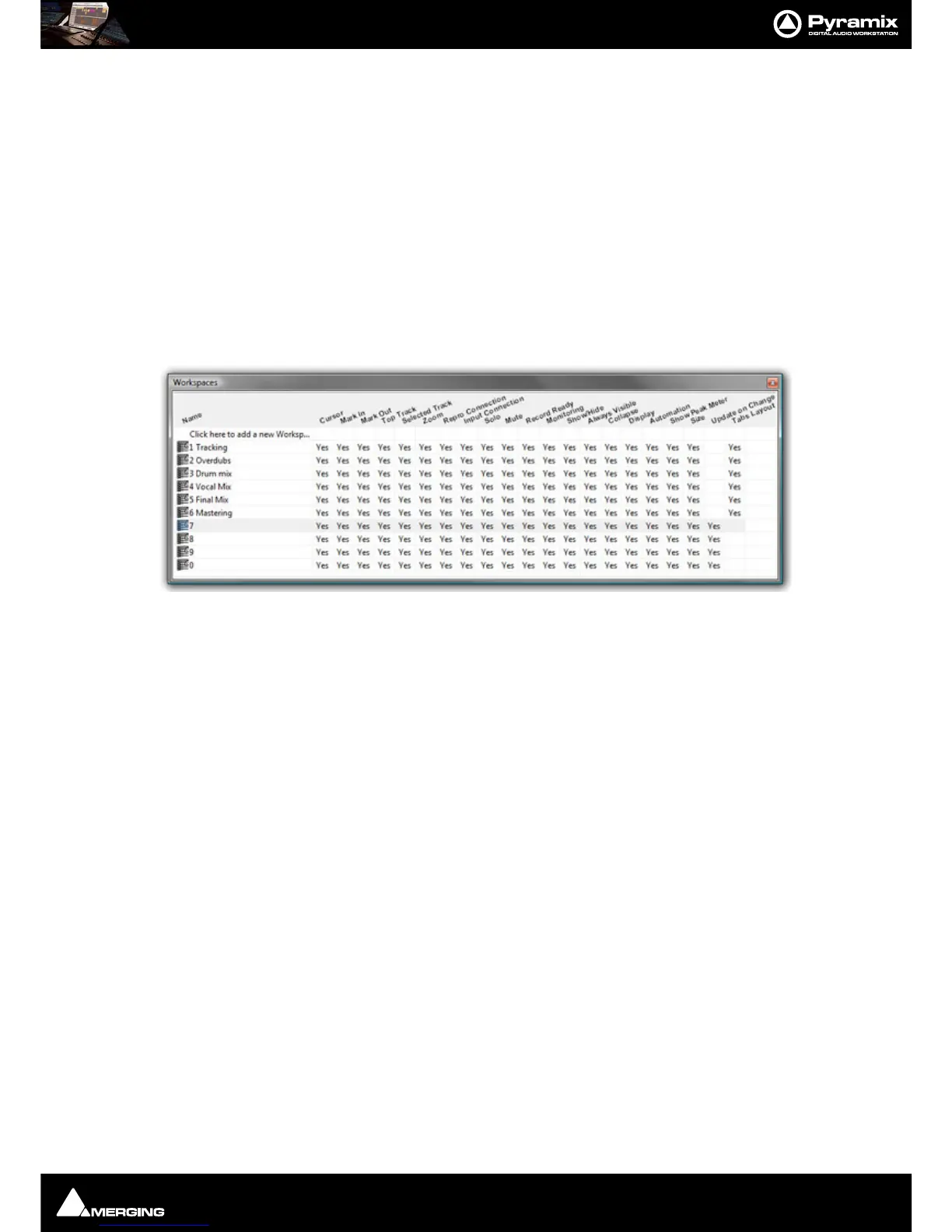
Workspaces Tab Window
The Workspaces Tab window is a Row and Column based area, where the rows correspond to the Workspace
being configured and the column refers to the parameter within the Workspace itself.
To create a new workspace, simply click on the
Click here to add a new Workspace row at the top of the list, type
in a suitable name and press
Enter/Return to add the new Workspace to the top of the list.
Once created the Workspace can be saved into a slot by selecting
Workspaces > Save > Save Workspace 1 ...
Save Workspace 10
.
When a Workspace is saved, every parameter column enabled
YES will have that parameter saved as part of the
Workspace.
Workspaces may be re-named by clicking the name.
Workspaces can be deleted by selecting them and pressing the 'Delete’ key.
Recalling a Workspace can be achieved by double-clicking on the Workspace icon to the left of the name.or select
the menu item
Workspaces > Recall > Recall Workspace (X). However, the quickest method is to use keyboard
shortcuts. By default, Workspaces 1 to 10 are mapped to
Shift + 1 to Shift + 0.
Parameters remembered by Workspaces are selectable per Workspace by clicking in the appropriate columns.
Update on change
If the Update on change column is set to Ye s. The current state of all selected parameters is saved to the current
Workspace when another Workspace is selected.
Note: Before using the Update on change feature it is strongly advised that you save the Work-
space using Workspaces > Save > Save Workspace {name of workspace} to avoid undesired
behavior.
Update on change in practice:



 To Next Page