Media Management & Libraries : Media Management and Library Tab Windows
4 - 58
The Trimmer
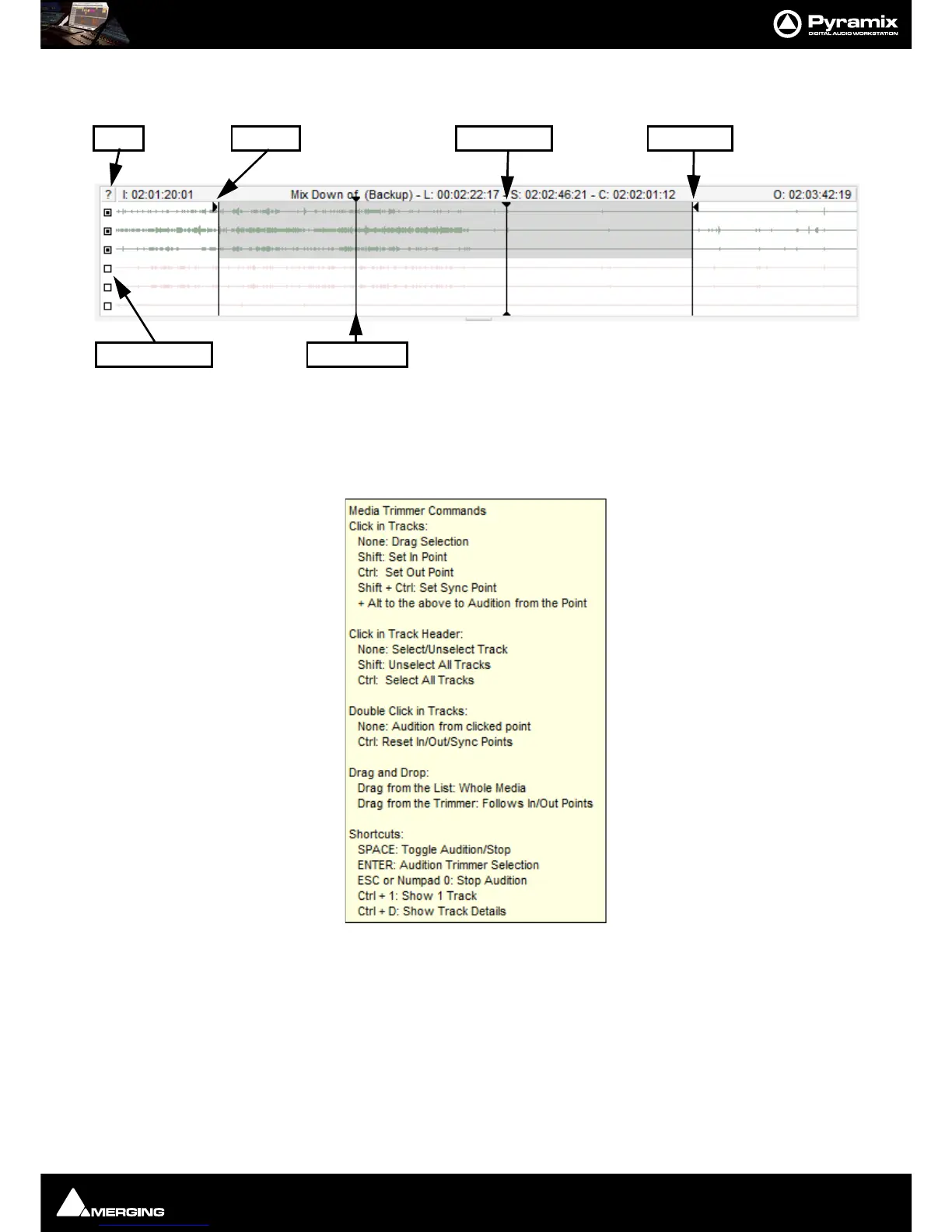
All Library and Media Management Windows have a Composition/Media Trimmer:
The Trimmer can be shown/hidden with the menu item Trimmer > Show. An object highlighted (selected) in the
list view is automatically opened in the trimmer. Multi-channel objects may be auditioned and trimmed. A small
square to the left of each Track displayed allows Tracks to be de-selected/selected for playback in the Trimmer. The
Trimmer output is stereo for 2 channel media. For media with more than two channels the outputs of unmuted
channels are summed to mono output on both monitor channels. Clicking on the ? at top-left opens the Media
Trimmer Commands list:
Media, Clips or Compositions can be trimmed in the following ways:
• Double-click: Plays the object through the Monitoring Section from the point where you double-click.
Note: If no sound is heard through the current L & R Monitor Outputs you may need to assign
values to the None entry in the Main Grid and Downmixes section of the Monitor Please
see: Media Manager and Library Monitoring on page 276
• Click & Drag: Drag the object to the timeline or to an other library properly trimmed (from the In point to
the Out point. Dragging it from the list view takes it untrimmed).
• Shift + Click: Sets the Trim In point. The point can be modified later by simply clicking on it.



 To Next Page