Editing : Editing in the Timeline
8 - 162
Editing in the Timeline
The Timeline is the place in Pyramix where audio Clips can be edited, faded up and down and otherwise
arranged into a mono, stereo or multi-channel digital audio
Composition.
A
Project Editing Panel containing the Timeline will be visible as soon as you open a Project.
The
Fade Editor provides elegant alternative methods of viewing and adjusting the parameters of edits in the
Timeline.
Clips and Compositions
Clips in a Composition
As with Clips in a Media Drive or Library, Clips in a Composition are just pointers to the original audio Media
File. Any actions performed on a Clip in a Composition will affect neither the original audio Media File, nor the
Master Clip in the Media Folder or Library it came from. In the Project Editing Panel, a Clip can be edited,
shortened, split into 2
Clips, moved, level controlled, deleted, etc., and all actions will ONLY affect the Composi-
tion
.
Once placed in the Composition, each Clip by default displays a Waveform of the Media file to which it points. This
Waveform display can be enabled, disabled or scaled by the user.
Sample Rate Mismatch
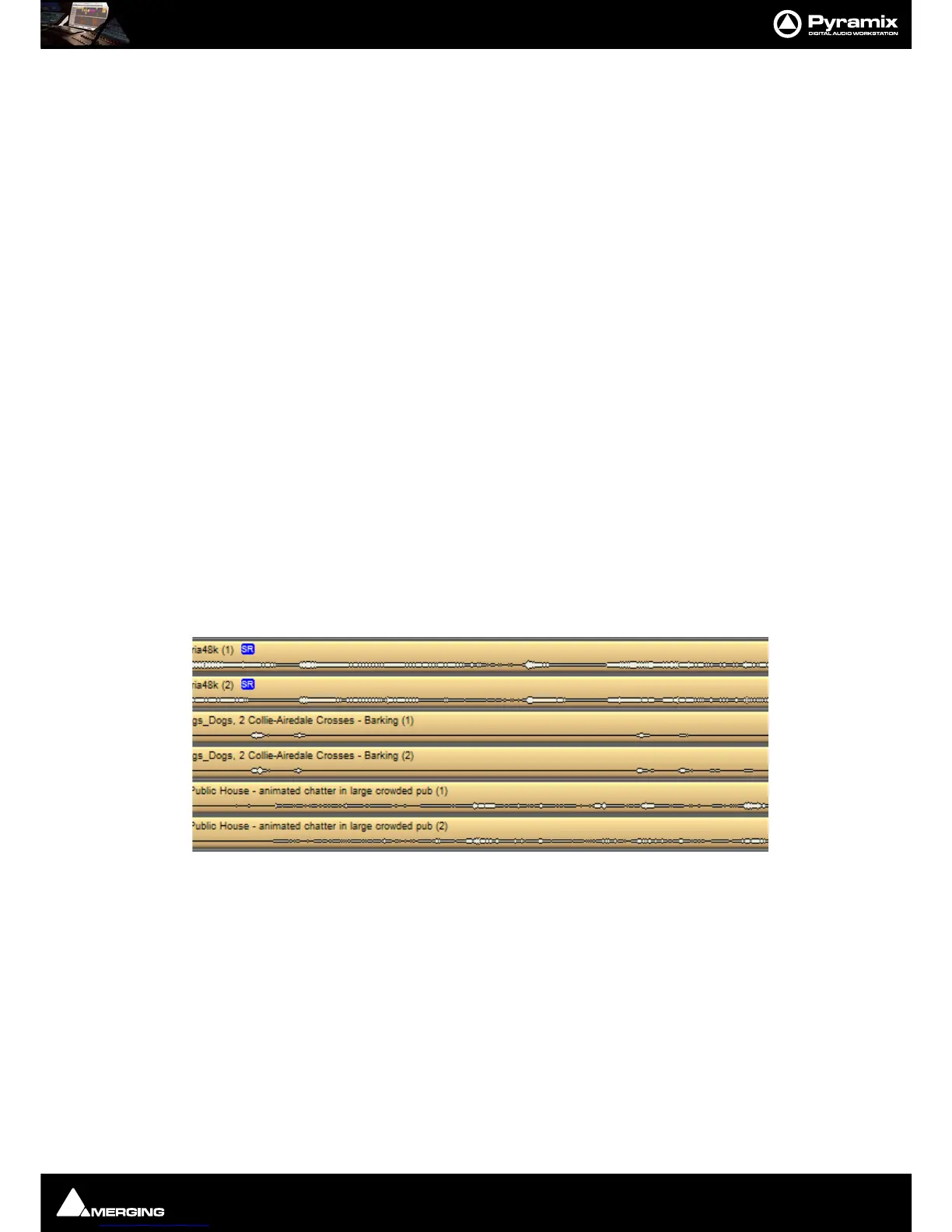
Pyramix allows Clips of any supported sample rate to be placed in the Timeline. By default Clips that do not match
the Project sample rate are converted ‘on-the-fly’ to the project sampling rate. (
Please see also: Real-time Sam-
pling Rate Conversion on page 683
)
To help avoid inadvertent placement of Clips that do not match the project sample rate, if
RealTime Sampling
Rate Conversion
is active a discreet blue SR icon is added in such Clips or a red SR icon if not :
If desired, this can be made more obvious by changing the Waveform color of Clips deviating from the Project
sampling rate in
Settings > All Settings > Application > Timeline Layout : Clips & Waveforms.
Note: Each Clip’s assumed sample rate is determined by information contained in the file header.
If this information is incorrect (as with certain DAR files) the Clips will not play back at the correct
speed or pitch.
Please see also: DAR WAV file Import on page 87



 To Next Page