Editing : The Placement Tool
8 - 187
The Placement Tool
Although the Placement Tool remains an extremely flexible paste option, most important operations are
directly available as single commands in the
Edit menu. All these commands can be mapped to a keyboard
key or included in a macro. In most cases, this is a far more efficient way to work.
Several different placement options for a Paste action can be chosen from the
Edit menu or from the pop-up
menu which appears if there is something to be pasted and the cursor is over a Track when you right-click E.g.
Paste to Cursor.
Open the
Placement Tool window by selecting Paste & Place... from the right-click Paste options above, or
choose
Edit > Paste > Paste & Place from the Edit menu.
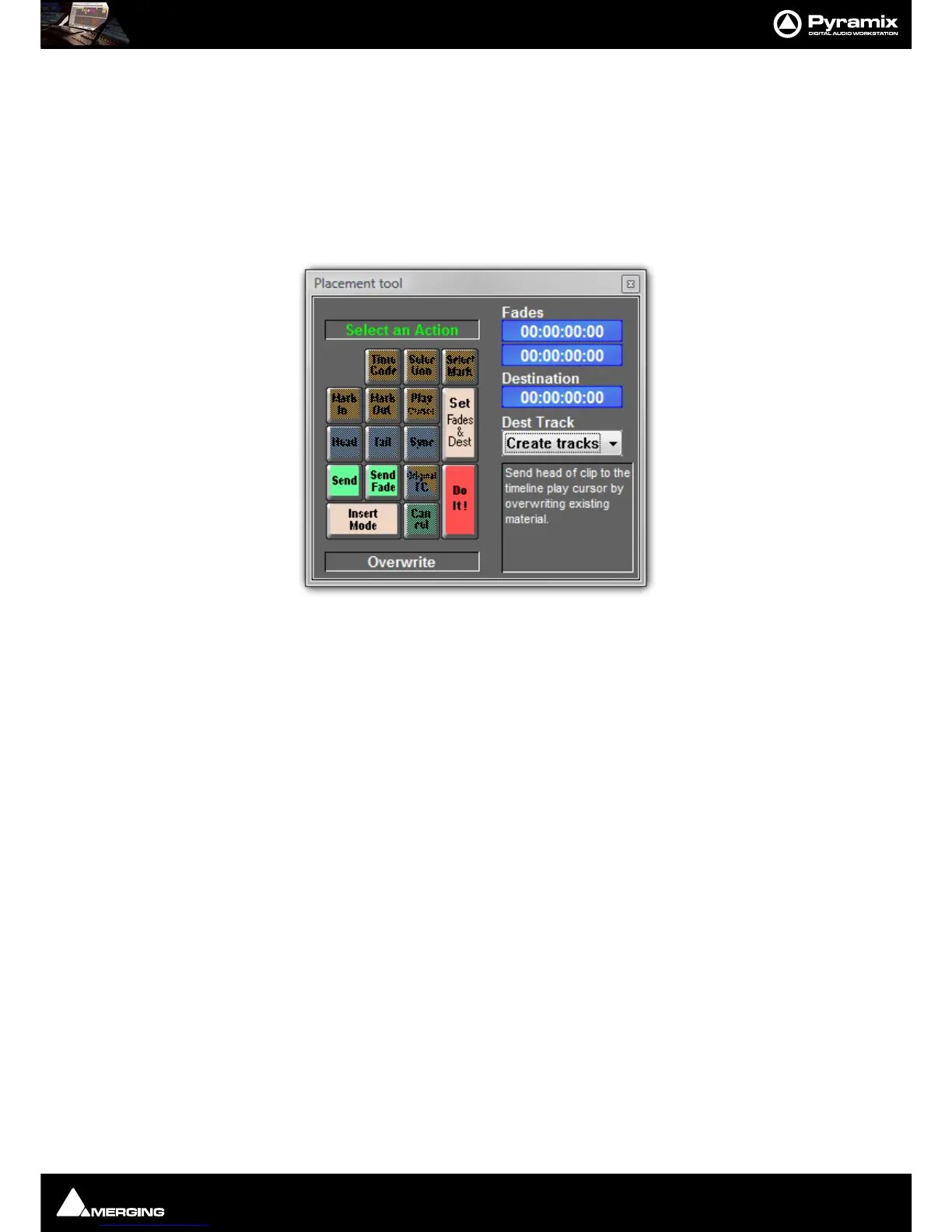
The
Placement Tool window allows the user to customize the placement of a Clip in extremely powerful and
flexible ways.
The button layout corresponds to the numeric pad on a standard keyboard.
.Select a
Paste Place action by choosing amongst the sequence of lit buttons in the window.
For example, you could choose to
Send the Sync Point of a Clip to a typed Time Code location on a Destina-
tion Track
chosen from a pop-up list; or you could Send the Tail of a Clip to the Play Cursor. Nearly every per-
mutation of placement is possible. Whatever action you choose, the results of your choices will be displayed as
text in the lower-right corner of the window before you choose to
Do It!
Remember to choose an Insert Mode to determine how the surrounding Clips will be adjusted when the new
Clip is placed in the Track.



 To Next Page