Automation : Dynamic Automation Levels
15 - 371
Preview Automation Mode
This mode allows Automation moves and snapshots to be tried out. If the result is as desired it can be saved. Oth-
erwise any changes made are discarded, preserving the pre-existing automation.
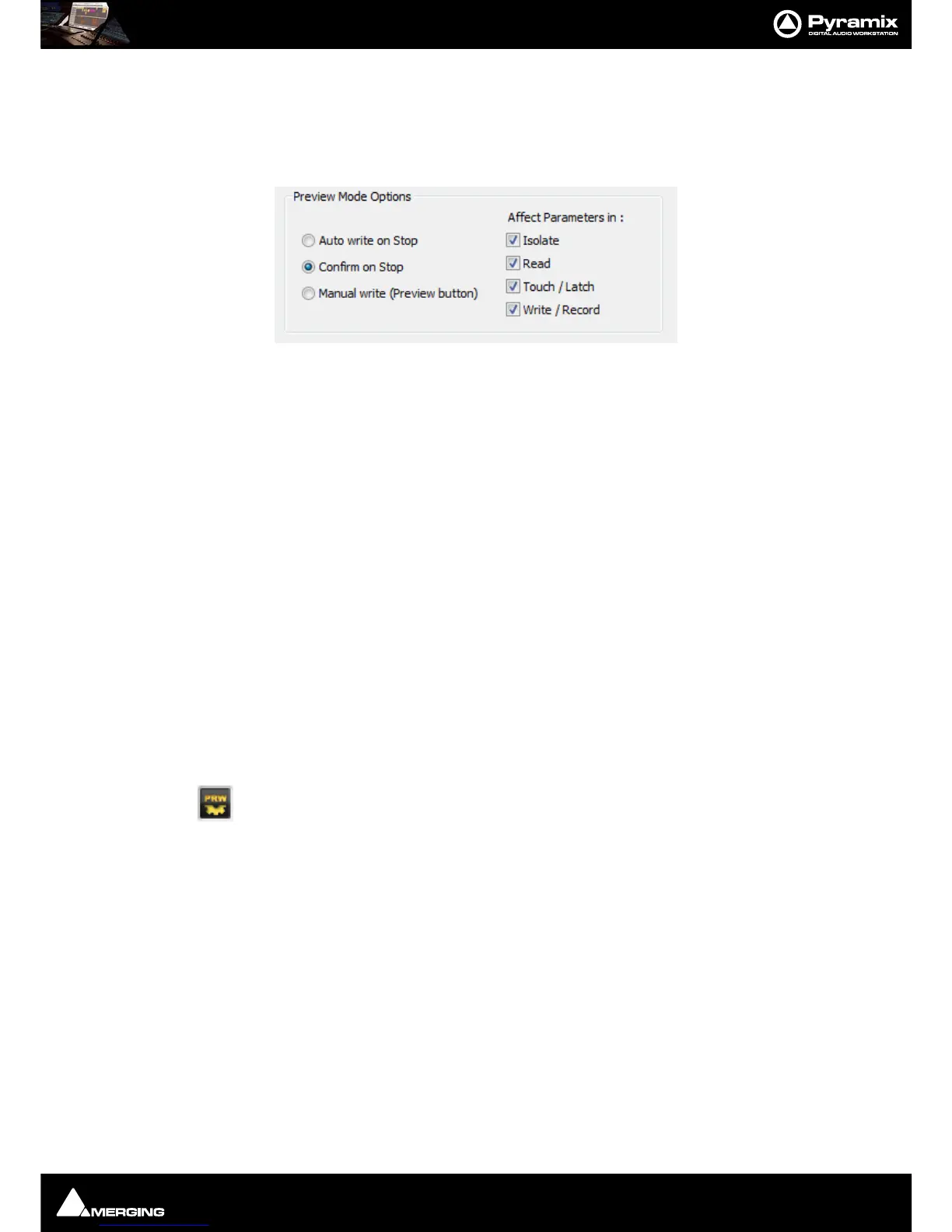
Preview Mode Options are set in the
Settings > All Settings > Application > Automation page.
Preview Mode Options
Auto write on Stop Applies the Automation on all parameters changed during the pass without con-
firmation.
Confirm on Stop The Filter Automation Tracks to Snapshot Range dialog will open automatically
when the Transport is stopped. (Equivalent of pressing the
Snapshot Range but-
ton.)
Manual Write The Preview button will blink when the Transport is stopped if any parameter
changes have occurred but the
Filter Automation Tracks to Snapshot Range
action dialog will not open automatically . Clicking on the
Preview button will
opens the dialog.
The Automation states in which parameters will be affected by changes in Preview Mode are set by checking the
desired boxes in:
Affect Parameters in :
Isolate
Read
Touch / Latch
Write / Record
When Automation Preview mode is active there are a number of different scenarios depend-
ing on the controls automation mode.
Isolate
No automation data will be Read or Written. (Same behavior as Play or Write
modes.)
Read Read the current automation data. (Same behavior as Play or Write modes.)
Write When the automation Snapshot Range button is pressed the window shows
every control in Write Mode which has been moved since the previous Snapshot.
Until a control is adjusted it follows the pre-existing automation curve. The last
value set is retained until the Snapshot Range window appears. This window
opens automatically on Stop when
Preview mode: Popup Snapshot window on
Stop
is active. In the Snapshot Range window the changes can be cancelled or
accepted per control.
Auto-Write Same behavior as Write mode.



 To Next Page