Mixer : Mixer Sharing
10 - 267
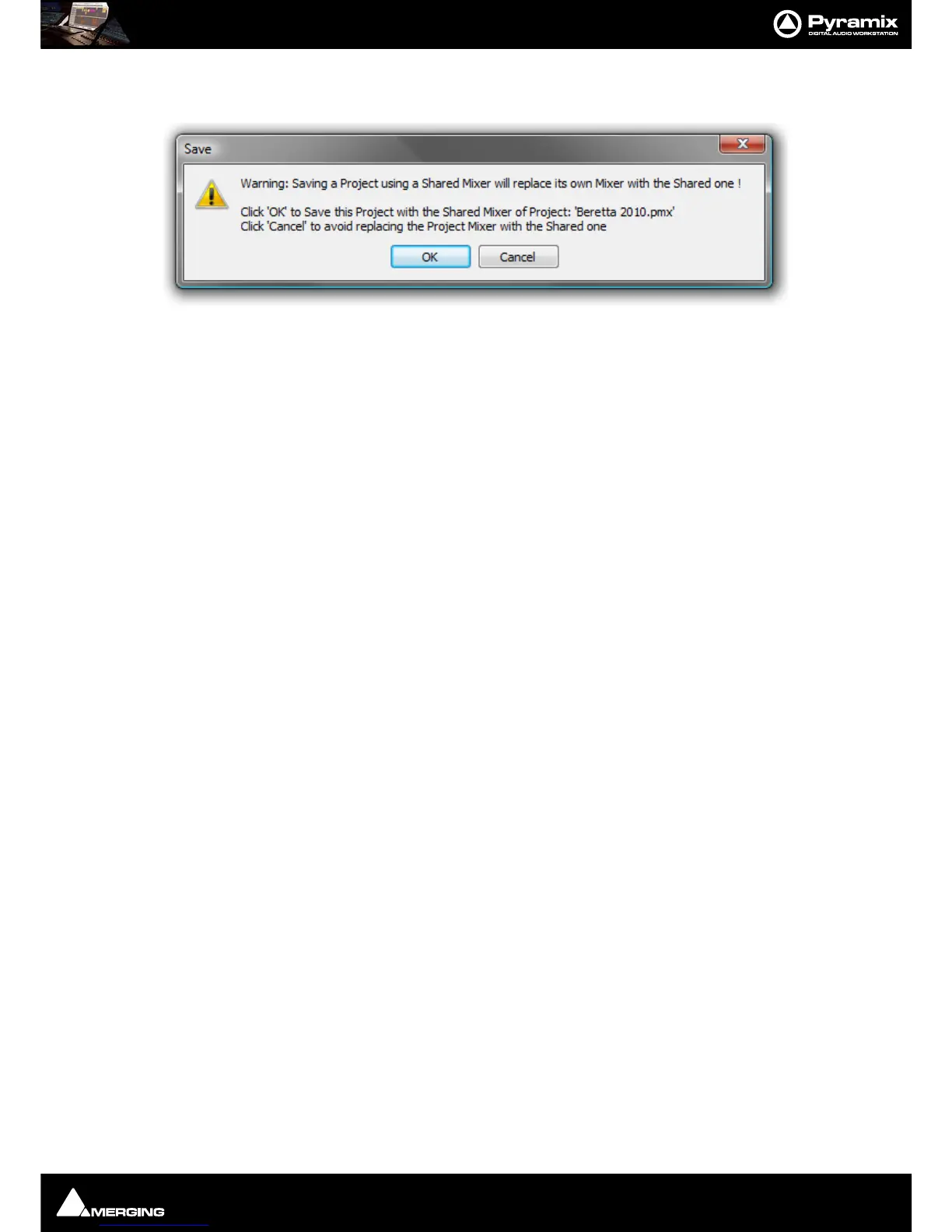
• When the Project is saved the Mixer saved will be the shared one. If there is a pre-existing Mixer this dialog
appears:
If you wish to replace the Mixer saved currently Click on
OK to accept and close the dialog.
If you do not wish to replace the Mixer saved currently Click on
Cancel
Note: If you have made editing changes in the Slave Project and wish to Save these without Sav-
ing the Shared Console to the Slave Project file do this:
1. Switch to the ‘Master’ Project
2. De-activate Mixer Sharing
3.
Switch back to the ‘Slave’ Project
4. It’s original Mixer will be present but minimized.
5. Maximize the Mixer
Note: None of the above apply to the Project sharing its Console (Active Green icon) Everything
works as normal when in this Project.
Multiple Projects
It is perfectly possible to have several Projects open sharing a single mixer. This can be useful when compiling.
It is also possible to create a new Project from a ‘Slave’ Project. However, the mixer you specify or create will only
be saved with the Project if you follow the procedure above. Otherwise, the Shared mixer will be saved with the
Project.
If an existing Project is opened from a ‘Slave’ Project the Shared Mixer will be used. Again, if you don’t want to lose
the existing mixer when saving the pre-existing Project, follow the procedure above.
Rewire
Propeller Head “Rewire Mixer Application” is supported with Pyramix.
• ReWire supports Sampling Rates from, 1FS to 8FS.
• ReWire support must first be enabled in the VS3 Control Panel under the
Audio Bridge section.
• The number of Rewire channels available corresponds with the value set in the VS3 Control Panel.
• The Rewire connectivity will appear in the Mixer input selection lists, as Live Inputs.
• Transport, Bars & Beats will be linked between the ReWire client and Pyramix.
Note: At present Rewire cannot be used in combination with ASIO Bridge. Only one mode at a
time can be selected in the VS3 Control Panel. Concurrent support will follow shortly.



 To Next Page