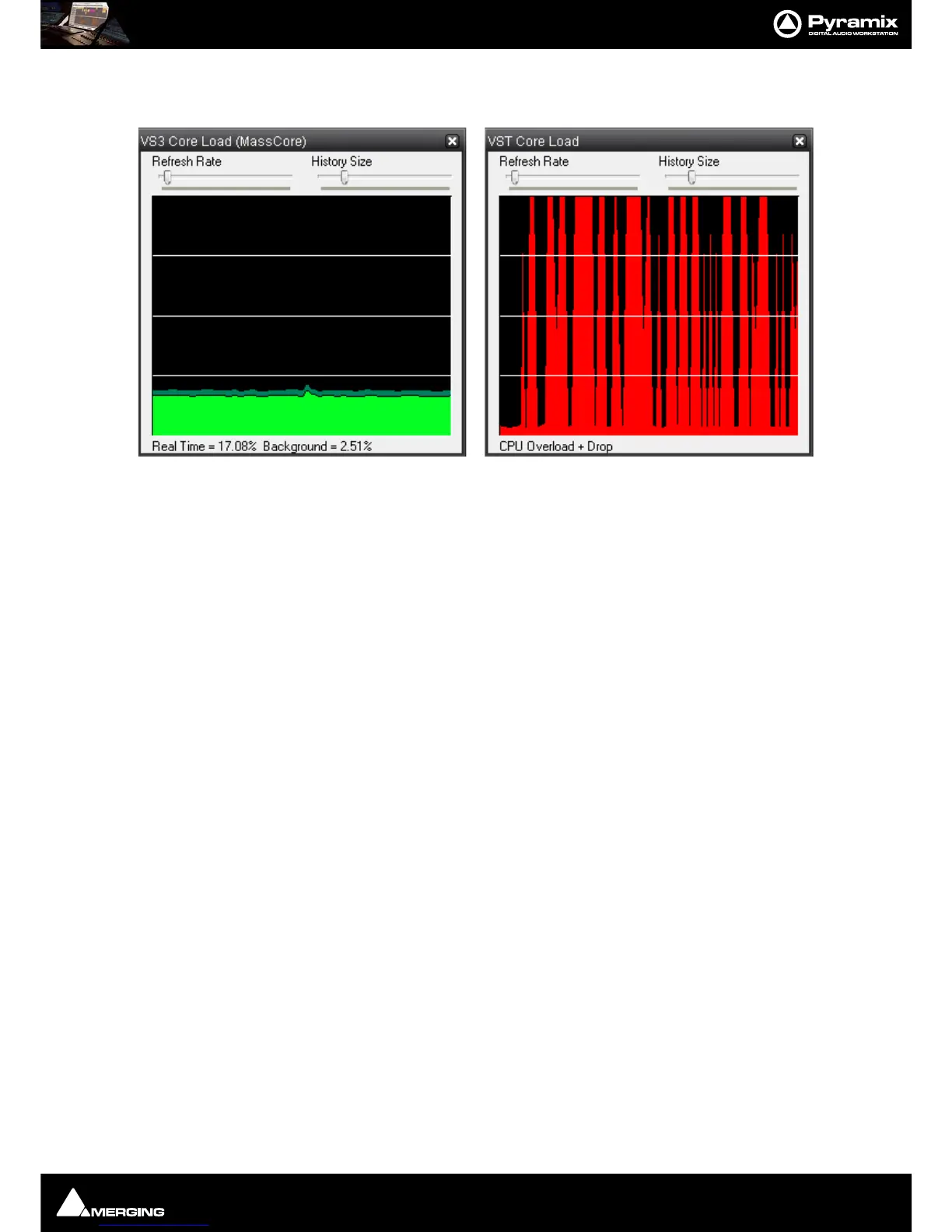
MassCore : Core Load Indicators
2 - 36
To see more detailed information about both Core Load Indicators, Shift + Click on them to open the two Core
Load debug Windows:
If the VST Core Load display looks anything like the screenshot above we recommend that you increase the VST
Plug-ins engine Latency value.
In order to support some VST plug-ins which need a big buffer to be efficient (e.g. Algorithmix EQ Orange/Red,...)
we recommend that you increase the VST Plug-ins engine Latency size up to 8192 smpl (samples) using the
VST Plug-ins Engine Latencies slider in the All Settings > Hardware > MassCore page.
Note: this value can only be adjusted when no project is open.
Important! If a Drop (glitch) occurs, the Core indicator will blink. Click on it to reset it.
Note: This indication may be useful if, for example, you do a Realtime Mixdown or Recording
and leave the Studio for a minute to get a coffee. If, on your return, you see the Core blinking this
would mean that you have experienced a drop, so that you probably have a glitch in you final
mix or recording.
Overload Diagnosis and Cures
First determine whether the CORE indicator or the VST indicator is turning red during a glitch.
If the MassCore (CORE) indicator becomes red during playback or recording you have exceeded the capacity of the
workstation. You should reduce the size of your project mixer and/or the amount of active plug-ins you are using,
or try increasing the Max Mixer Delay Compensation slider value in the Mixer Settings page (Settings > All Set-
tings > Project > Mixer > Mixer Settings). You may also try changing the buffered read and write settings of your
.pmf files from within the Project > Record page under Format/(PMF)/Settings for projects with large numbers
of audio tracks (approaching machine capacity for current sample rate).
VST
If the VST indicator becomes red you might want to increase the MassCore VST Plug-ins Engine : Buffer Size
slider value in the All Settings > Settings > MassCore page. The VST buffer size can be increased in order to sup-
port VST plug-ins that need larger buffers in order for them to work efficiently. So, if you are experiencing VST Core
Loads or Peaks (100%) we recommend that you set the VST Plug-ins Engine : Buffer Size value higher, it can go
up to 4096 samples to help support certain VST plug-ins. Note that you can also monitor the VST Core load by
Shift Clicking on the CORE % indicator, this will open the VST core load debug window. (See above) If you see
spikes (red) during playback or an idle indicator then it may be advisable to increase the VST Plug-ins engine
Latency (Settings > All Settings > MassCore : VST Plug-ins Engine Buffer Size), this value can only be adjusted
if all projects are closed within Pyramix.



 To Next Page