Transport and Navigation : Transport Control
6 - 113
Transport Control
Pyramix features a wide range of Transport Control commands including, unlike many other workstations,
Reverse Play and Play at fractions and multiples of sync play speed both forwards and backwards. These possibil-
ities can be attached to short-cut keys in the Keyboard Shortcut editor. Please see:
Customizing Keyboard
Shortcuts on page 457
Of course, these commands are also available via remote controllers that support them.
Navigation
Pyramix Virtual Studio offers a number of ways of navigating around a Project.
Timeline Structure
Important! The Pyramix Timeline starts at 00:00:00:00 on Day 0. It is perfectly possible to go backwards
before
00:00:00:00 say to 23:50:50:00. In this case the cursor is in Day -1. If you go forwards beyond
TimeCode Midnight the cursor will be in
Day +1. When the Timeline is outside Day 0 it is shaded in red.
The TimeCode display in the bottom Transport Toolbar and Main Transport Window will show a red indi-
cation when the Playhead Cursor is outside Day 1. E.g.
-1 in the day before Day 0, +1 in the day after Day 0
and so on.
Time Scale Rulers
Pyramix is equipped with many Time Scale options. Each Time Scale has an associated Time Scale Ruler and To ol
Bar
which appears above the Time Scale Ruler(s).
Main TimeCode Ruler
Near the top of the Project Editing Panel is a horizontal gray area with time code numbers. This is the Main Time-
Code Ruler
. On the left, above the Track Headers, the Time Range, i.e. the length of the visible Timeline window is
indicated.
The simplest way to move the
Playhead Cursor within the Project Editing Panel is to position the mouse any-
where along the
Time Scale Ruler and left-click. The Playhead will immediately move to the new position. You
can also left-click the
Playhead Cursor and drag it along the Ruler.
Context Menu
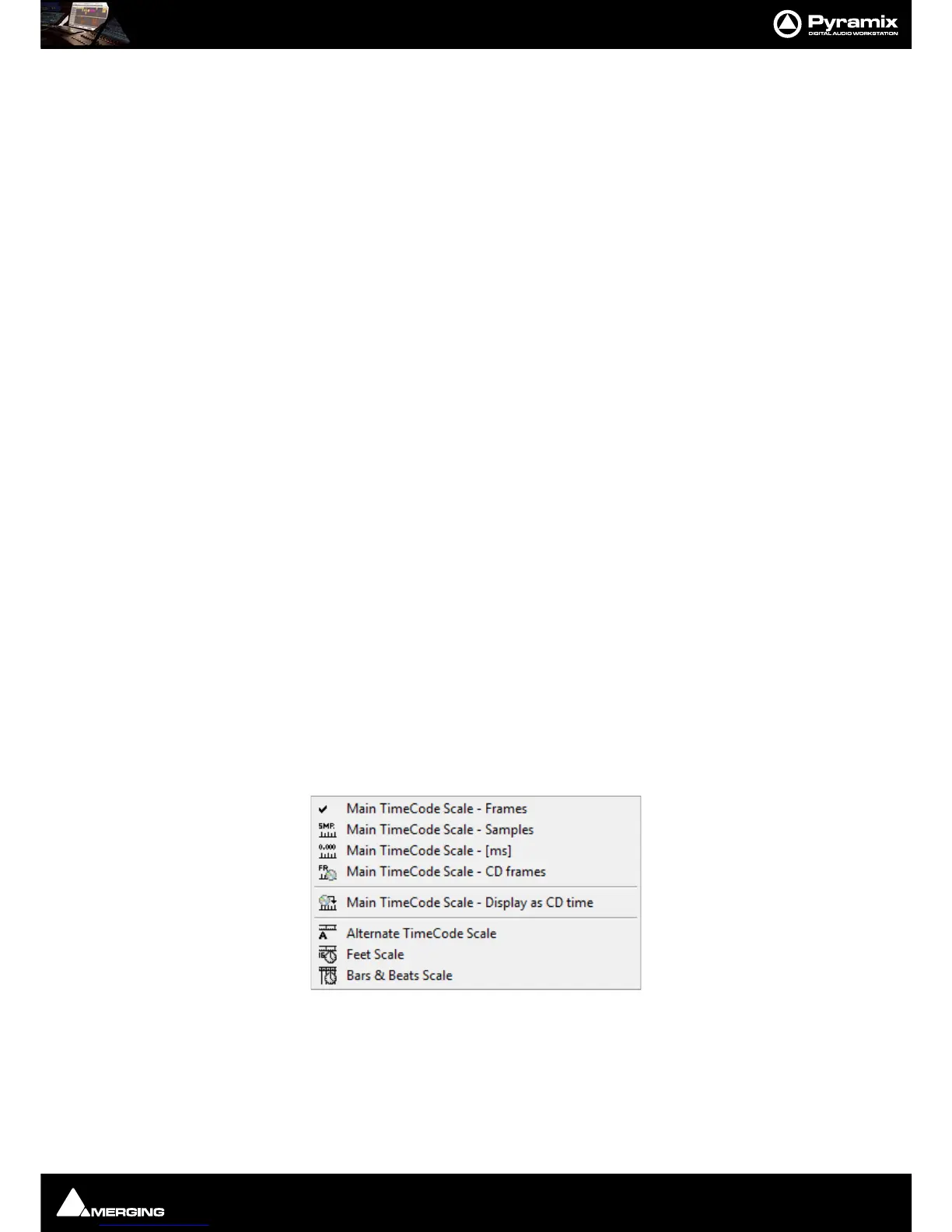
Clicking in the left hand, Header, area of a Time Scale Ruler pops up a context menu.
The first six entries offer a choice of display modes for the Main TimeCode Scale a tick appears next to the option
selected currently:
• Main TimeCode Scale - Frames
• Main TimeCode Scale - Samples
• Main TimeCode Scale - [ms]



 To Next Page