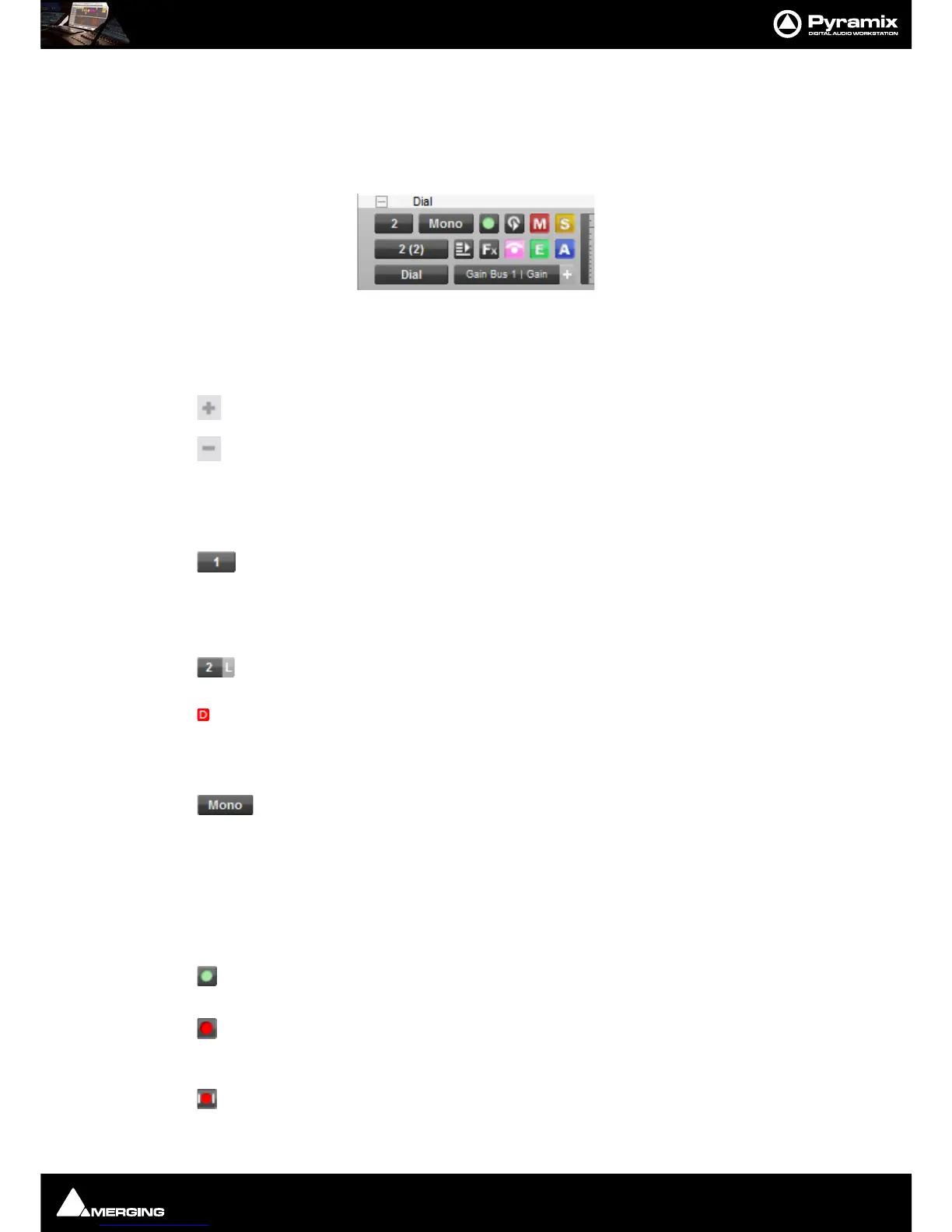
Tracks and Track Groups : Track Header Panel
5 - 96
Track Header Components
Overview
The Track Header consists of a number of buttons and information displays spread over from one to three rows.
Buttons used most frequently are arranged in the top row so that, when only one row high, they remain visible.
If the Track is a member of a Track Group then a toggling
- / + button is shown, together with the Track Group
name, in the Track Group separator area above the header.
Expand Track Group
Collapse Track Group - Alternate state of Expand Track Group.
Components
First Row
The number on the top-left button shows the number of the Mixer Strip Channel its output is
assigned to. Clicking this icon pops up a list to select from all available Mixer Strip Channels.
If the button shows a Off, no Mixer Strip Channel is selected and recording and or replay is
not possible.
Where the mixer strip is anything other than mono a channel identifier is also shown. All
Tracks are numbered in this way in ascending mixer Strip order.
If the small red D symbol is visible to the left of the Strip number then the Track is feeding a
Direct Monitoring Input Strip - Therefore automatic delay compensation will not be applied.
Patch Track to a ‘normal’ Input Strip for mix down etc.
The name button defaults to the Track type. Click on the button to type a new name in the
field.
The Record icon has three possible states.
Record Safe and Record Ready are toggled by left-clicking the icon. AutoPunch Ready is enabled / disabled
by holding down the
ALT key while left-clicking the icon.
Record Safe - no recording possible.
Record Ready - Recording commences when the transport Master Record button is pressed
and finishes either when the Stop button is pressed, or when the Play button is pressed.
Autopunch Ready - Recording commences when the previously set Record In point is
reached and finishes when the previously set Record Out point is reached.



 To Next Page