Transport and Navigation : Markers
6 - 126
Editing Project Markers
Project Markers can be edited the following ways:
• Click and drag to move Markers directly in the timeline Marker Tray..
• With the mouse over the Marker in the tray right-click pops up a context menu with
Rename Marker and
Delete Marker options.
•In the
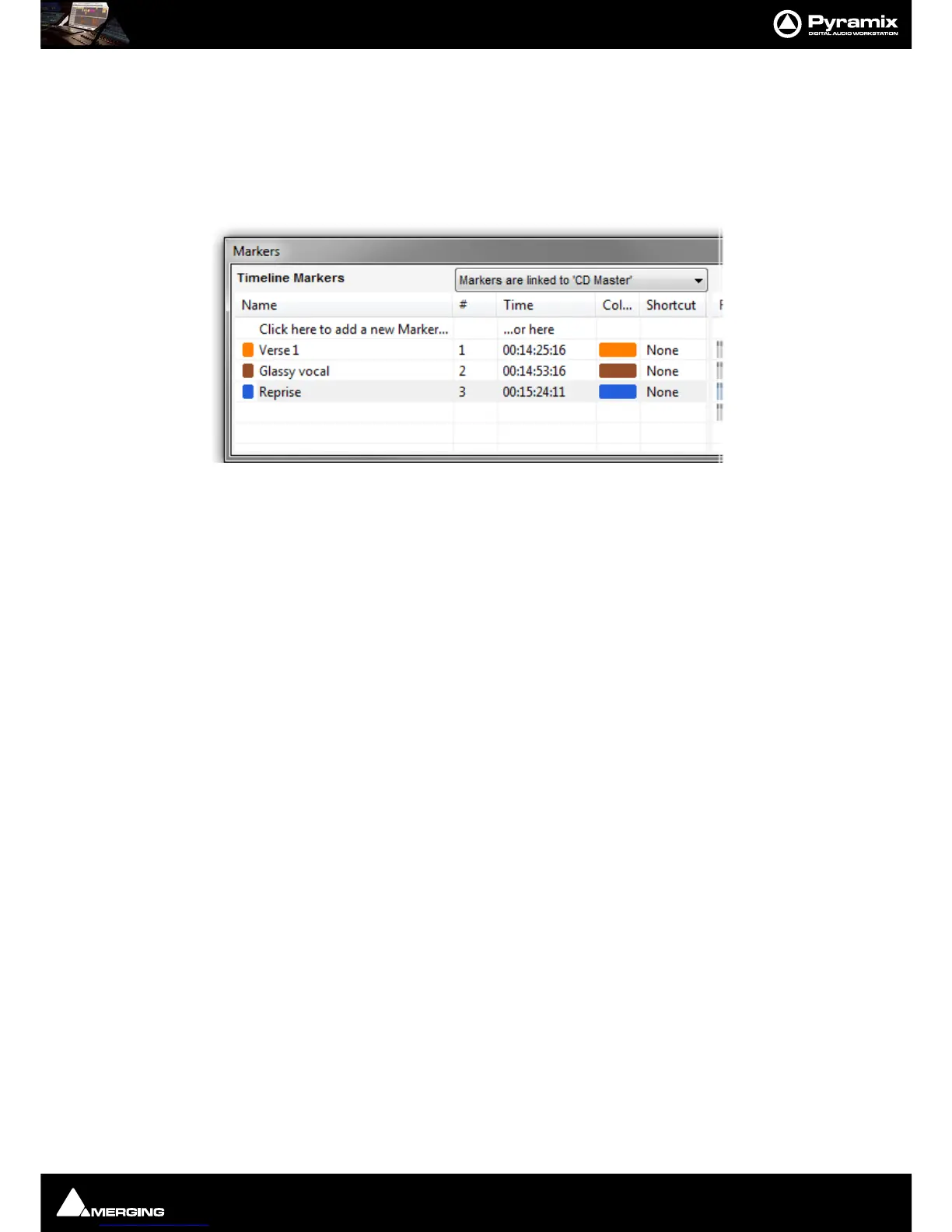
Timeline Markers section of the Markers Tab window.
See: Markers Tab Window on page 132
Track Group Markers
Filter By Track Groups
Separate lists of Markers can be created for the Project as a whole and for individual Track Groups.
The
Filter By Track Groups column shows Project Markers and all the Track Groups added to the Project. Time-
line Markers can be created in a specific Track Group.
For example:
1. Create a Project with Tracks.
2. Create two or more Track Groups in the Track Groups Tab window.
3. Add Tracks to each of the Track Groups.
4. Turn Free Markers on (Ye s) for each Track Group.
5. Add Markers with Group 1 selected in the Timeline (Either by selecting one of the Tracks belonging to the
Track Group in the Timeline or by clicking on the Track Group where it is listed under
Filter By Track Groups
in the Markers Tab window.)



 To Next Page