Mixer : Configuring a Blank or Existing Mixer
10 - 251
Further Mixer Configuration Options
Mixer Context Pop-up menu
The entries on this menu vary according to where you right-click on the mixer surface. At the top of the menu the
entries concern the specific mixer component under the mouse cursor when you right click. The next section of
the menu has entries which affect the Strip. Entries from
Mixer to the end of the menu affect the entire mixer and
are available wherever the mouse is right-clicked.
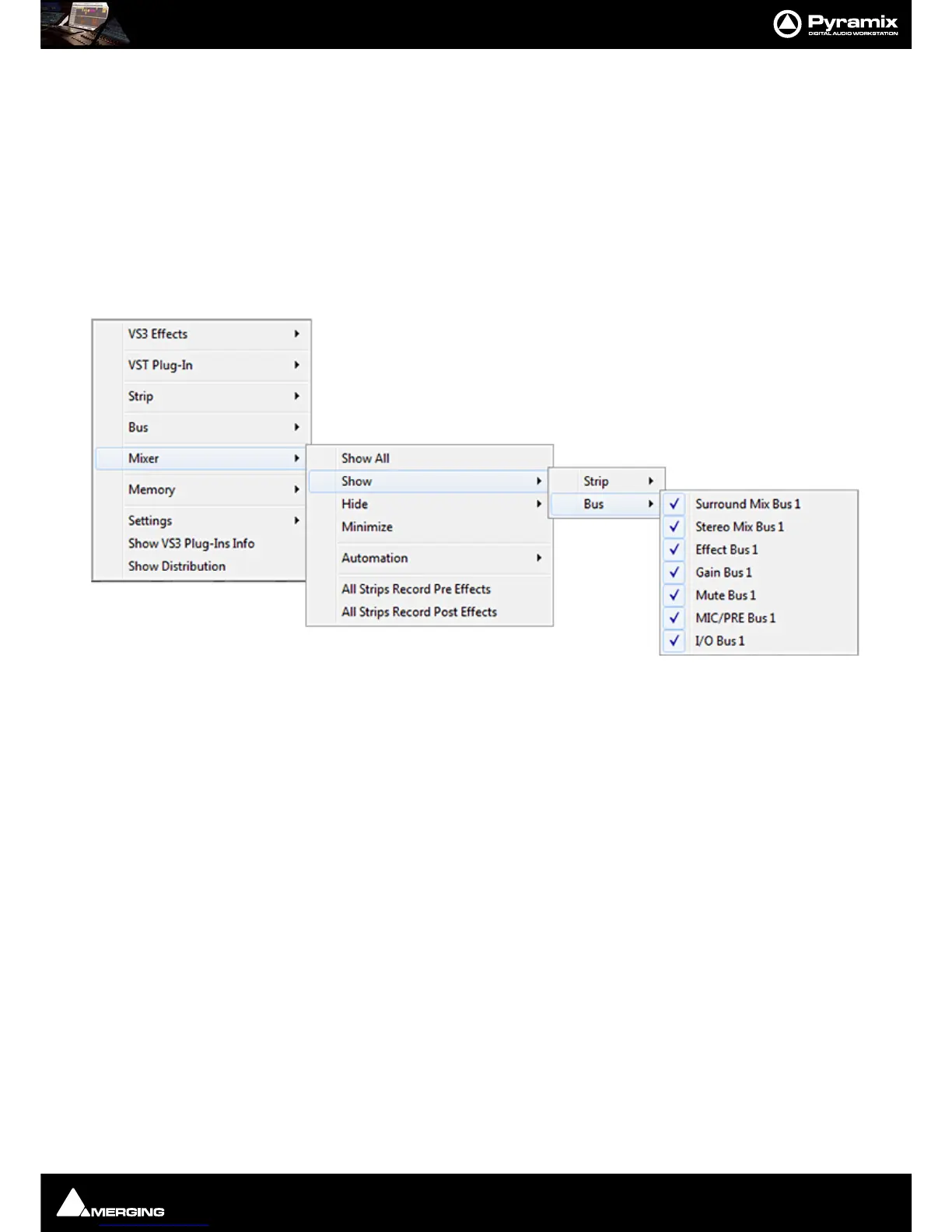
Mixer > Show
Show All
Makes all input strips and buses visible
Show / Hide > Selects Strips and Buses to be shown or hidden. When checked, the Buses or
strips are visible on the console surface. Both
Show and Hide access the same lists.
Minimize When checked, Mixer window is minimized
Automation >
Isolate
These menu choices toggle the Automation mode for the entire
Play mixer. Please see: Dynamic Automation Transport Modes on page 367
Record
Auto-write
Memory >
The choices here enable mixer presets to be saved loaded and managed.
Please see: Mixer Presets on page 253
Settings >
General...
Opens the Mixer Settings window at the All Settings > Hardware > Hardware >
Formats & Sync
page. Please see: Formats and Sync on page 641
Enable Delay Compensation
Enables Delay Compensation for the mixer
Dithering Opens the Dithering window. Please see: below and Dither on page 404 for an
explanation of the need for dither
Remove Select All Strips, All Buses or All to remove groups of mixer components or every
component.
Auto-connect Automatically connects the Mixer inputs and outputs using the available inputs and
outputs of the installed daughter card (s) and the Mixers Preferred Monitoring Outputs



 To Next Page