Mixer : Configuring a Blank or Existing Mixer
10 - 248
Ghost Effects and Plug-ins
Essentially, Ghost Effects or Plug-ins mean that if you load a project containing an effect or plug-in which is
unavailable on your machine, this plug-in will appear in the mixer strip as a Ghost plug-in. Subsequently saving
the project will not trash the missing Plug-in’s state information. When a plug-in is a Ghost its name appears
crossed out in the mixer :
Removing, Copying or Moving VS3 Effects and VST Plug-Ins
VS3
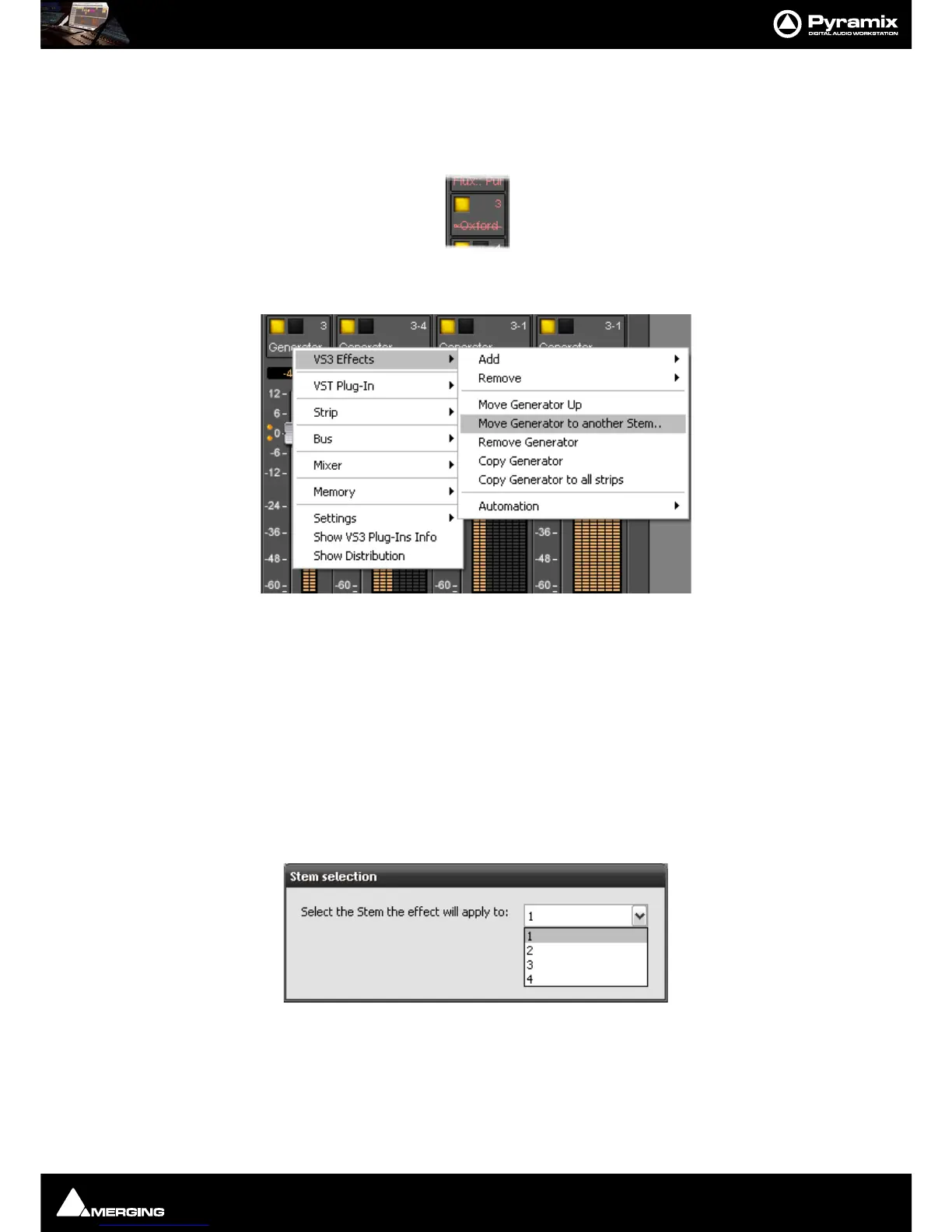
Right-click on an Effect in a Strip to open the context menu and hover the cursor over VS3 Effects. Here you can
make a number of changes to the Effects
Add Accesses the Effects list to add a further Effect to the Strip
Remove Accesses a list of all effects currently instantiated in the strip. You can select any of
them for removal.
Move “Effect Name” Up Moves the effect you right-clicked on Up the list.
Move “Effect Name” Down Moves the effect you right-clicked on Down the list.
Note: The Up and Down options are only shown when a move is possible.
Move “Effect Name” to another Stem
Pops up a dialog with all available stems for this bus. (Only present when the Effect
is in a Multi-Stem Bus) The Iteration and Stem numbers are then shown on the



 To Next Page