Editing : Clip Fade Commands
8 - 173
Clip Fade Commands
Fade In
Fade Out
X Fade
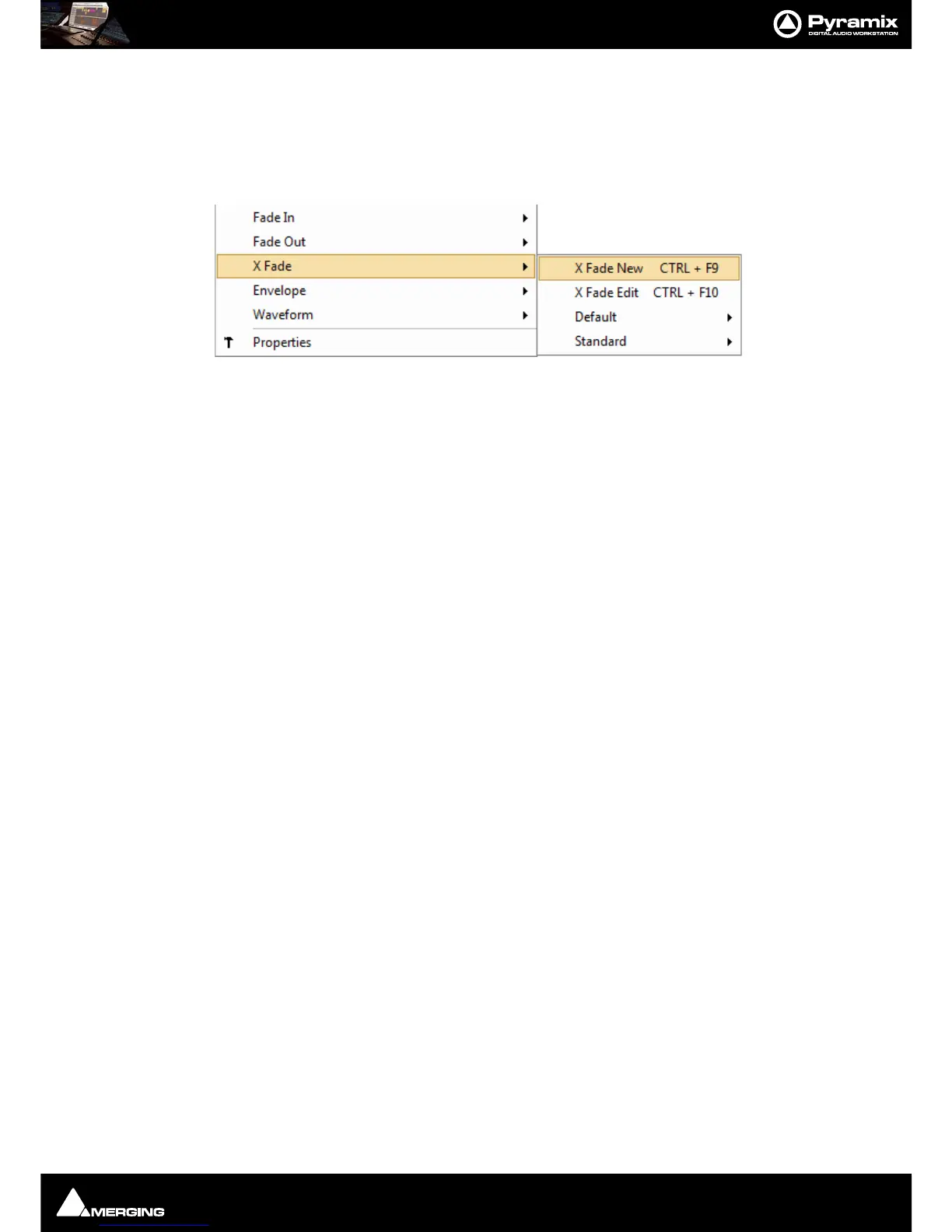
Each of these three entries on the Clips menu lead to sub-menus which all look like this:
New Creates a fade when a Region is defined at the beginning (Fade In) the end (Fade
Out
) or across overlapping Clips (X Fade)
Edit When chosen from either the Fade In or Fade Out sub-menus, opens the Fade Edi-
tor with the current fade. From the Cross Fade sub-menu opens the Fade Editor
only when a Region is defined across an existing cross fade. (
Please see: Fade Edi-
tor Tab Window on page 192
)
Default When a Clip is selected or a Region is defined which includes the Clip start or end,
Fade In or Out > Default > Complete recalls the length and shape of the Default
Fade In
or Out and applies it to the selection.Default > Curve Only recalls only
the curve shape.
When a Region is defined on a Clip or Clips which are cross-faded
X Fade >
Default Complete
or Curve Only recalls and applies the Default Crossfade length
and shape or shape only respectively.
Standard Sub-menu offers a choice of fade types
Power Linear
Tension Linear
dB Linear
Cosine
Root Cosine
Editing Modes
The current Editing Modes are shown in the Cursor Toolbar. If either Remove, Insert or Snap modes will result in
rippling of other Clips. I.e. loss of sync, the
Editing Modes are shown in Red Some of the editing commands which
delete Clips from, or paste Clips into the Timeline behave differently depending on the current settings of the
Insert mode and the Remove mode.



 To Next Page