Mixer : Configuring a Blank or Existing Mixer
10 - 245
Configuring a Blank or Existing Mixer
Configuration of the mixer control surface is accomplished via the Configure Page, Route Page (Please
see: Configure Page on page 211 and Route Page on page 219
) or contextual menus. The precise options
available will depend on where you click on the mixer. If you wish to affect the entire mixer, right-click on the top
bar of the Mixer window. To change options for a Bus, right-click on a blank area of the Bus strip. Similarly, for a
channel input strip, right click on a blank area of the Strip. Right-clicking within a function block adds menu
entries to the top of the list, relevant to the specific block.
Adding Strips
Right-click anywhere on the Faders, choose Strip > Add and select the appropriate type of strip to add or right-
click anywhere on the Faders, choose
Bus > Add and select the appropriate type of bus to add.
Removing Strips
To remove a given input strip, bus or group, right-click directly on it and choose Strip > Remove (Strip, Bus or
Group) as appropriate.
Mixer I/O Assignments
To or from physical I/O
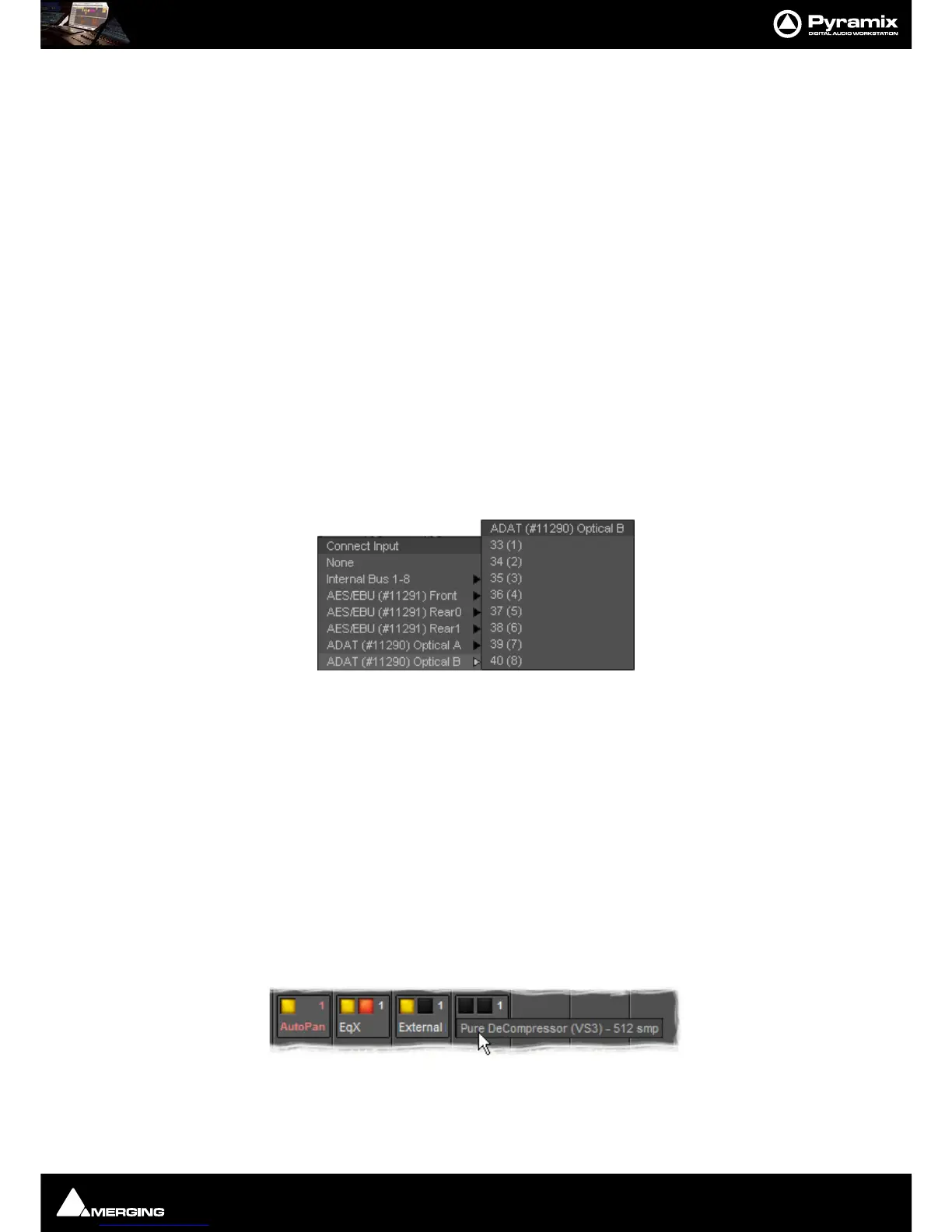
To c hange I/O assignments to or from physical I/O or the Internal Return Buses, click on the appropriate XLR
icon
. Choose Connect Input or Connect Output from the pop-up menu and choose the desired connection.
When connecting a multichannel strip clicking on the header (ADAT(#11290) Optical B in the above illustration)
will connect all channels consecutively.
From Tracks
Note that several Tracks may be routed to the same mixer input strip. Tracks are assigned to mixer input strips
either automatically or manually from the
Track Header. See: Track Header Panel on page 94
Effects and Plug-ins
Please see also: Effects and Plug-Ins on page 309
Mixer Strip Controls
When Native VS3 Effects, VST Plug-ins and External Inserts are instantiated in mixer strips each instance has a
block of one or two buttons. The full Effect name, Plug-in name or
External Insert pops-up along with the
required delay compensation when you hover the mouse pointer over each block:
Buttons
Each block has one or two buttons. The left-hand, yellow button is lit when the effect or insert is switched on.
Switching an effect or insert off removes it from the signal chain and this may well be audible.The right-hand, red



 To Next Page