Mixer : Configure Page
10 - 217
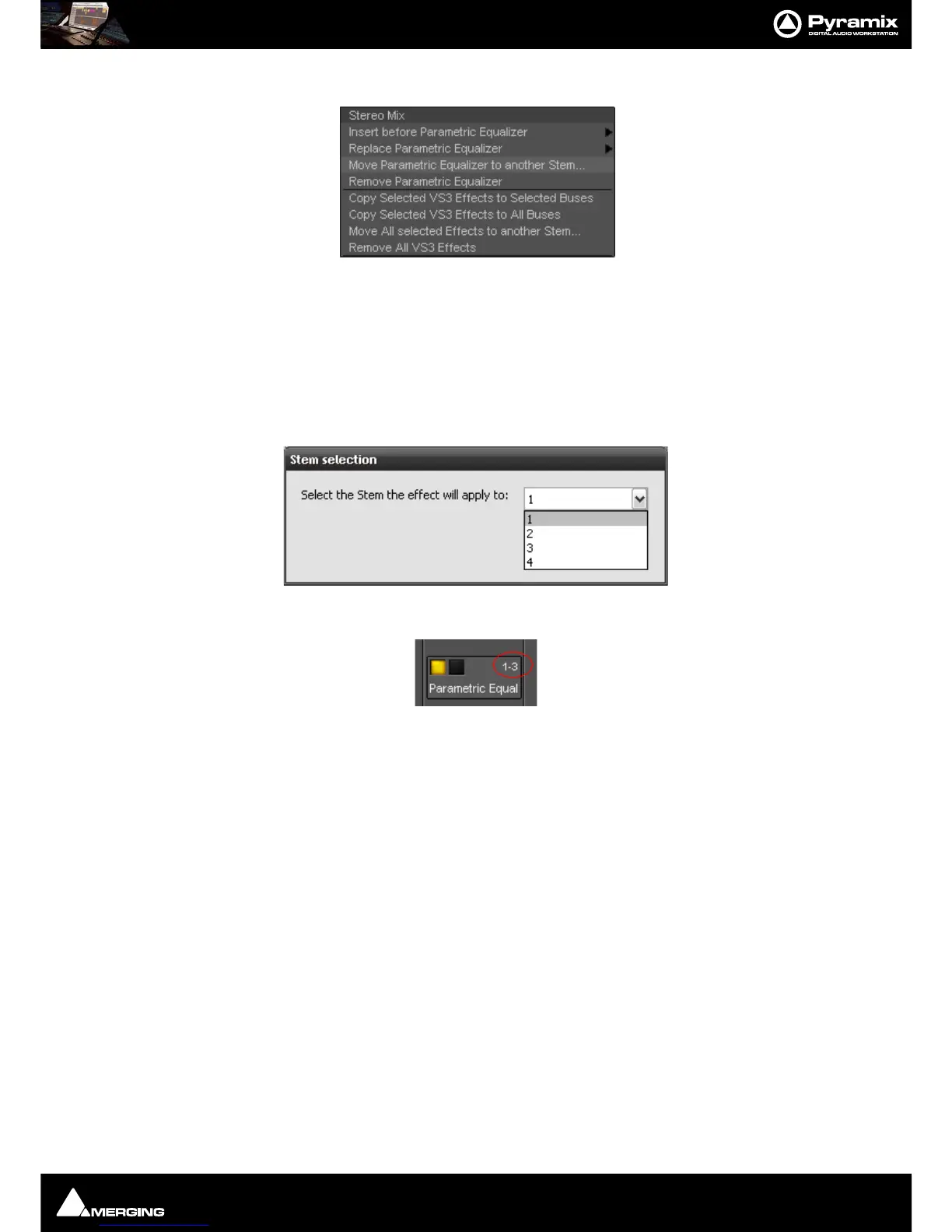
Right-clicking on an installed plug-in pops-up a context menu, for example:
Insert before (effect clicked on) > drops down a list of effects of the same type that can be inserted before current the
effect.
Replace (effect clicked on) > drops down a list of effects of the same type that can replace the current effect. Dou-
ble-Click
ing an installed effect does the same thing.
Remove (effect clicked on) Uninstalls the current effect from the Strip or Bus
Move (VS3 Effect clicked on) to another stem
Pops up a dialog with all available stems for this bus. (Only present when the Effect is in a
Multi-Stem Bus) The Iteration and Stem numbers are then shown on the Effect:
Thus
1-3 means Iteration 1 on Stem 3
Copy Selected (Effect type) Effects to selected strips As it says. Target strips can be selected before or after selecting the
effect(s)
Copy Selected (Effect type) to All Strips As it says.
Remove All (Effect type) Effects Removes all effect of the current type clicked on from the Strip.
Remove All Effects Removes all effects of all types from the current Strip.
Copy All Effects to All Strips Copies all the effects installed in the current Strip to all other Strips.
Copy All Effects to Selected Strips Copies all the effects installed in the current Strip to all selected Strips.
External Effects Inserts
External Inserts are added in the same way as VS3 Effects. Click on Click to Add and choose Other > External
Insert



 To Next Page