Mixer : Configure Page
10 - 212
Show Distribution
When on (lit), a narrow colored bar is inserted at the bottom of each input strip. This indicates which card (in anon
MassCore Mykerinos multi-board system) is providing the DSP for the strip.
Meter Bridge
When turned on (lit) the Meter Bridge Window is available to be opened from View > Windows / Tools > Meter
Bridge
or the Toolbar icon. Please see: Meter Bridge on page 287
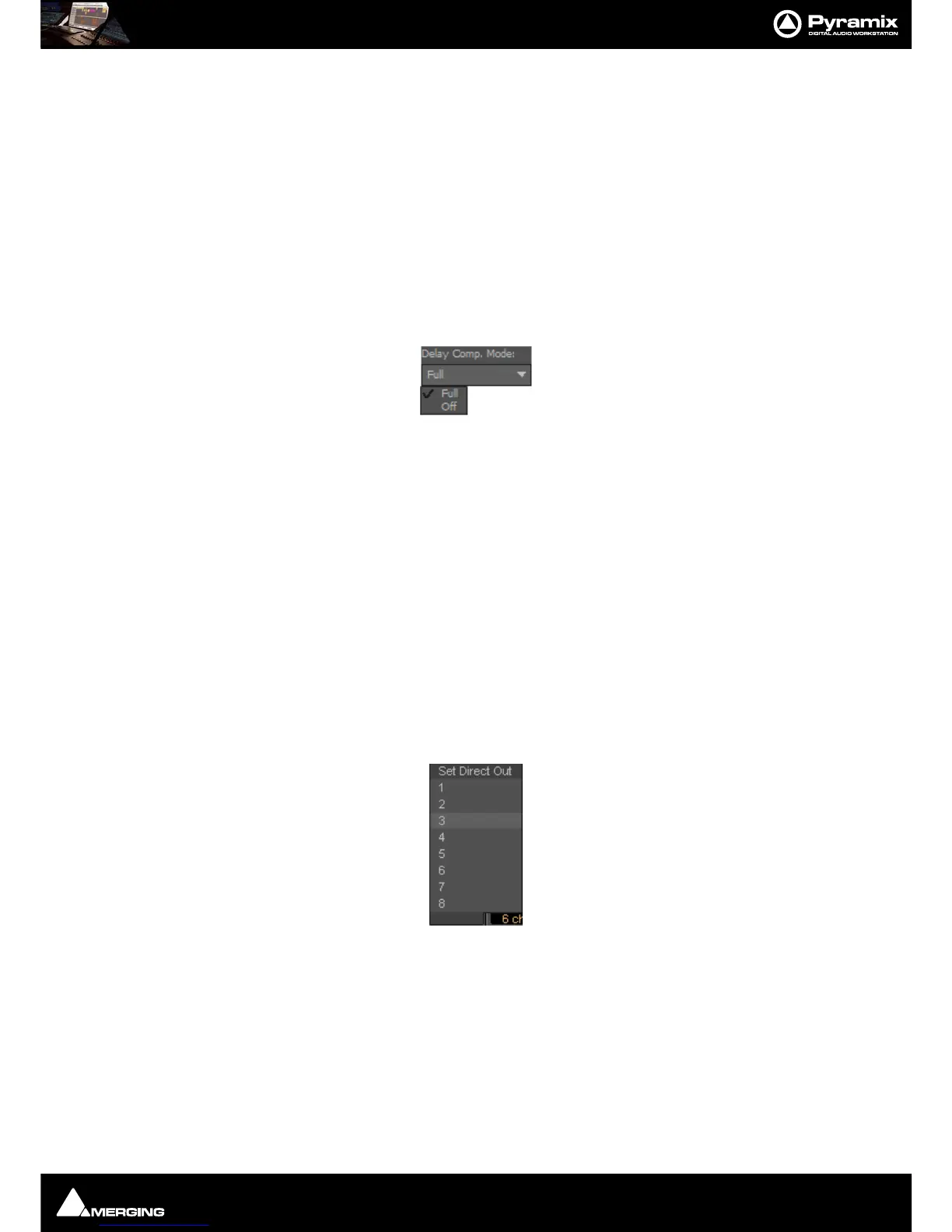
Delay Comp Mode
Drop down list menu:
Offers the choice of
Full and Off.
Please see: Mixer Delay Compensation on page 241
Mixer Configuration Summaries
The two panels at bottom right summarize the current mixer configuration. Input Strip Summary lists the total
number of Channels and Input Strips and the quantity of each type.
Buses / Masters Summary lists the total
number of bus channels and buses strips with the quantity of each type.
Note: Rebuilding a large mixer with many effects can take some time.
Direct Outputs
The Direct Out connection is disabled by default. It can be enabled in the Configuration Page by selecting the
strip and clicking on the
DO: Off box or disabled if the box shows DO: On. Alternatively Direct Out can be set in
the
Route Page by clicking on the Strip Header.
The
Direct Out can be routed by Channel to any output of the HDTDM or XDTDM bus. The Direct Out can be sent
Pre or Post Fader. Click on the
DO: Post box in the Mixer I/O section to toggle. The Direct Out is currently always
Post Effects. For multi-channel strips clicking in the box above the DO: box pops-up a Set Direct Out list:
Highlight the required channel. This will be fed to the logical output assigned in the
Mixer Route page or by click-
ing on the
DO XLR icon in the Mix page.
Selecting Strips
Strips can be selected by clicking on the label at the top of the strip which turns orange to show it is selected.
Selection uses the conventional modifier logic: Clicking a second strip while holding
SHIFT selects all strips in
between and strips can be individually added or subtracted from a selection by clicking with the
Ctrl key held
down.
Ctrl + A selects all strips. Strips can be selected by type using the Select context menu.



 To Next Page