Productivity : Bars & Beats
26 - 573
Note: Offsets can be negative or positive.
Time Signature Set the Time Signature by selecting from the drop-down lists.
Number of Bars Type the Number of Bars required or choose Infinite from the drop-down list.
Snap Grid Select the required resolution from the drop-down list
The Information pane shows all currently defined Time Signatures. The
Time Signature, Number of Bars and
Snap Grid fields reflect the values for the highlighted (selected) Bars & Beats section.
Temp o
BPM Choose a tempo from the common values in the drop-down list, increment or dec-
rement in 1bpm steps with the up and down buttons or type a value in the box.
Frames & Perfs Another way of expressing BPM. The value entered here will be reflected in the
BPM field.
Smoothing
Smoothing is a ramp, used mainly when a tempo changes at some point in a proj-
ect. For example you could smooth up gradually the passing from a 120 bpm to a
80 bpm tempo.
Values can be selected between Note and 1/64 . (or OFF)
Start
Enter a Start value
End Enter an End value or choose Infinite from the drop-down list.
Time Signature and Bars
The bottom left panel displays a list of blocks of bars in the order they appear in the ‘song’. The following settings
apply to the currently selected entry in the list.
Time Signature Use the combo boxes to set the Time Signature
Number of Bars
Type a value or choose Infinite from the combo box dropdown list.
Snap Grid Combo box offers a choice of Off or values between Note and 1/64 Note .
Add Bars
Click to add a new block of bars to the list above.
Remove Bars
Deletes the selected entry from the list above.
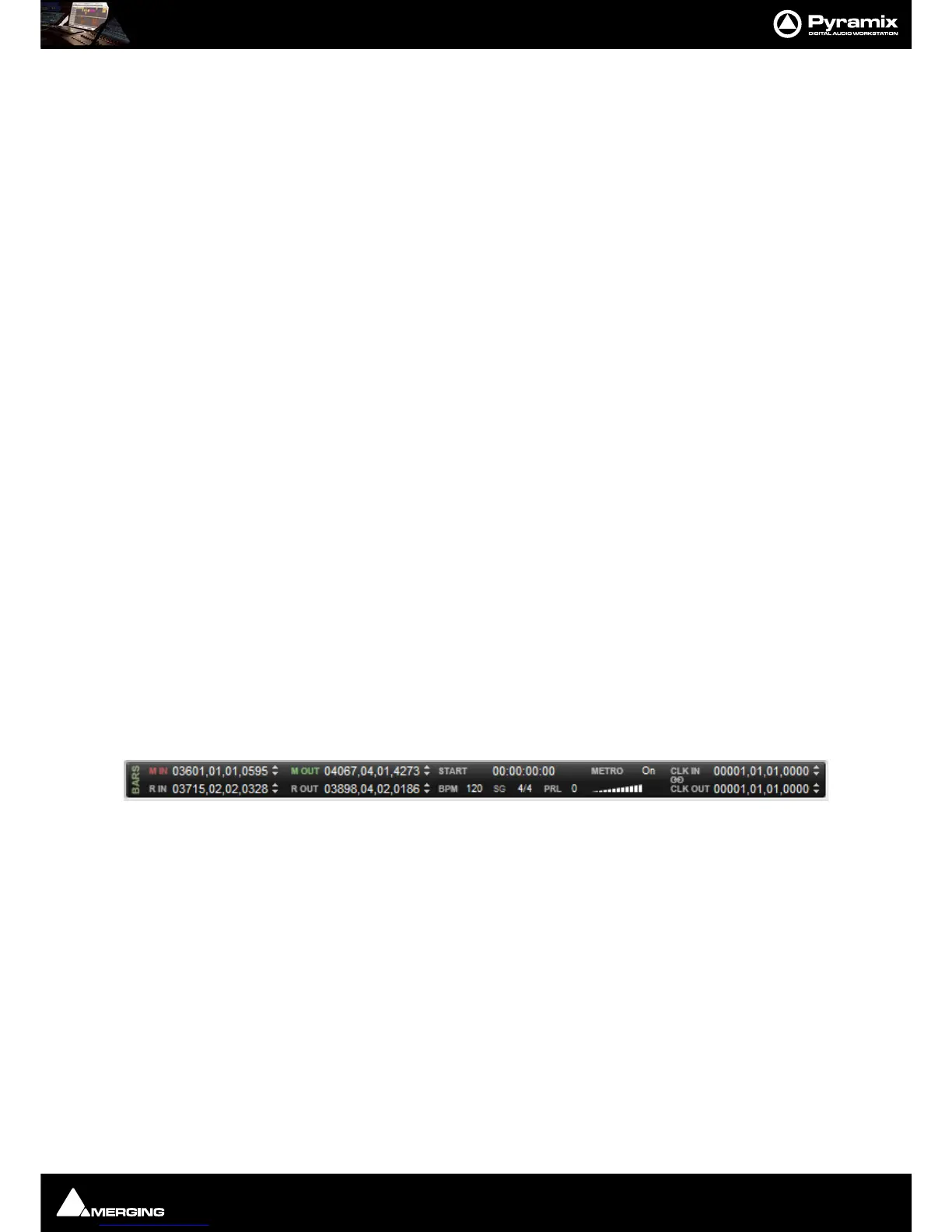
Bars & Beats Ruler Toolbar
From within the Bars and Beats Control Toolbar, the following can be accomplished:
M IN Centers the Timeline on the In Marker.
M Out Centers the Timeline on the Out marker.
R In Centers the Timeline on the beginning of the current Selection or Range.
R Out Centers the Timeline on the end of the current Selection or Range.
Start The Start register enables an Offset to be entered for the first Bar, counting from
00.00.00.00, independent of the Playhead Cursor position.
Note: in the Bars & Beats Settings dialog, the Offset field will reflect the value entered in Start.
However, pressing the Store button, will default the offset value to the difference between 00.00.00.00 and the
present Playhead Cursor position.
Metro Clicking on Metro opens the Metronome Settings dialog. Clicking on the label to
the right toggles through
On, Pre-Roll only and Off.
Volume Below Metro the volume slider sets the metronome click level.



 To Next Page