Productivity : Bars & Beats
26 - 574
BPM
Clicking BPM enables an alternative value to be entered.The BPM counter displays
and allows modification of the tempo map section where the Cursor is currently.
Note: To display the Tempo Map, click on the Bars & Beats label on the corresponding Timescale Ruler and
enable
Tem po Map from the drop-down menu.
SG Toggles Time Signature
4/4 Click on the Time Signature displayed currently to enter and alternative.
PRL Click on the number adjacent to PRL to enter a Pre-Roll value. The PRL values are
entered in
Beats. The PRL tempo defaults to the tempo of the Bar that follows
immediately after the end of the Pre-Roll count.
Note: When the
PRL is set to a value other than 0 and the Click In is set (to a value other than 1,1,1) the Pre-Roll
pre-counts to Click In Bar/Beat, otherwise it pre-counts to the first Bar.
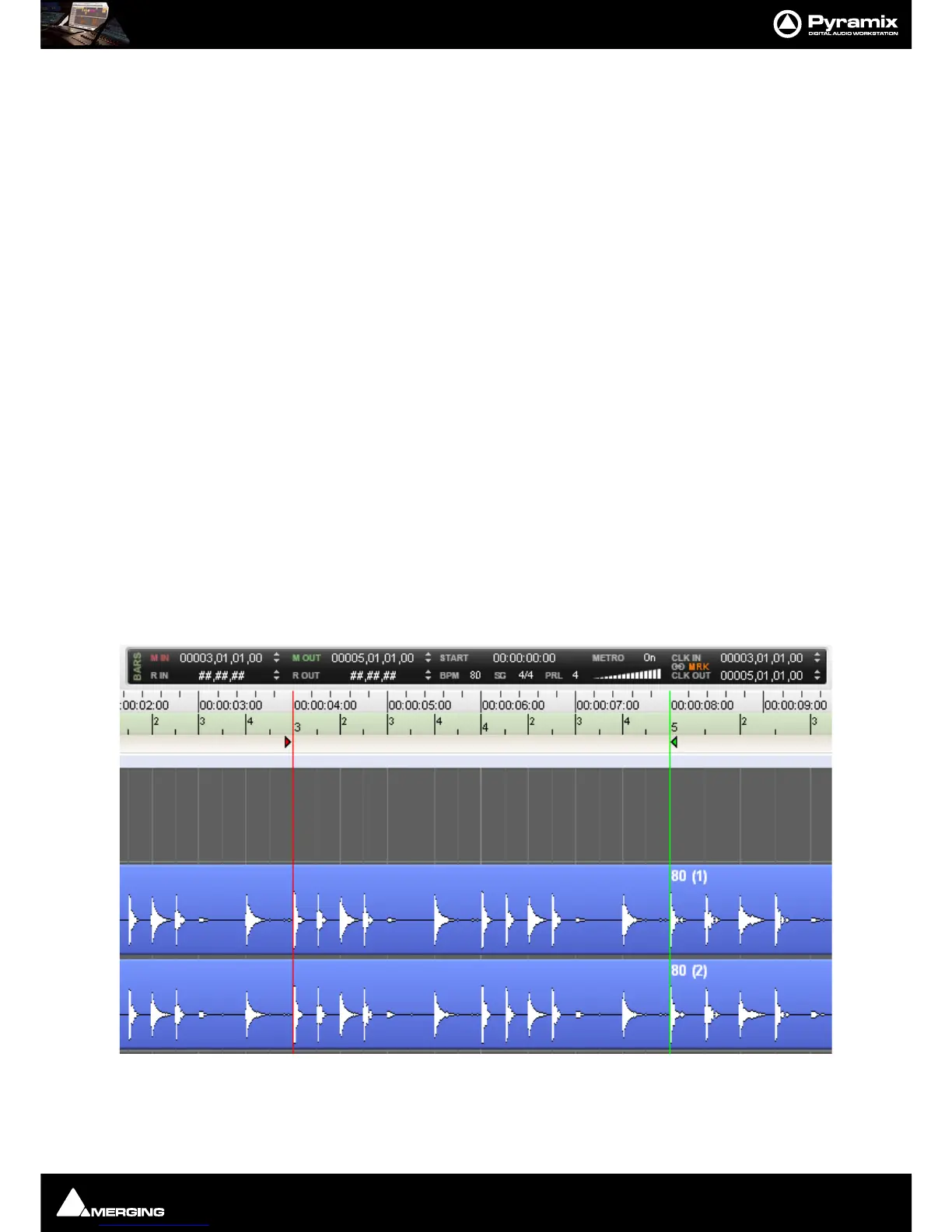
CLK IN When Click IN is set ( to a value other than 1,1,1) the Metronome will start playing
at the entered Bar/Beat value.
CLK OUT When Click Out is set (to a value other than 1,1,1) the Metronome will mute auto-
matically at the entered Bar/Beat value..
Lock (chain) S ymbol Toggles between blank (off ), MRK (In/Out Markers) and RGN (Region). Click In/
Out
time is then linked to either Between Marks section or selected Region
length automatically.
This is very useful for quick setting of pre-determined Metronome In and Out times, saving the user the trouble of
switching the Metronome on and off repeatedly at different parts of a song when this is required. When used
along with the Pre Roll (
PRL) function it becomes a really handy tool.
Setting the
Click In and Click Out values is easy:
Using MRK
Simply select MRK next to the chain symbol and then set your Mark In and Mark Out at the desired Timeline posi-
tions to define the Metronome active (playing) section. When the Playhead Cursor arrives at the
Mark In position,
the Metronome starts playing, when it reaches the
Mark Out position, it mutes. You can of course define a Pre-
Roll
value and use the two functions at the same time :



 To Next Page