Tracks and Track Groups : Track Header Panel
5 - 97
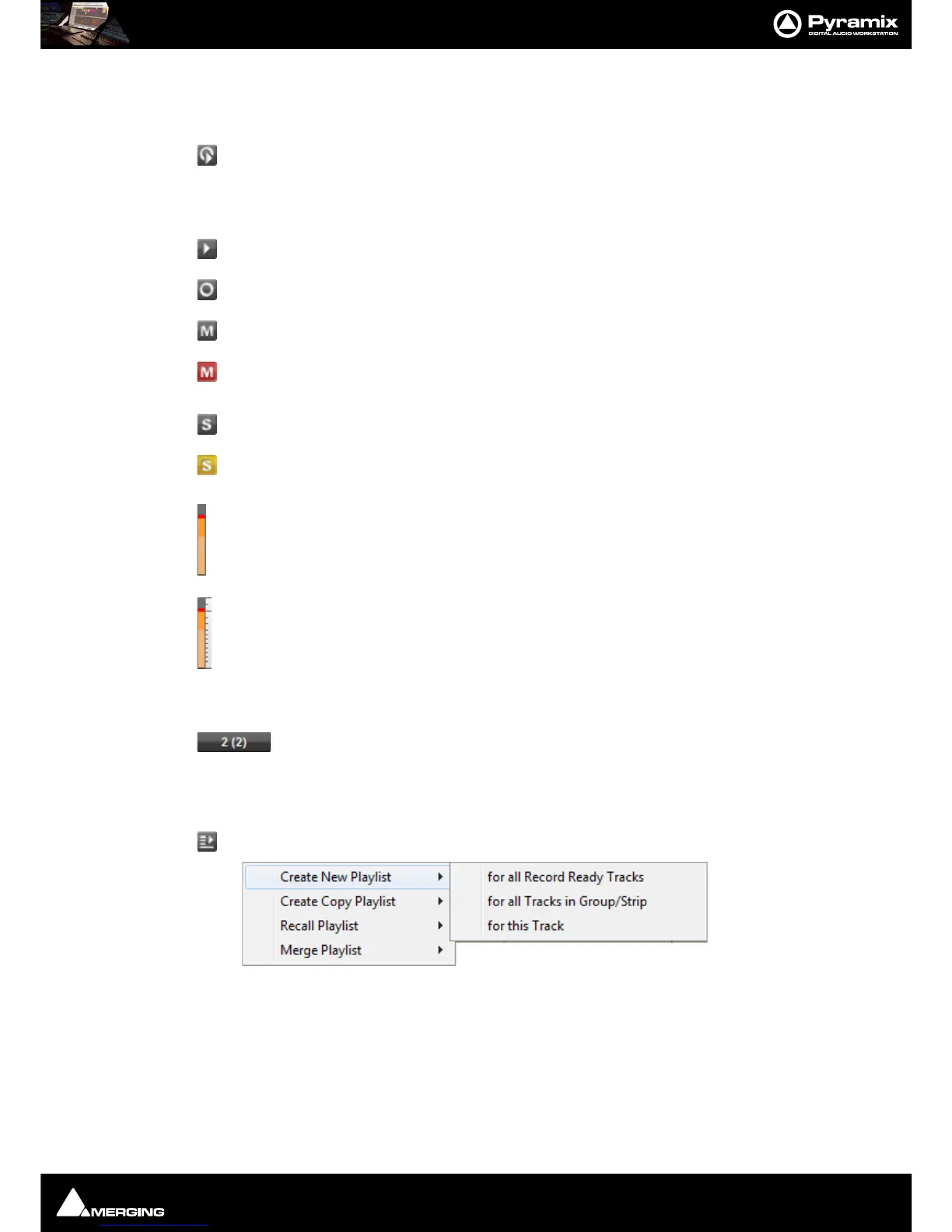
The Monitor icon has three possible states.
These are toggled by left clicking the icon.
Auto - monitoring switches the associated Mixer channel input automatically between input
and repro. Behavior depends on the Auto-monitoring section setting in the Settings > All
Settings > Application > Playback/Record page. European Monitoring (All Tracks turn to
INPUT on stop) OR US Monitoring (Only Record Ready Tracks turn to INPUT on stop)
Repro - The associated Mixer channel is always fed from the Track replay.
Input - The associated Mixer channel is always fed from the Track’s selected Input source.
The Mute icon toggles the Track Output between Un-Muted, as shown here;
and Track Output Muted, as shown here.
The Solo icon toggles the Track Output between Solo off, as shown here and;
Solo active as shown here.
Peak Meter - If the Peak Meter is visible on the far right of the Track Header, clicking on it
hides it. If not visible, clicking in the space where it should be unhides it.
The meter scales with the Track height.
Meter parameters follow the settings made in Settings > All Settings > Mixer > Level Meter.
Automation Scale - If Automation display is switched on, a scale appropriate to the control is
shown to the right of the meter.
Second Row
Input source - the first number shows the absolute number of the selected record input.
The second number in brackets shows the input number within the physical or logical input
block. When this area shows a No Input no record input is selected. This can be also set
directly in the Mixer Console window.
Playlist opens this menu:
Please see: Playlists on page 568



 To Next Page