Tracks and Track Groups : Track Header Panel
5 - 98
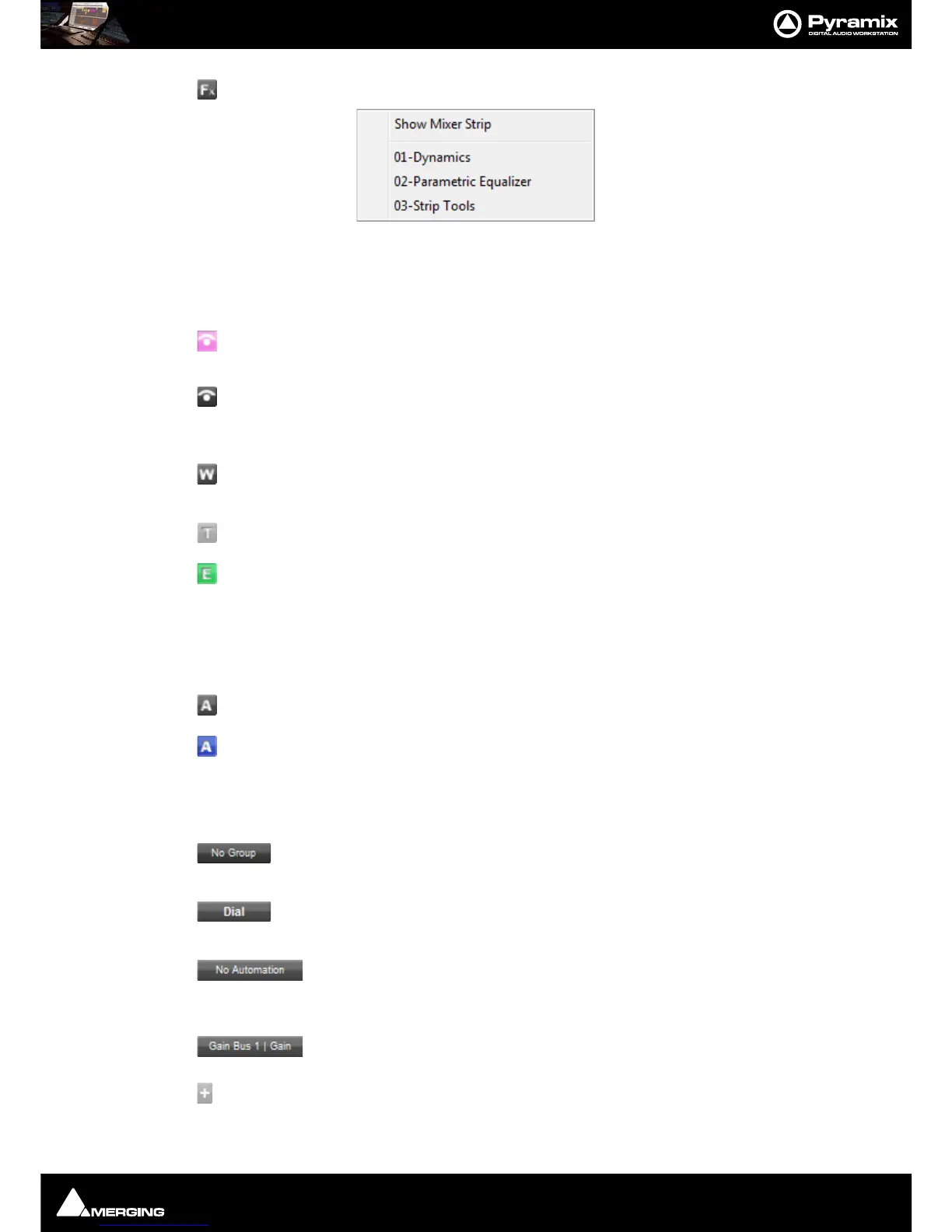
Effects - Clicking this button pops up a menu:
The list shows all effects in the Mixer Strip the Track is connected to. Selecting an effect in the list opens
the control window for the plug-in.
The Always Visible icon toggles between always visible when a member of a Track Group.
(As shown here.) and:
Hidden when Auto Hide is active.
The Waveform icon has three possible states.
Display Waveform - by default shows Clips as orange blocks with white waveform superim-
posed.
Display Text - by default shows Clips as orange blocks with Text Labels without waveform.
Display Envelope - by default shows Clips as orange blocks with white waveform and adds
a black line which allows the gain to be adjusted using the mouse by simply clicking and drag-
ging.
Note: Waveform display can be conventional symmetric or Half Waveform relative to the bot-
tom of the Clip. View > Waveform Display > Show Half Waveform / Origin
Toggles automation curve display for the Track. Inactive as shown here, or
Automation curve display for the Track Active, as shown here.
Right-clicking the button pops up the automation display menu for the Track. Please
see: Track Automation Menu on page 373
Third Row
Track Group indicator and selector. Click on the button to pop-up the list of Track Groups
available. Click on an entry to select.
Track Group indicator and selector indicating that the Track is a member of the Track
Group Dial.
Automation Curve indicator and selector. Clicking on the button pops-up a list of
automatable parameters for the Track. The selected parameter curve is superimposed on the
Track and the label changes to reflect this:
Automation Curve indicator and selector. Here Fader has been selected.
Add Automation Sub-track this button is just to the right of the Automation Curve button
above. Clicking on the button pops-up a list of automatable parameters for the Track. The



 To Next Page