Mixer : Audio Bridge
10 - 262
Configuration
1. Launch the VS3 Control Panel and enable the Secondary Audio Device Host Mode ( bottom)
2. Choose between 8 to 96 I/O channels (depending on the secondary Host capabilities).
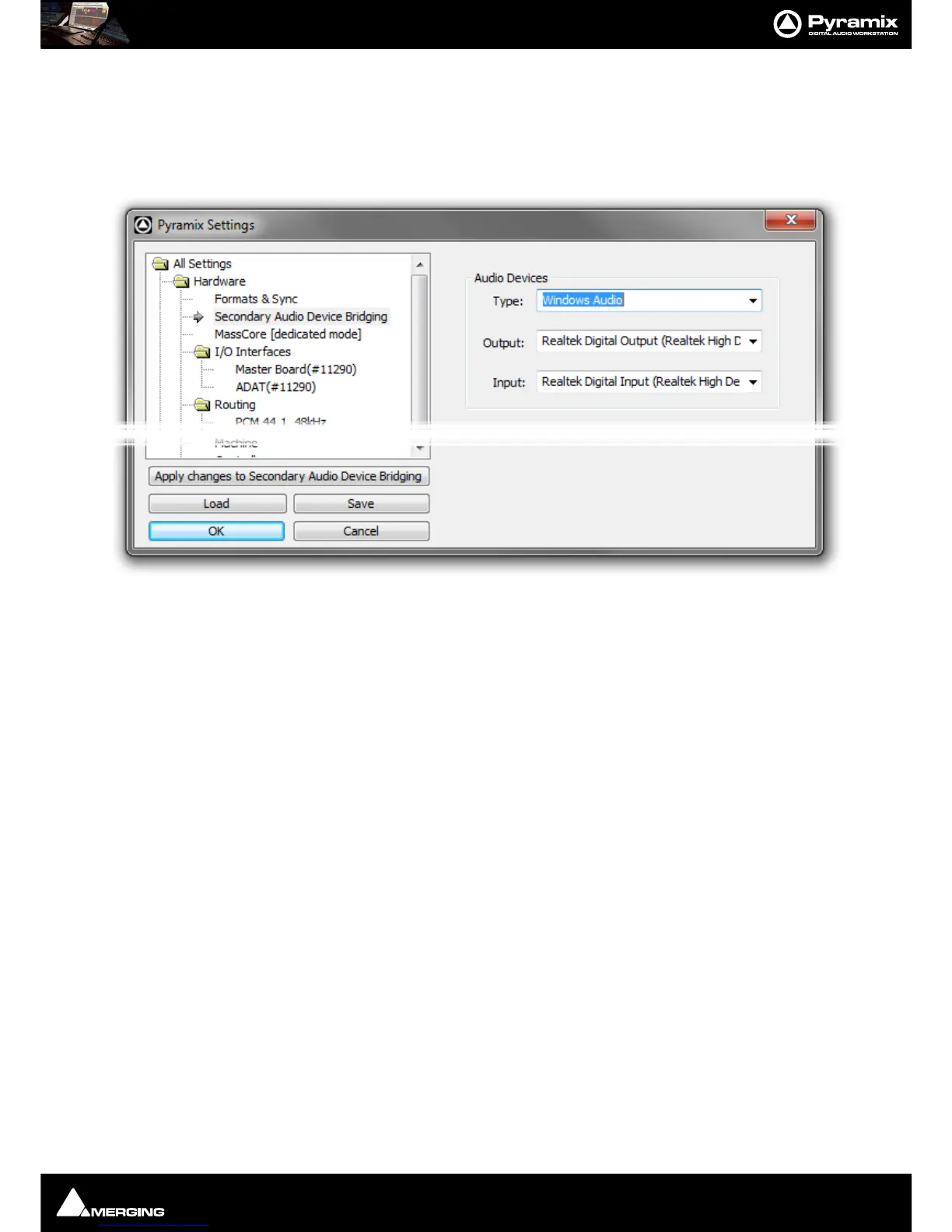
3. Launch Pyramix and go to the: Settings > All Settings > Hardware > Secondary Audio Device Bridging
page.
Audio Devices
Type: The drop-down list offers the choice of Windows Audio, DirectSound or ASIO.
Note: ASIO only supports Outputs.
Output: The drop-down list offers the choice of all audio devices with drivers of the Type
selected.
Input: The drop-down list offers the choice of all audio devices with drivers of the Type
selected. (
Windows Audio or DirectSound only.
4. Select one device from the Audio Devices list and click on OK to use it as a monitoring target/talkback
source.
5. Open the Monitoring Panel and go to the Configure tab. The Talkback Monitor tab can be configured for
talkback purposes.
6. Patch the Mixer or the Monitor accordingly.
Note: The Audio Bridge I/O entries will be labeled as AB1 to ABn.



 To Next Page