GPI / GPO Control : GPI / GPO Support
24 - 526
Enable/Disable
The GPI/GPO controller may be disabled by unchecking the Enable box in the Controller Properties Dialog.
Some GPI/GPO USB Modules can be individually enabled or disabled by clicking on the
Properties button to the
right of the
Driver combo box.
Configuring the GPI/O controller for a specific project
Open the Settings > All Settings > Project > Controller Mapping page.
Select your GPI/O controller and click
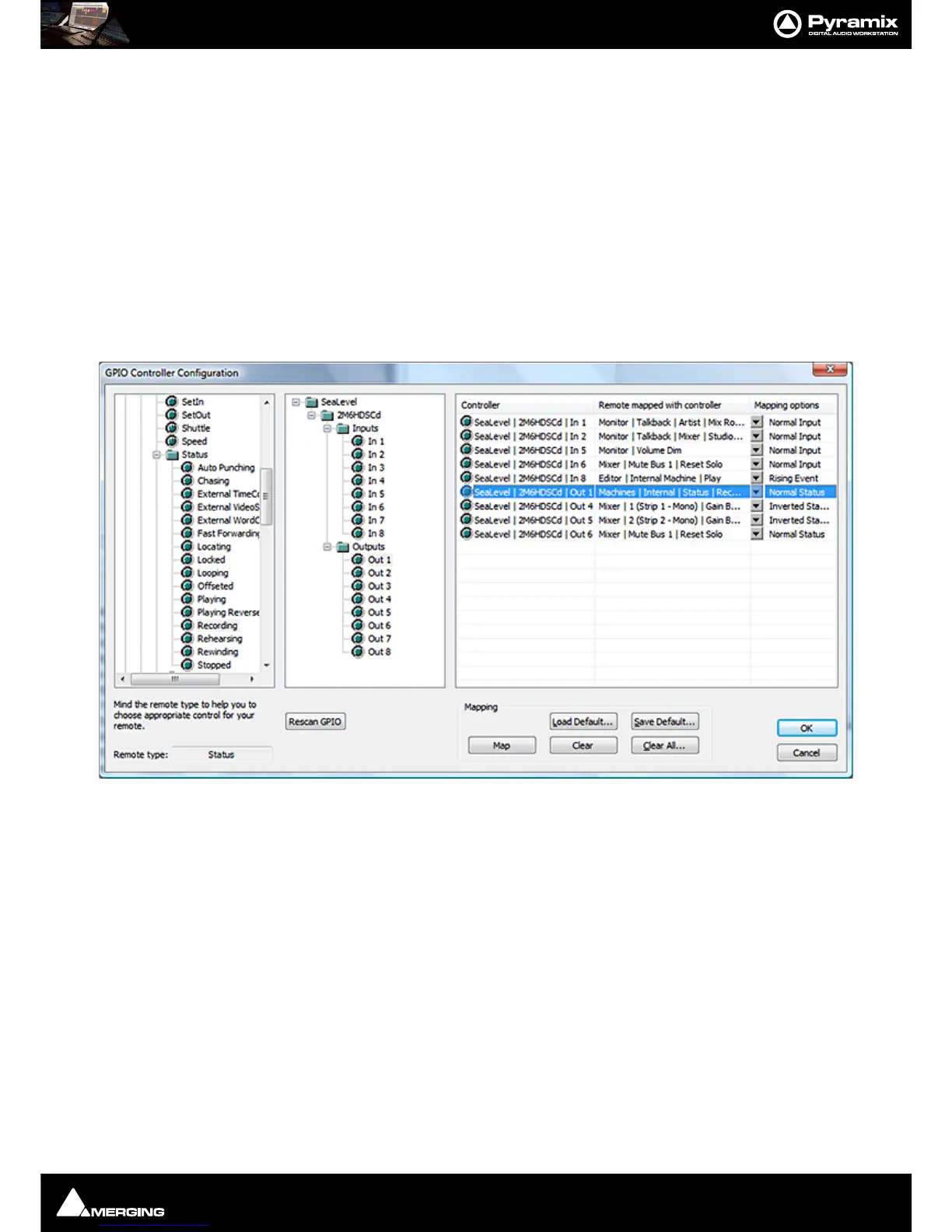
Properties. The GPI/O Controller Configuration Window will appear; On the
left you can browse the
Remotes list. Next to this is the GPI/O Controllers list. To map a Remote to a GPI/O Input or
Output pin just drag the Remote onto the Controller pin; The right-hand pane is a list of all currently mapped Con-
troller pins. By clicking in the
Mapping Options column you can configure how the pin works.
Click
OK to accept the changes to the GPI/O configuration, or Cancel to abort.
Mapping Example
Mapping Description of Example Shown Above
Input triggering:
In 1 : Monitor | Talkback | Artist | Mix Room | On
The Artist opens the talkback circuit to the Mix Room
In 2 : Monitor | Talkback | Mixer | Studio | On
The Mixer (Engineer) opens the talkback circuit to the Studio
In 5 : Monitor | Volume Dim
Dim the Monitor output section
In 6 : Mixer | Mute Bus 1 | Reset Solo
Reset the solo in the Mixer
In 8 : Machines | Internal Machine | Play
Put Pyramix in playback. I.e when the Artist is ready.
Output are triggered by:
Out 1 : Machines | Internal | Status | Recording



 To Next Page