CD/SACD Mastering and Album Production : DiscWrite
25 - 557
CD-R/CD-RW
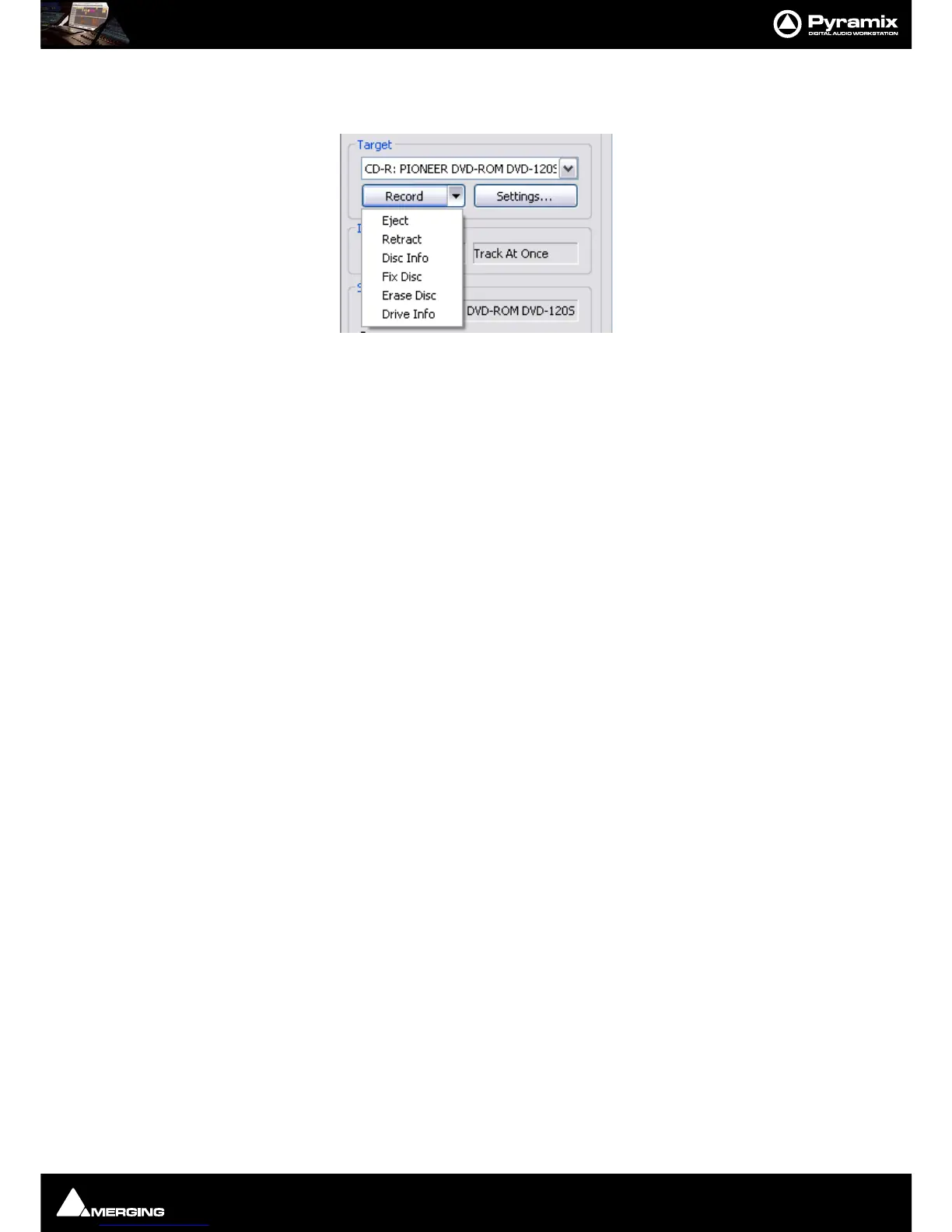
When a CD-R(RW) is the selected target, the arrow beside the Record button drops-down a list of options:.
Eject Opens the loading tray on the target drive
Retract Closes the loading tray on the target drive
Disk Info Reads the target disc’s information and displays it in the Results box
Fix Disc Writes the information necessary to allow a Track at Once disc to be read by a CD
player.
Erase Disc Erases a re-writable disc
Drive Info Interrogates the optical drive firmware and displays information about the drive in
the
Results box
Settings...
The Settings... button is grayed out unless a suitable optical drive or image file has been selected. When available,
clicking on
Settings... opens a dialogue with access to all relevant settings. In particular, this is where you can
choose between
Disc-at-Once and Track-at Once modes. Use Disc-at-Once for maximum compatibility.
Record
Clicking on the Record button initiates the recording process.
Detailed reporting about the progress of the process is shown in the
Results box as the recording is made.
Info
Shows the Write speed of the target drive or the path if you are writing a DDP file to a folder. Also shows the cho-
sen record mode, e.g. Track At Once or Disk At Once.
Status
Shows the status of the recording device/process
Progress
A ‘thermometer’ bar graphically shows the progress of the recording.
Buffer
Another ‘thermometer’ showing the state of the record buffer.
Results
This box displays detailed information about various aspects of the process depending on what you are doing at
the time.
Table Of Content
Displays the TOC in detail.
Print TOC...
Opens a Print Options dialog. The actual options available will depend on the printer you have selected.



 To Next Page