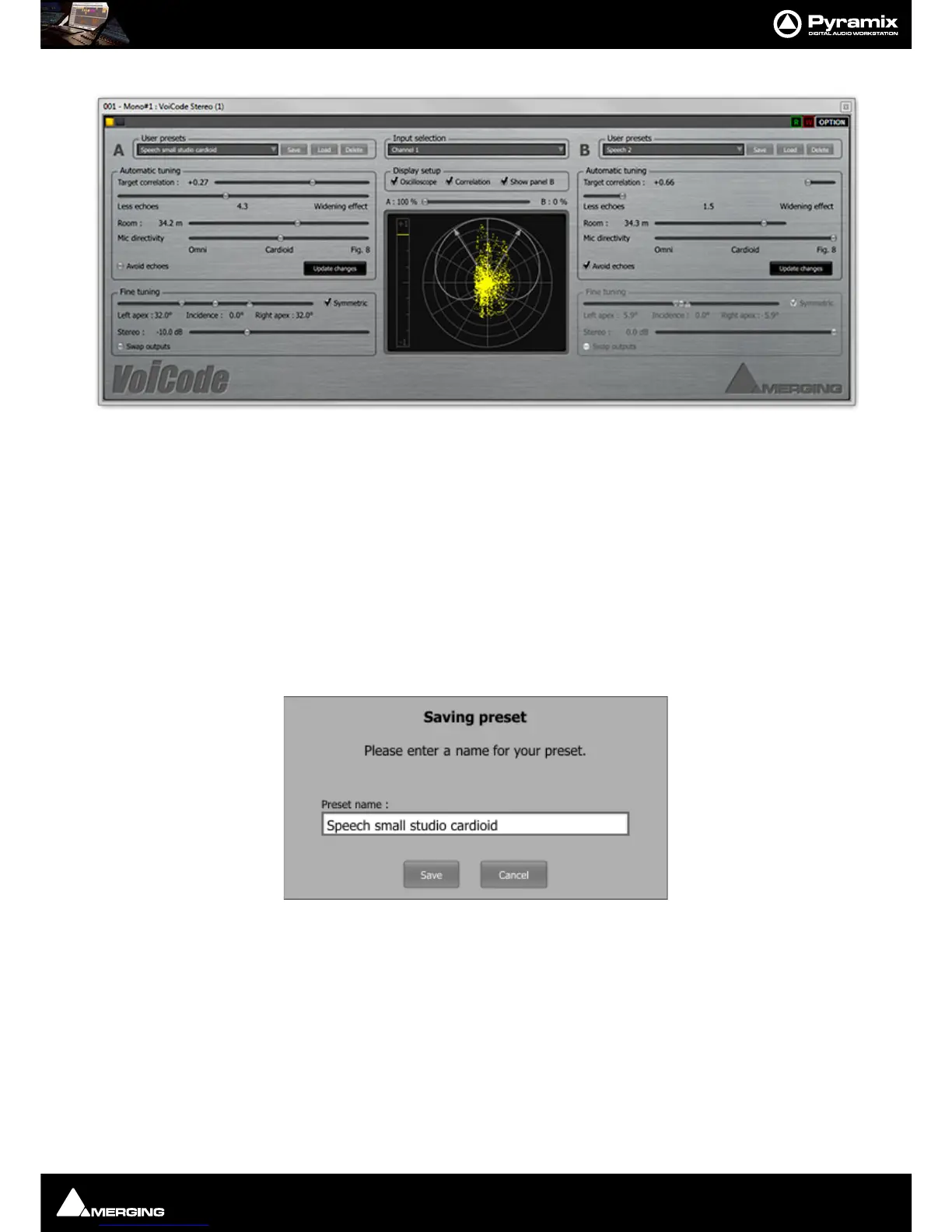
Effects and Plug-Ins : VoiCode
14 - 346
Control Panels
A (or B)
Identifier for the two control panels.
User Presets
User presets can be saved, loaded and deleted. A drop down list and three buttons, Save, Load and Delete man-
age the presets.
New Preset... The drop-down list shows all existing presets with New Preset... at the bottom of the list. Click on
an existing Preset to select it followed by the
Load button to update the parameters.
To create a new preset click on
New Preset... adjust parameters until you are happy with the results then click on
Save to open the Saving Preset dialog :
Type a suitable name for your preset and click on the
Save button to save it and close the dialog. Alternatively
click on the
Cancel button to close the dialog without saving the preset.
To delete an existing preset click on the preset to select it then click on the
Delete button. A safety Are you sure ?
dialog opens. Click on Yes to delete the selected preset and close the dialog or No to close the dialog without
deleting. Deleted presets are sent to the Recycle bin and can be recovered from there if deleted inadvertently.
Adjusting VoiCode
The two sections detailed below control the output signal. Tune the plug-in from top to bottom in the first
instance. I.e. adjust the
Automatic tuning parameters first, then press the Update Changes button, then adjust
the parameters in the
Fine tuning section. It should not be necessary to make large adjustments in the Fine tun-
ing
section since the Update Changes function computes a good approximation of the values required.



 To Next Page