Effects and Plug-Ins : VoiCode
14 - 347
Automatic Tuning
Target correlation : This control slider has no direct effect on the output signal. It only takes effect
when
Update Changes is clicked. When this happens, the parameters will be
tuned so that the correlation of the stereo output signal will match the chosen
Tar-
get correlation
value selected by this control.
Less echoes - Widening effect This control slider has no direct effect on the output signal. It only takes effect
when
Update Changes is clicked. The range is from 0 - 10. Choosing a large (wide)
value informs the algorithm that the signal comes from a wide stereo scene (typi-
cally an orchestra) and that when searching for optimal parameters, it should
favour the ones with a
widening effect. The downside of choosing a very wide
setting is that small delays may become apparent. Choosing a lower value,
towards the
Less echoes end of the scale, will minimize such artefacts. However,
the widening effect will be diminished. As a general rule, the more spooky, jumpy
and rhythmic the input signal, e.g. speech, the smaller the value required.
Room : The slider sets the area of the room the signal was recorded in. (Or your best esti-
mate.) Between
10.0 m and 50.0 m.
If the room size is not known then choose a value of
34 -35 m as a starting point.
Mic directivity The slider selects the pick-up pattern of the mic used to record the original signal.
The adjustment is continuous from
Omni through Cardioid to Fig. 8. The pattern
is shown graphically in the
Oscilloscope display.
If the mic pick-up pattern is not known, use
Omni as a starting point. If the mic was
a shotgun use
Fig. 8.
Avoid Echoes When ticked the Less Echoes - Widening Effect slider range is reduced to 0 - 1.5,
the Target Correlation slider range is reduced to 0.66 - 1 and the Room : slider
range is reduced to
10.0m - 39.0m.
Update Changes This is the most important component of the Automatic tuning-section. If any of
the Automatic Tuning controls have been moved the button flashes red to remind
you to click it in order to re-compute the parameters.
When clicked, the plug-in will attempt to tune the parameters in the
Fine tuning
section, to achieve optimal values. In order to do this successfully, the plug-in
needs two pre-conditions :
• Sensible values for the parameters of the
Automatic tuning section. (As described in detail above.)
• A 1 second long sample of the mono signal to be processed. When
Update Changes is activated the plug-
in uses the last 1 second of input sound to calculate the parameters. Therefore it makes no sense to click
Update Changes when no audio (silence) is being played. Similarly, clicking Update Changes during a
trumpet solo or when the whole string orchestra is playing may produce slightly different tuning, even if
both passages are on the same recording, with the same automatic tuning-parameters.
• When
Update Changes is clicked on very slow systems the plug-in may stop reacting for a short while.
The computation can be interrupted by pressing the
Esc key.
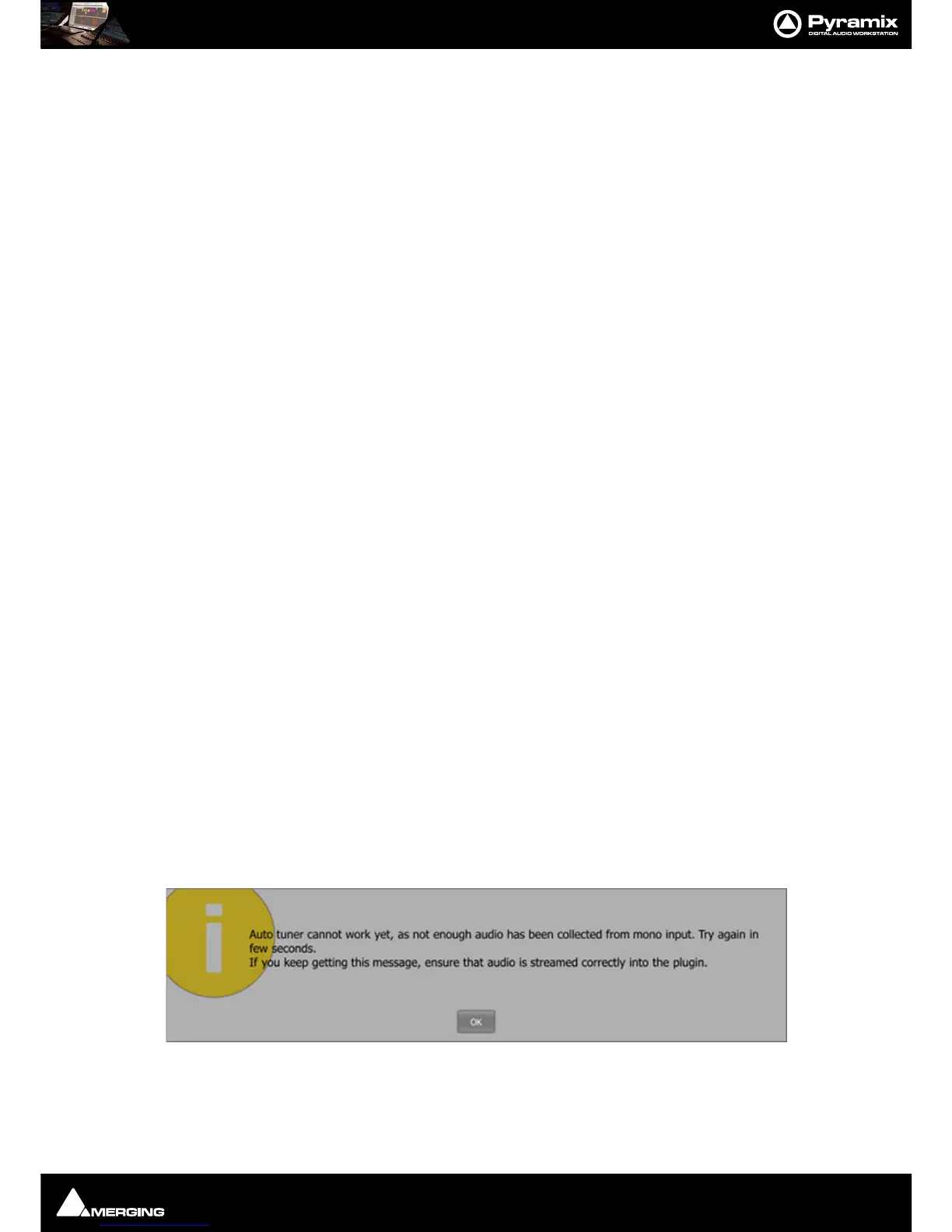
Note: If you attempt to invoke the Update Changes function when there is no audio passing
through VoiCode a warning dialog appears :



 To Next Page