Machine Control : External Machines
22 - 501
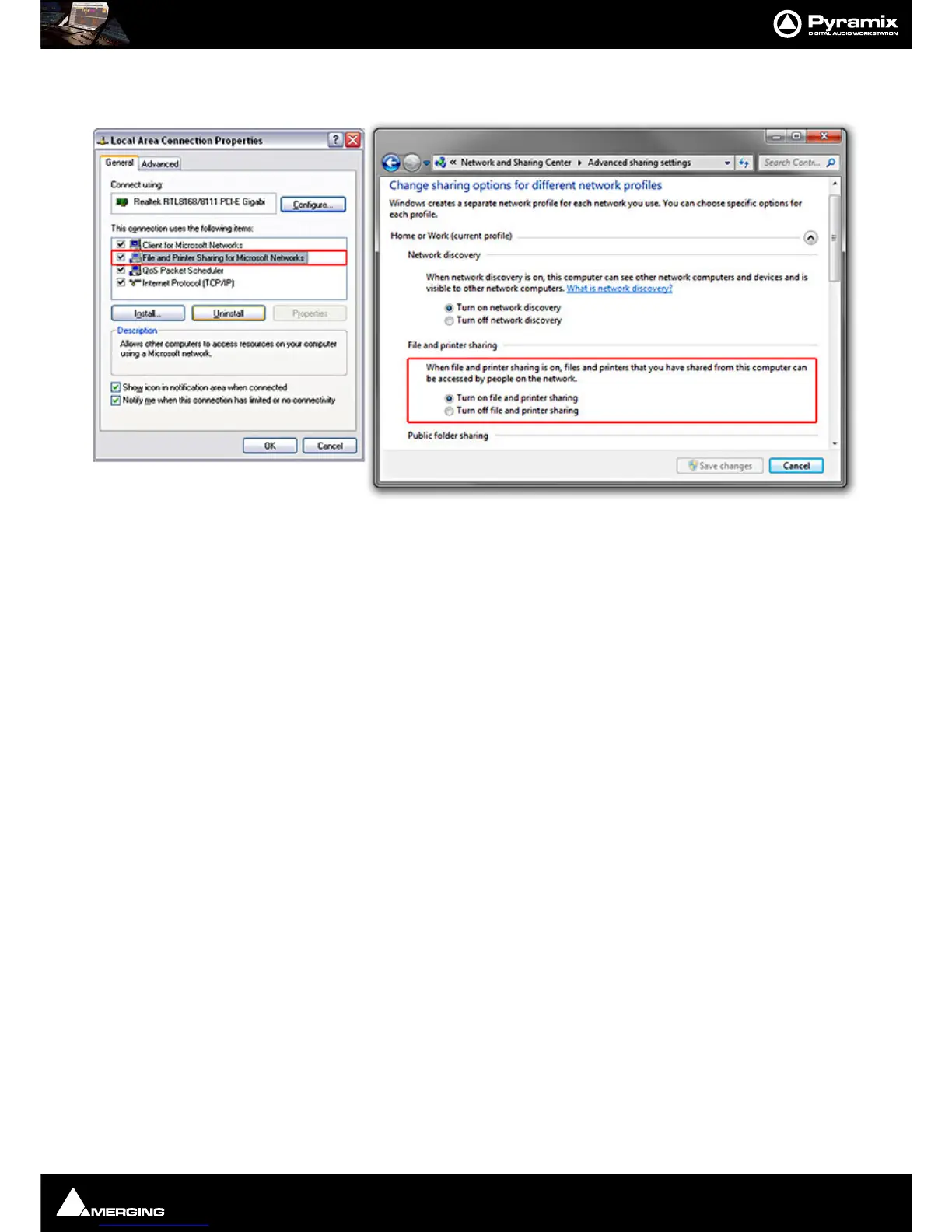
Win 7 Windows Control Panel > Network and Sharing Center > Change advanced
sharing settings
2. a)
Computers on a domain
If your Computers are connected under the same domain jump directly to section 3, since the security access
is managed by your domain server. Please talk to your IT Manager for further details.
b) Computers in a WorkGroup
Working under workgroups requires some extra steps:
• Make sure each machine is a member of the same workgroup.
• You can change your workgroup in
Windows Control Panel > System >
•[XP]Computer Name tab > Change [Win7]Change Settings
• You must restart the computer for changes to take effect !
• On each machine, make sure that you can access the other machine(s):
• My computer > Network > Workgroup
• Remember that you have to enter a user name and its password for a user account on the machine
that you require access to.
•Check the box
Remember my credentials [Win7] Remember my password [XP] Otherwise you
will have to enter the user name and password each time you restart the computers.
• You do not need to share any folders. (*ADR users should follow ADR setup instructions for File shar-
ing).
3. Configure 9-pin over IP in Pyramix
•On the Master Pyramix machineselect the Settings > All Settings > Remote Control > Machine
page.
• Click the Add button. The Machine Properties dialog opens.
• Enter a suitable name for the machine in the Name field.
• Choose the
Driver for the machine from the drop-down list. I.e. Sony 9-pin



 To Next Page