Productivity : Tab Windows
26 - 584
before in the screen (to the right or at the bottom). But the following considerations demonstrate that employing
Project Templates makes for a more streamlined way of working.
The
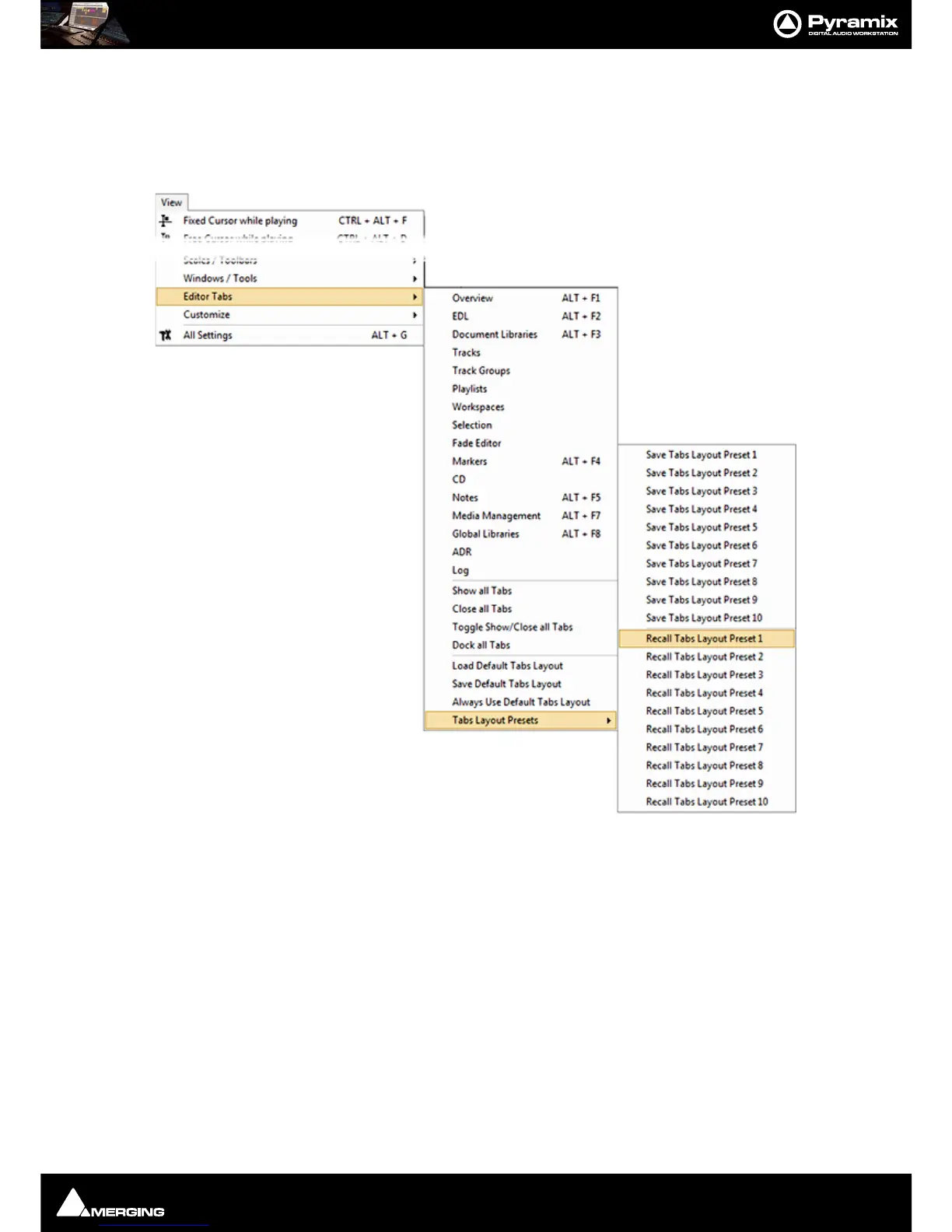
Default Tabs layout and up to ten Tab Layout Presets can be stored and recalled from the View > Editor
Tabs
menu :
These presets can be bound to short-cut keys by using the
Keyboard Shortcuts Editor (Settings > Keyboard
Shortcut Editor : View
Tab
•The
Default Tabs Layout and Tab Layout Presets are saved with the application. I.e. available in all proj-
ects.
•
View > Editor Tabs > Load Default Tabs Layout and Save Default Tabs Layout enable the complete
Tabs layouts to be saved and loaded. If you open a Project that does not have a suitable layout simply call
one of your
Tab Layout Presets or you can Load Default Tabs Layout to invoke the Tabs Settings previ-
ously saved as your Default.
•If
Always Use Default Tabs Layout mode is engaged (View > Editor Tabs > Always Use Default Tabs
Layout
ticked), then the default layout is always used when loading any project, bypassing the layout
stored in the project, so your own familiar environment will always be properly displayed no matter what
layout has been saved in the project.
•
Workspaces include a column called Tabs Layout. If ticked the Workspace stores and recalls a complete
Tabs Layout. Since the 10 first workspaces can have an associated keyboard shortcut, this is very useful



 To Next Page