Media Management & Libraries : Media Management Tab Window
4 - 61
Mounting Rules Opens the Mounting Rules dialog only when a file or files are selected. This allows the
user to apply special rules when attempting to mount files that contain the same ‘unique’
identifier. Please see: Mounting Rules on page 86
Properties Pops up an info box showing properties of the selected Media Folder
Edit Menu
Copy Copy object.
Paste with Media Pastes object complete with associated Media files to wherever the target object is
stored.
Rename Rename object
Lock Rename When ticked Locks all objects for Renaming. Do you really want your Sound Effects
Library entries to be renamed by anyone who can access it?
Open/Audition Opens highlighted (selected) Clip or Composition in the Trimmer and begins audition
play. Opens highlighted (selected) Shelf
Audition Opens highlighted (selected) master Clip in the trimmer and begins audition play.
Stop Audition Stop audition Play and return Cursor to beginning
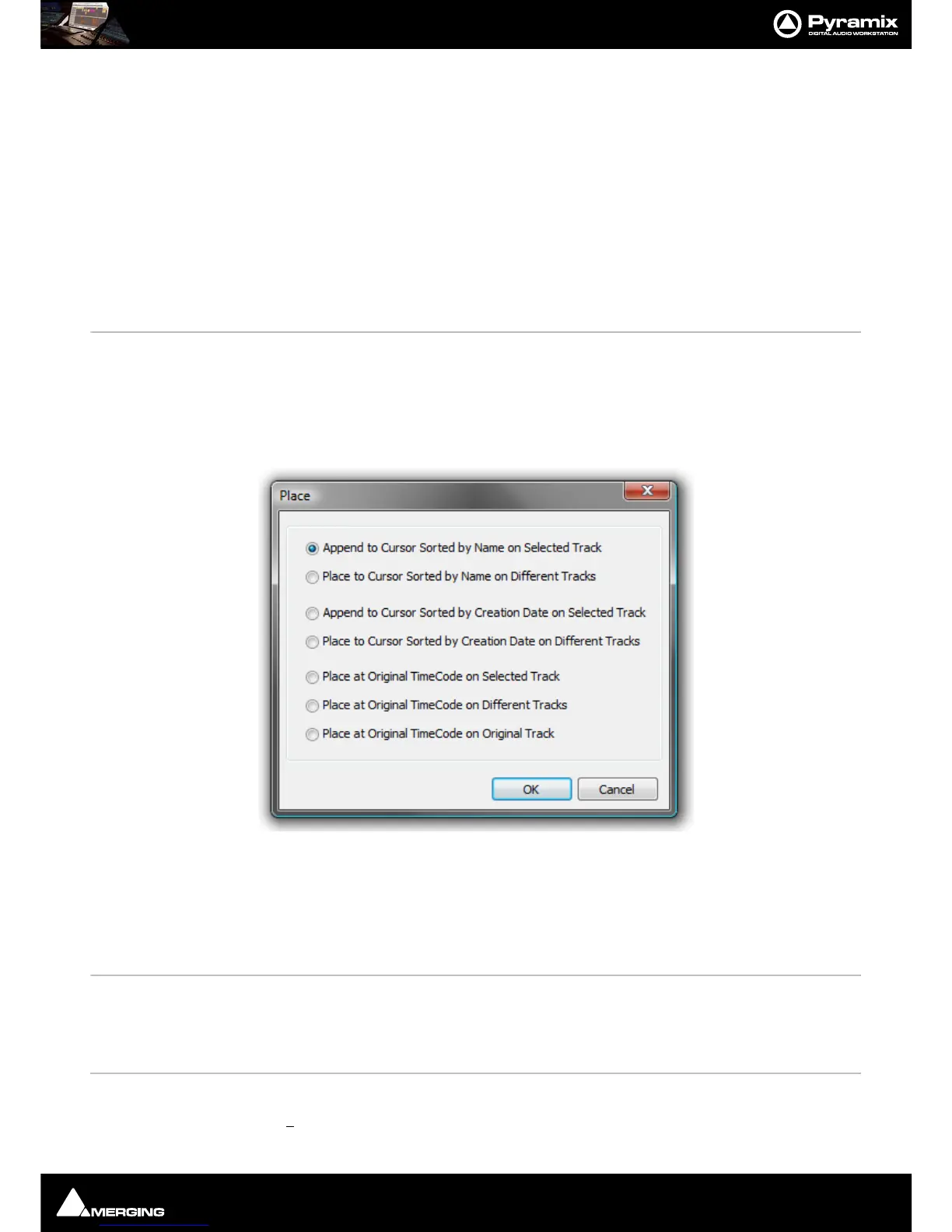
Place (Ctrl + P) Opens the Place dialog:
The selected object(s) will be placed in the Timeline according to the rule chosen here.
The selected object will be placed in the timeline on the selected Track and Playhead Cursor position at its Sync
Point or, if no Sync Point has been set, at its In Point
Placement Tool Opens the Placement Tool for placing the object. Please see: The Placement Tool on
page 187
Locate Selects the first instance of the current object in the Timeline and positions the Playhead
Cursor at the start of it.
Show Usage Selects all instances of the current object in the Timeline and zooms to make them all vis-
ible.
Delete Media Deletes the selected Master Clip and Associated Media Files
Important! De
lete Media does what it says. This command:



 To Next Page