Media Management & Libraries : Media Management Tab Window
4 - 62
PERMANENTLY REMOVES AUDIO (and its associated Waveform file(s) from the drive.
Collect Selected Media to current Project Media Folder
Select Menu
Select All Selects all objects in the right-hand pane (Ctrl + Click toggles selection of individual
objects)
Invert Selection Selected objects are de-selected, unselected objects are selected
Select Media Present on current Project Media Folder Selects any Media file(s) shown in the right-hand pane that are pres-
ent on the current Project Media Folder.
Select Media NOT present on current Project Media Folder Selects any Media file(s) shown in the right-hand pane that are
not present on the current Project Media Folder.
Convert Menu
Quick Import Enables sound files in any supported format to be imported into a Pyramix Media Drive or
Folder in either their original format or converted to the Pyramix native PMF format.
Note: Files in supported formats do not need to be converted to be used in Pyramix, a big time-
saver.
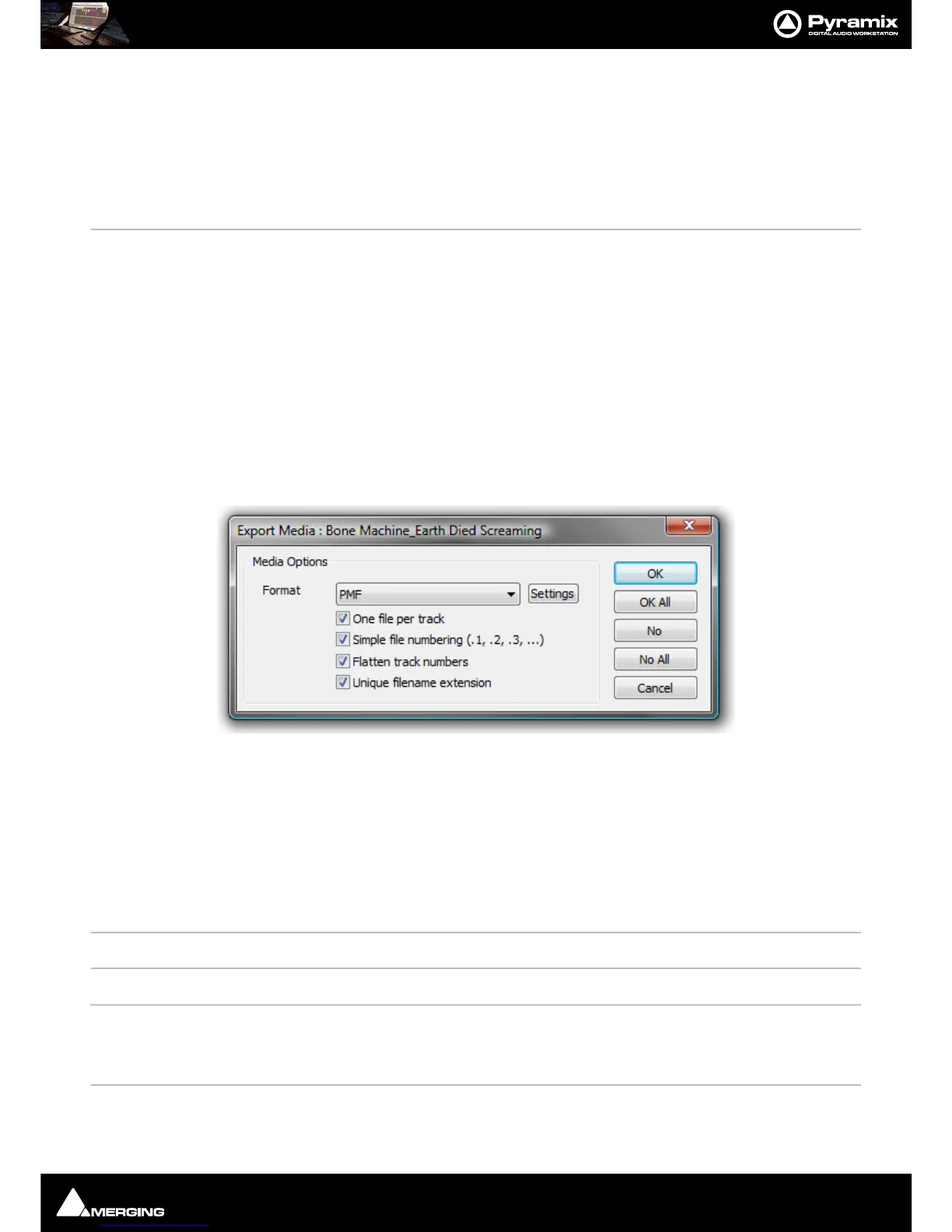
Quick Export Enables Pyramix Master Clips to be exported in any of the supported file formats with a
number of options.
One file per track When checked, multi-channel Master Clips are exported with a single file for each
channel in the Clip.
Simple file numbering (.1, .2, .3, ...) When checked resultant files are numbered (.1, .2, .3, … instead of
_##001##_, _##002##_, …)
Flatten track numbers When checked, Tracks are numbered 1, 2, 3, 4 instead of, for example 1, 2, 7, 8
Unique filename extension When checked, adds a unique filename extension.
Quick Convert > Enables one or more Media files to be converted in a variety of ways. (Please see: Convert
- Quick Convert sub-menu on page 65)
Sample Rate Conversion Please see: Samplerate Conversion on page 69
Reverse Reverses the selection so it plays backwards
Export XML Description Exports Media Descriptions as an XML file Select a range of media and select Convert >
Export XML Description.
Export to MTInterchange XML
Publish to Open External Database



 To Next Page