17 Yield Monitoring setup Third-party display instructions
1.
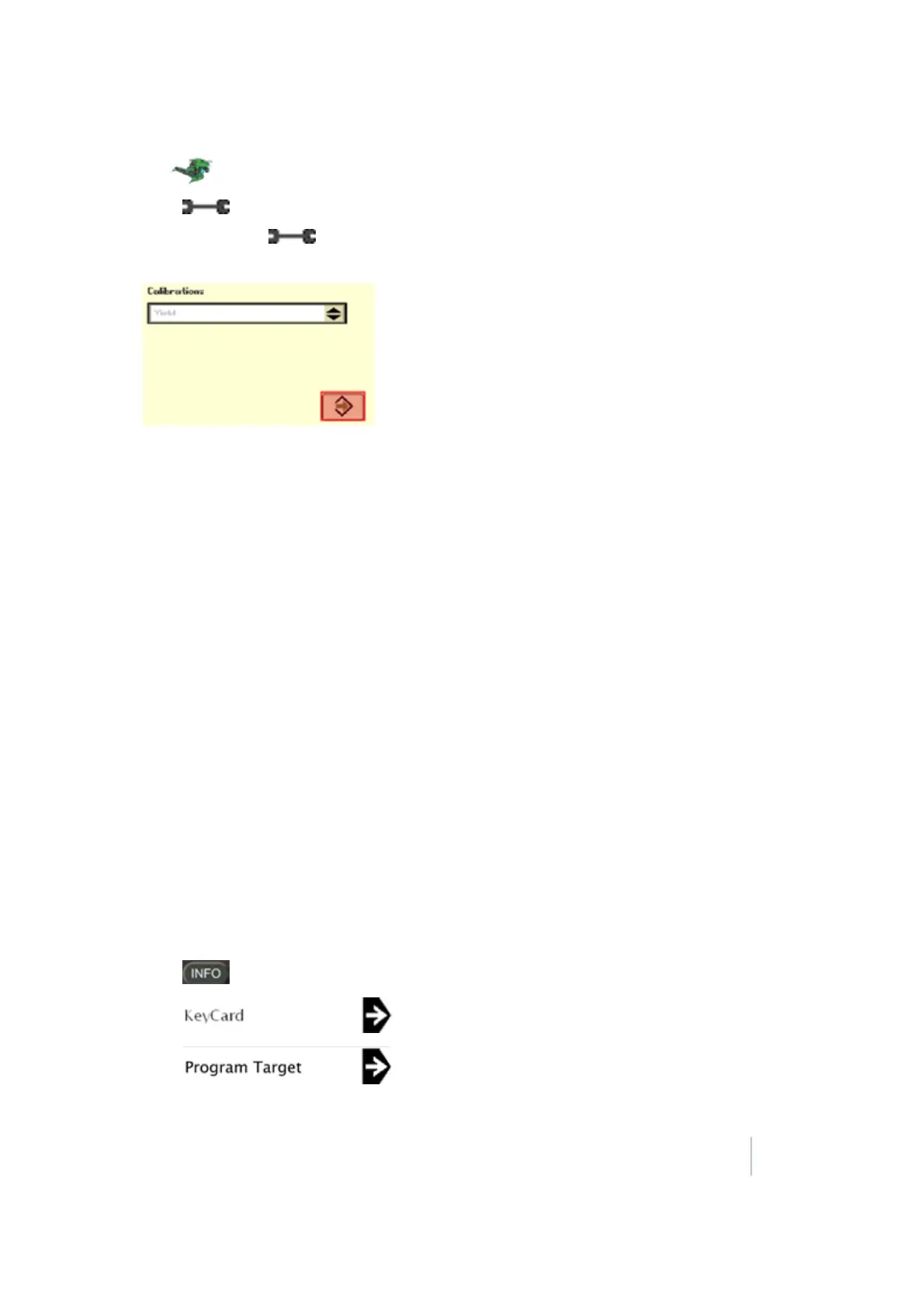
Tap .
2. Press on the Command Center.
3. Continue to press until page 2 displays (page numbers are shown on the Wrench tab).
4.
In the Calibrations list, select Yield.
5. Follow the steps to perform the calibration.
6. Highlight the arrow and press the Confirm switch on the armrest.
Update the Moisture Sensor (60 Series combines only)
Obtain version 1.20C from Stellar Support
1. Go to www.stellarsupport.com.
2. Tap Support & Downloads in the left column.
3. Tap Greenstar System update from the Software Downloads column.
4. Select the green box labeled Download GSD4 Software.
5. Tap Run in the file download security warning.
6. After the download is complete, choose the preferred language and press OK.
7. Follow the Greenstar Update Wizard to load the firmware to the keycard for the original
Greenstar monitor.
Load version 1.20C to the Moisture Sensor
1. Insert the updated keycard into the mobile processor that is hooked to the Greenstar display
(it does not matter which slot the keycard is inserted in on the mobile processor).
2. Power on the Greenstar monitor.
3.
Press .
4.
Tap .
5.
Tap .
Version 9.25, Revision B FM-1000 Integrated Display User Guide 341



 To Next Page